Reporting Tools Usage

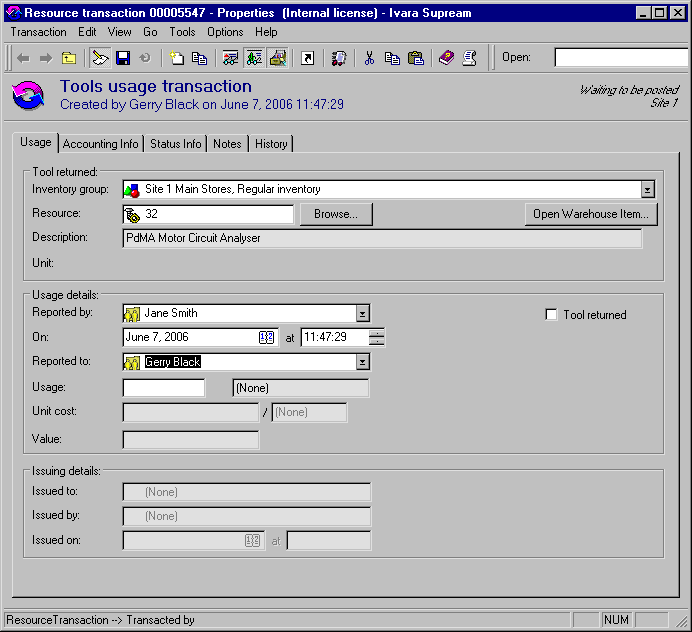
You can use the tool usage transaction to record the usage and return of a tool for a job. A separate usage transaction can be entered for each work order task that used the equipment. Or, multiple usage transactions can be entered for the same equipment receipt, rental purchase order line. A work order or asset is charged for the use of the tool.
The work order task report activity and close dialogs display the following information about the tools used on a work order:

To Report Tool Usage Activity

1.
On the site window, select the Work Management view, Work Orders tab, and then the Work Orders tab.
2.
3.
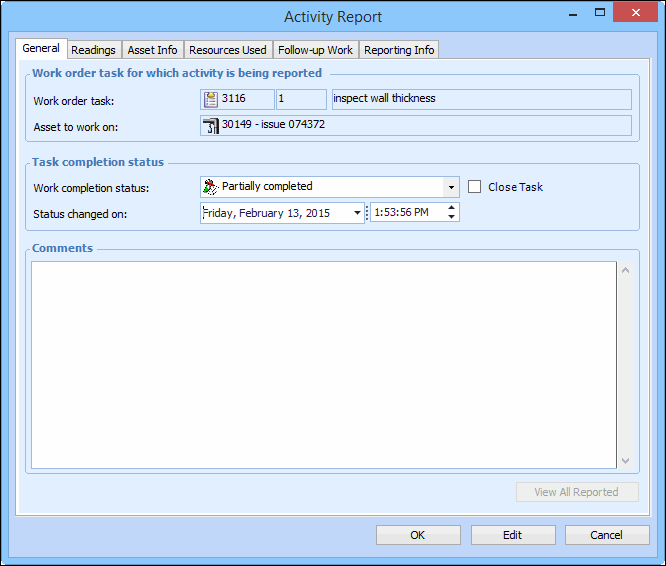
Click Report Activity. The Activity Report dialog appears. For example:
4.
Select the Resources Used tab, and then the Tools tab. This tab lists the planned tools usage for the task.
5.
6.
Enter the resource number for the tool, or click Browse to search for the resource.
7.
In the Charging Info section, you can edit the charging information for the transaction:
If charging to a Work order, click the browse icon. Select the work order in the selector dialog and click OK. You can select a task on the work order using the Task list.
If charging to an Asset, click the browse icon. Select the asset in the selector dialog and click OK.
If charging to an Account, click the browse icon. Select the account in the selector dialog and click OK. You might be able to override the selected GL account. To change the GL account, select Override the account. Click Browse, select the appropriate account, and then click OK.
8.
9.