
|
Reporting Rental Equipment Usage
To Report Rental Equipment Usage
1.
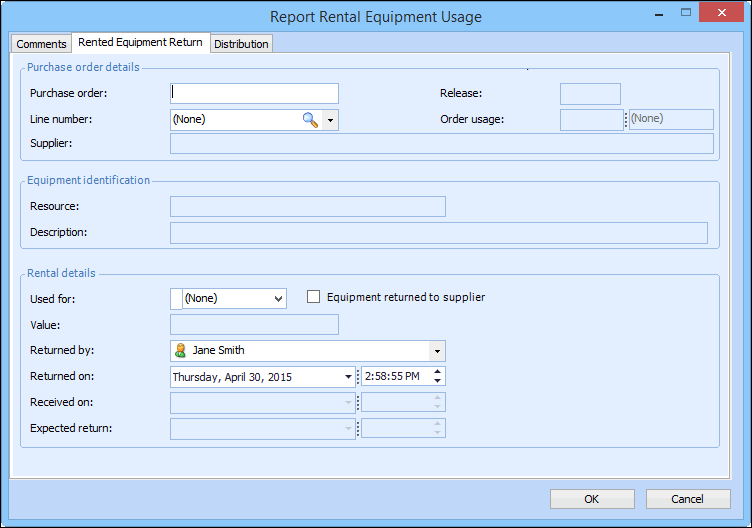
2. Double-click the rental equipment that you are returning. Or, to add a new return, click New Rental Usage. The Report Rental Equipment Usage dialog appears. For example:
3. On the Rented Equipment Return tab, enter the following information:
4. On the Comments tab, you can enter any notes for the transaction, and select whether to display the comment at invoicing time.
5. Select the Distribution tab. If necessary, you can edit the charging information for the transaction:
Select how you want to charge the item and then the work order, asset, or the account to be charged.
• If charging to a Work order, click the browse icon. Select the work order in the selector dialog and click OK. You can select a task on the work order using the Task list.
• If charging to an Asset, click the browse icon. Select the asset in the selector dialog and click OK.
• If charging to an Account, click the browse icon. Select the account in the selector dialog and click OK. You might be able to override the selected GL account. To change the GL account, select Override the account. Click Browse, select the appropriate account, and then click OK.
6. Click OK. The transaction will be posted when the activity report is processed.