Receiving Rental Equipment

This topic explains how to create a rental receipt from a work order task’s activity report.
Once you have received rental equipment from the supplier, you must create a receipt transaction. If the rental is for a specific work order, you can create the rental receipt transaction when you report activity for the work order.
No costs are posted as a result of the rental receipt. The costs are incurred when you return the equipment to the supplier.
Alternatively, you can create the receipt from the rental purchase order. This is similar to creating any receipt transaction.

To Receive Rental Equipment

1.
On the Activity Report dialog select the Resources Used tab, and then the Rentals tab.
2.
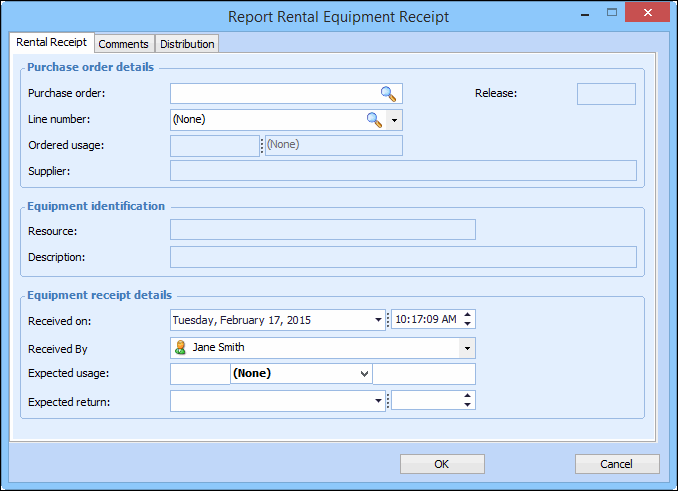
Double-click on the rental equipment that you are receiving, or click New Rental Receipt to create a new rental receipt. The Report Rental Equipment Receipt dialog appears. For example:
3.
On the Rental Receipt tab, enter the following information:
4.
5.
Click OK to save your changes and close the Report Rental Equipment Receipt dialog. The transaction will be posted when the activity report is processed.