Evaluating a Calculation

You can test and evaluate triggered and asset degradation calculations. Selecting the Evaluate (test) method tests the calculation for syntax errors and generates a what-if test result for the selected object’s attribute. Testing a calculation does not actually apply the result to the object’s attribute. In contrast, the Evaluate method applies the calculation to an attribute of a class and updates the attribute with the calculated value.
Evaluate (test) can be applied to both inactive and active calculations. The Evaluate method can only be applied to active calculations.
Test calculations and actual calculations are displayed on the calculation’s Results view.
Note that if you want to delete a calculation, you must also delete its test calculations first.
This topic describes how to test and evaluate a triggered or asset degradation calculation and to view its results. To test an asset health calculation, see Testing an Asset Health Calculation.

To Test a Calculation

1.
2.
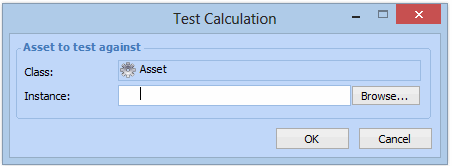
Select Tools, then Evaluate (Test Mode). The Test Calculation dialog appears. For example:
Note: You can also test a calculation from the calculation’s Results view, by clicking the Evaluate Calculation, then selecting Test Result.
3.
Click Browse. The object’s Selector dialog appears.
4.
Double-click the object for which you want to test the calculation and click OK. The Calculation Result dialog appears, displaying details of the result of the calculation.
5.
When you are finished viewing the test result, click Close to return to the Calculation window.
6.
To view all test and actual calculations, select the Results view. All historical results for the calculation are displayed in the list.
7.
8.

To Evaluate a Calculation

9.
10.
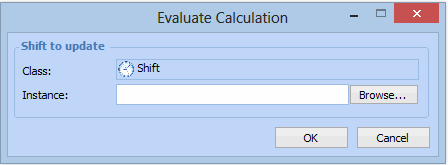
Select Tools, then Evaluate. The Evaluate Calculation dialog appears. For example:
Note: You can also evaluate a calculation from the calculation’s Results view, by clicking the Evaluate Calculation, and then selecting Actual Result.
11.
Click Browse. The object’s Selector dialog appears.
12.
Double-click the object for which you want to test the calculation and click OK. The Calculation Result dialog appears, displaying details of the result of the calculation.
13.
When you are finished viewing the calculation result, click Close to return to the Calculation window.
14.
To view all test and actual calculations, select the Results view. All historical results for the calculation are displayed in the list.
15.
16.