Suppliers, Supplier Resources, and Prices Overview

Your organization can use the APM procurement system to purchase materials, tools, and services from outside suppliers. This topic provides an overview of suppliers, resources and prices, and how they are used in APM.

Definitions

Suppliers

A supplier is an organization from which you purchase or rent goods and/or services.
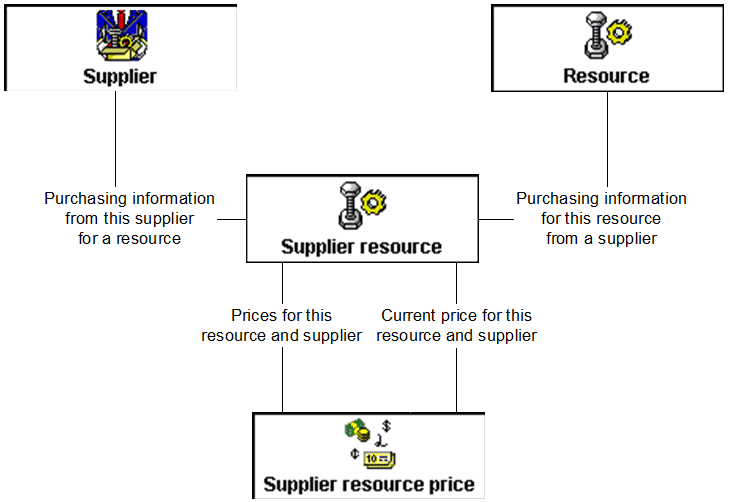
You can record and track suppliers in APM using supplier records. The supplier record can include the payment and shipping terms you have agreed to with that supplier, as well as links identifying their resources and prices. When you need to purchase an item, the system will provide the list of suppliers who carry the resource, and will prompt the supplier’s current price.

Supplier Resources

A supplier resource is a record of the ordering and pricing information of an item available from a supplier. You can create multiple supplier resources for any resource in the resource catalog to define ordering and pricing information for different suppliers or at different sites.

Prices

Each supplier resource can contain multiple prices so that you can record in advance pricing changes, special prices, or different pricing, ordering, and manufacturer variables for a resource.
The supplier resource price contains most of the information associated with the supply of a resource from a supplier. When you create a new supplier resource, you are entering the information for the resource and for the supplier’s current price. After the supplier resource has been created, you can add more prices.
You can create both regular and special prices for a supplier resource:
Regular price: identifies a price that is generally available for use.
Special price: identifies a price that is not generally available for use. A special price is typically associated with a special set of terms and conditions, lead-time, or supplier promotion. APM never prompts a special price as the expected price for a resource demand or PO line. Special prices are only used when specifically selected by a user.
TOP

Supplier Purchasing Types

On each supplier, you can identify the types of procurement activities the supplier is approved for:
Ordering supplier: The supplier is authorized for all purchasing activities (requisitions, purchase orders, and RFQs).
Bidder: The supplier is only authorized to bid on requests for quotation (RFQs). You can only place a purchase order to a bidder-type supplier if you also send the purchase order for approval through an appropriate procurement approval route.
Non-ordering supplier: The supplier is not authorized for purchasing activities. The supplier cannot be included on a RFQ or have a purchase order placed with them. Non-ordering suppliers are typically payment vendors in your financial system.
The system keeps a record of all changes to a supplier’s purchasing type. The history record records the supplier’s new purchasing type, when the change was made and who made the change.
TOP

Payment Supplier Identification

You can identify where payment for a supplier’s invoices is to be sent. In the supplier’s properties, you can specify one of the following:

Supplier Hierarchy

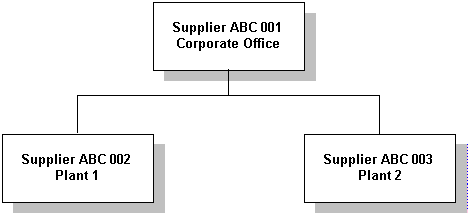
The supplier hierarchy allows you to organize suppliers based on the supplier’s corporate structure. The main use for this feature is to allow you to identify separate invoicing and ordering suppliers for the same order. A supplier is allowed to invoice the transactions associated with their own orders and the orders of their descendants.
Using the example hierarchy shown above:
The supplier hierarchy can have an unlimited number of levels and suppliers, although typically it will only have a few levels and a small number of suppliers per hierarchy. For most suppliers, you will not need to create a supplier hierarchy because you are only dealing with the single supplier location.
Using the supplier hierarchy, you can also view items such as purchase orders that were ordered from a supplier or any of its descendants.

Supplier Hierarchy and Currencies

The suppliers in a hierarchy can have different currencies. For example, the supplier’s head office may be in the USA, while some of the plants are in Canada. However, this does not allow a purchase order to be invoiced in a different currency than the ordering supplier’s currency. The invoice and purchase order currency must be the same.
This means that the invoicing supplier must use the same currency as the ordering supplier.

Limitations to the Use of the Supplier Hierarchy

The supplier hierarchy can only be used for invoicing and to view objects related to suppliers. Other supplier functions, such as supplier resources and prices, contracts, purchase orders, and supplier status are only applicable to individual suppliers. For example, you cannot create a price for a parent supplier and use it for a child supplier.

Supplier Status

Suppliers have two possible statuses: active and inactive. Active suppliers are available for use on all of the purchasing documents allowed by their purchasing type. For example, an active bidder type supplier can be used on a request for quotation (RFQ). An active ordering supplier can be used on RFQs and purchase orders.
Inactive suppliers are not available for use. If a user attempts to use an inactive supplier the system displays an error message that the supplier is inactive and cannot be used. Inactivating a supplier prohibits the supplier from being used in the following places:
Supplier Resources and Prices: a warning is issued if a inactive supplier is referenced on a supplier resource.
Resource Demands: inactive suppliers may not be selected as the preferred supplier on a resource demand or as the buyer's selected supplier. When you inactivate a supplier, if the supplier was selected as the preferred supplier on any open purchase demands, the preferred supplier selection on the demands will be cleared.
Purchase Orders: new purchase orders or purchase order lines cannot be created for an inactive supplier. Existing purchase orders can have their life cycles completed (e.g. if the supplier has an open PO at the time that it is made inactive, the PO lines can be received)
Blanket Orders: new blanket orders or lines cannot be created for an inactive supplier
Blanket Releases: new releases cannot be created for an inactive supplier nor can new lines be added to an existing release.
Requests for Quotation: inactive suppliers cannot be included on a RFQ
Purchasing Contracts: new purchasing contracts cannot be created for an inactive supplier.
Consignment Inventory: an inactive supplier cannot be defined as the consigning supplier for a resource. Consignment inventory cannot be issued if the consigning supplier is inactive.
When activating or inactivating a supplier you can select a reason for the inactivation or re-activation. A complete history of the supplier's status changes, along with the date of the change and the user making the change is saved on the supplier record.
TOP

Supplier Selection Rules

Any time that a purchase-type resource demand is created (on a work order or purchase order), the system selects a default supplier to fulfill the demand. You can specify the criteria that the system uses when selecting a supplier. The available criteria are:
Preferred Supplier: you can select which supplier is the preferred supplier for any resource. If there are multiple preferred suppliers for a resource at a site, the system selects the supplier with a current price that has the latest (most recent) effective date.
Price: the supplier with the lowest price is suggested.
Lead Time: the supplier with the shortest lead-time is suggested.
Order History: the supplier the resource was last ordered from is suggested.
You can also select the order of importance of the criteria. For example, the criteria selected for use might be ordered as:
1.
2.
3.
4.
Using this list of criteria, when a demand is placed for the resource the first thing the system checks for is the existence of a preferred supplier. If a preferred supplier exists, it is selected.
If a preferred supplier does not exist, the system checks to see with which supplier the previous order was placed. This supplier is selected.
If this is the first time the resource is being ordered, the system checks the suppliers and selects the one with the lowest price.
If there is a tie for lowest price, the supplier with the shortest lead-time is selected.
If criteria order were changed to the following, the selection logic would change accordingly:
1.
2.
3.
4.
This time the first thing checked is the suppliers’ prices. If there is a tie, the suppliers’ lead-times are checked. Again, in the event of a tie, the ordering history is checked. Finally, if this the first order for the resource, the preferred supplier status is used.
You can define the supplier selection rules on each resource. To simplify the maintenance of this information, a default set of rules are also available on each site. You can set a resource to either use the site settings or define the selection rules directly on the resource.
TOP

Supplier Resources in a Multi-Site Environment

In a multi-site environment, the site where a supplier resource is defined controls which suppliers are available for a particular purchase. The system uses the following rules to control the supplier resources available for a particular demand or P.O. line:
Only supplier resources for active, ordering suppliers are considered. A bidder-type supplier may be manually selected but is not defaulted by the system.
Only supplier resources for the demand’s type of purchase are considered. For example, if the demand is for a repair order, only repair order supplier resources are considered.
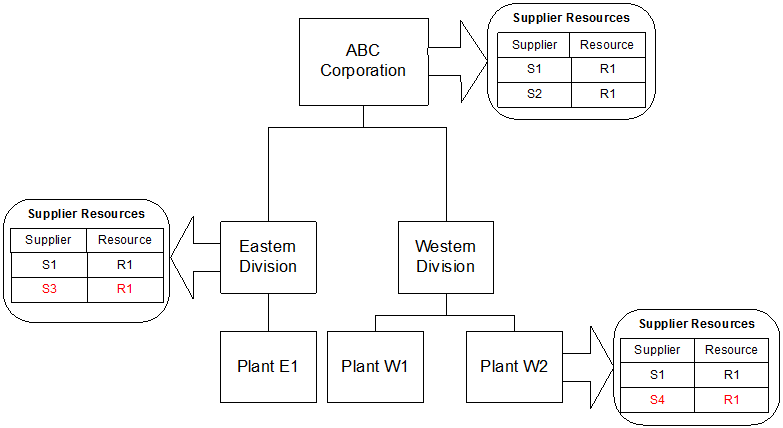
The following example will help to explain this process. The site hierarchy and supplier-resources in the illustration below are used in the examples.
As shown in the drawing, different sets of supplier resources have been defined at three of the sites. Suppliers S1 and S2 have supplier resources defined at the corporate level. The Eastern Division has one supplier resource from corporate supplier S1, and one from local supplier S3. Plant W2 in the Western Division has one supplier resource from corporate supplier S1, and one from a local supplier S4.
Here is how this information is used:

Preferred Supplier By Site and Purchase Type

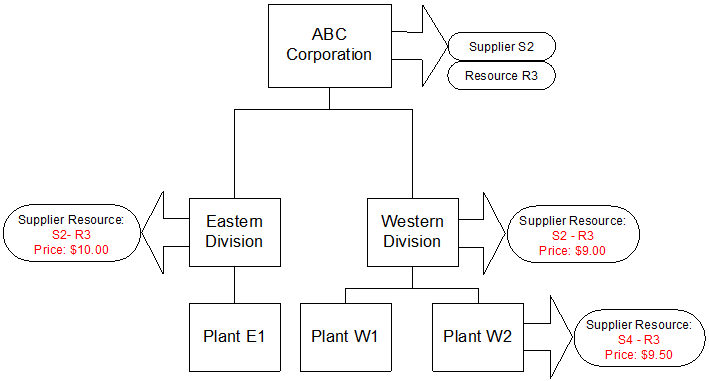
You can select the preferred supplier for a supplier resource when entering the price information for the resource. Because of this, the preferred supplier for any resource can be specific to the site and purchase type. For example, your organization could have:
Only regular prices can be designated to be used for a preferred supplier. Special prices cannot be marked as a resource’s preferred price.
Supplier resource structure in a multi-site environment:
TOP

Understanding How the System Sets the Current Price

Supplier resource prices are date-sensitive: effective and expiry dates are associated with each price. The system updates the current price on a supplier resource whenever a price is created, modified, or destroyed; when a price is activated or the current price is inactivated; and when a new price becomes effective. The current price is based on the price’s effective period (effective and expiry dates) and is determined as follows:
Note: Only regular and contract prices are considered for use as the supplier resource’s current price. Special prices are not considered.
As one price expires it is typically replaced by a new price. This affects the following information:
The resource's preferred supplier: When the resource’s current preferred supplier price expires, the system replaces it with the new preferred supplier and price. The system uses the supplier selection rules (for the site or resource) to identify the preferred supplier and it’s current price. If a new preferred supplier does not exist, the resource’s preferred supplier information is cleared.
Current price for a supplier resource: Each supplier resource has a reference to a “current price”. When the current price expires, the system changes this reference to the replacement price.
Consignment inventory value: When a new consignment price goes into effect the value of any existing consignment inventory is updated to reflect the supplier’s new prices.
In order to update your supplier resources and prices, you must use the site method Evaluate Supplier Prices. Your system administrator will need to use the Scheduled Actions view (on Enterprise) to schedule the method to run once a day. This will ensure that your supplier resources and prices are always up to date.
You can also run the method manually from the site’s Tools menu.
TOP

Applying Supplier and Price Selection Rules

This section provides some examples that illustrate how the supplier selection rules and the price evaluation method work together to provide default suppliers and prices on resource demands.
The examples that follow use the suppliers, supplier resources, and regular prices shown in the tables below.
This table lists the suppliers of the resource:
This table lists the prices entered for each supplier:
For the purposes of these examples the organization is using a single-site environment; therefore all of the prices have been defined at the same site as the resource demand.

Excluding Prices From Selection

In the example, a resource demand has been placed on May 15th. Based on this information, the system has excluded the following supplier resources from the price selection process:
As a result of these exclusions, the supplier resources that are available for selection are shown below - the excluded supplier resources have been struck out.

Best Price Selection

In this example, the resource's supplier selection rules have been defined as follows:
Based on the available prices listed in the previous table, the system suggests price number 4 for the resource demand (supplier S2 price of $9.50). Of the three possible prices, this is the lowest price.

Preferred Supplier Selection

In this example, the resource's supplier selection rules have been defined as follows:
Based on the available prices listed in Table 3, the system suggests price number 5 for the resource demand (supplier S3 price of $10.10). Supplier S1 and S3 are both marked as preferred and have an expiry date of Dec. 31. However, supplier S3's price is selected since its effective date of May 1 is later than supplier S1’s effective date of Jan. 1. When 2 suppliers are both marked as being preferred, the one with the later effective date is used.
If none of the supplier resources had been marked as preferred, supplier S3 would still have been selected, since the 2nd criterion being used is lead-time. In this case, supplier S3 has the shortest lead and therefore would have been selected.

Ordering History

In this example, the resource has been set to use the site's selection criteria. The site's rules are defined so that ordering history is the first criteria:
Here are the prices used in this example:
Price number 1 has an effective period of January 1 to March 31 and happens to be the last supplier resource used on a purchase order. Price number 3 from supplier S2 was last used on an order on February 1.
When ordering history is used, the system selects the supplier from which the resource was last ordered, but not necessarily the same supplier resource that was used on the purchase order.
In this case, the system selects price number 2 (supplier S1 price of $10.00). This is because supplier S1 was the last supplier from which the resource was ordered. Therefore supplier S1's current price (price number 2) is suggested for the resource demand.
TOP

Manufacturers

A manufacturer is an organization that produces the assets or materials you have purchased.
You can record and track manufacturers in APM using manufacturer records. The manufacturer record includes the name and contact information for the manufacturer. You can also record any warranties offered by the manufacturer. You can link a manufacturer record to assets, suppliers, or resources in the resource catalog.
Defining your manufacturers is a setup function. You will create the initial list of manufacturers as part of your APM setup tasks. You can add new manufacturers to the list as required.
TOP

Warranties

You can add warranty information whenever you purchase warrantied services or equipment. A warranty can be added for either the supplier or the manufacturer of the item, or the warranty can be linked to both a supplier and a manufacturer.
You can enter warranties based on time, units (for example, kilometers), or both. When you check the warranties for an asset, the system displays only warranties that are currently valid. For example, if the asset has a warranty for six months but the warranty has expired, APM does not display that warranty.
If a warranty is based on units, the units entered on the warranty should be in the same unit of measure category as the asset’s primary cumulative indicator. For example, if a truck has a warranty for 100,000 kilometers, the truck’s primary indicator should be an odometer-type indicator measured in miles, kilometers, or any length unit of measure. This way, the system can check whether or not the warranty is still valid.
TOP