Working with Standard Task Due Dates

When setting up a standard task, you can enable due-date calculation based on either the task’s indicators or its frequency. You can also defer the task’s calculated due date. In that case, the date is classified as “pending” and must be manually accepted.
The Standard Task window’s Inspections view provides additional actions. As well as accepting a pending due date, you can manually override the due date. You can propose due dates, which can then be accepted or rejected by another user. You can also manually override the task’s last done on date, which might update the next due on date.
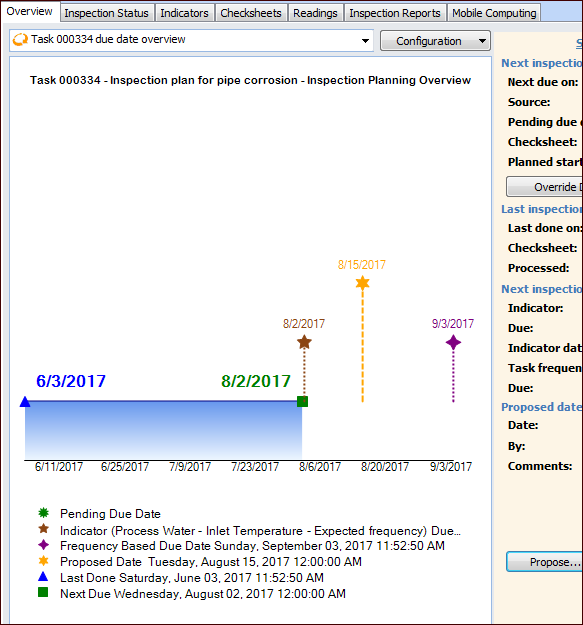
APM presents information on the Overview and Inspection Status tabs. The Overview tab provides a chart showing the time line between the date of the most recently processed checksheet and the due date for the next inspection. Next inspection inputs are represented, including the indicator’s next collection date, task frequency, pending, and proposed due dates. The tab also offers the inspection history configuration, which displays a graph charting processed and open planned checksheets.
You can monitor a standard task’s last and next inspections, see due date inputs, and view due date audit history. The Indicators tab also provides detailed information.
This topic explains the features available in the Inspections view. It explains how:
For information about setting due-date calculation options, see Setting Inspection Options for a Standard Task.

To View the Task’s Past and Future Inspections

In the Standard Task window, select the Inspections view and the Overview tab. For example:
The chart shows the time line between the date of the most recently processed checksheet and the due date for the next inspection. Next inspection inputs are represented, including the indicator’s next collection date, task frequency, pending, and proposed due dates.
The information panel on the right displays this information and allows you to view due-date audit history, override the due date, propose a due date, and accept or reject a proposed due date.
You can select the inspection history configuration to view line charts of the task’s processed checksheets and open and planned checksheets.

To Track Last and Next Checksheets for a Task

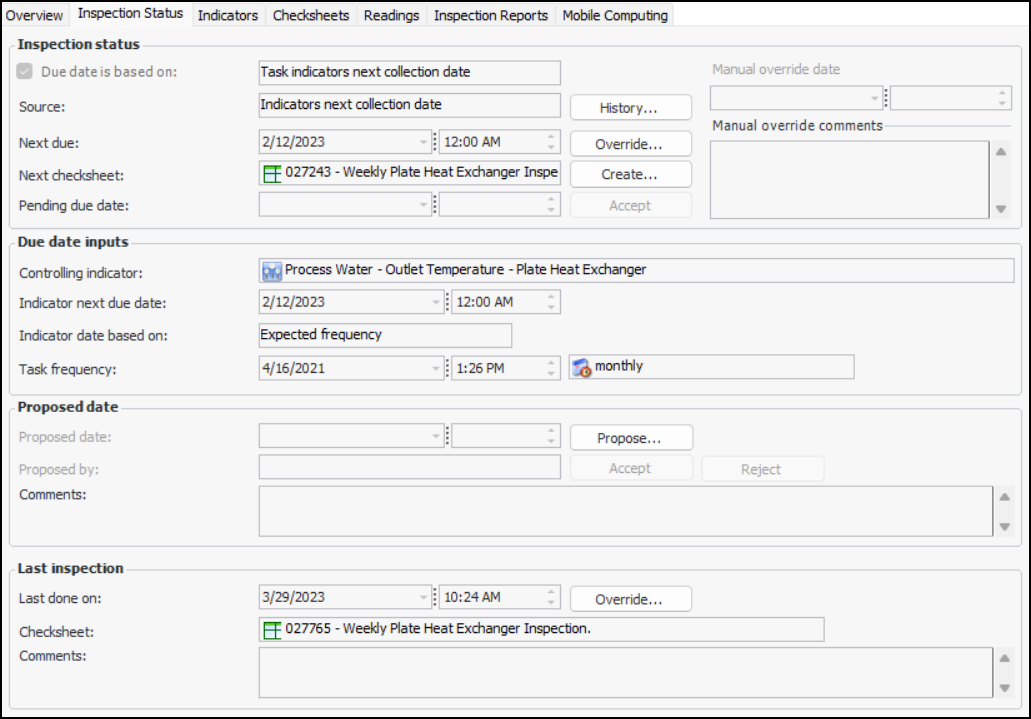
In the Standard Task window, select the Inspections view and the Inspection Status tab. For example:
The Next checksheet box displays the checksheet number. You can also start a new checksheet by clicking Create.
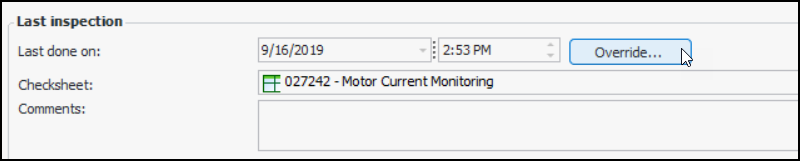
The Last inspection area shows the most recent date and time when a checksheet was processed, as well as the checksheet number.
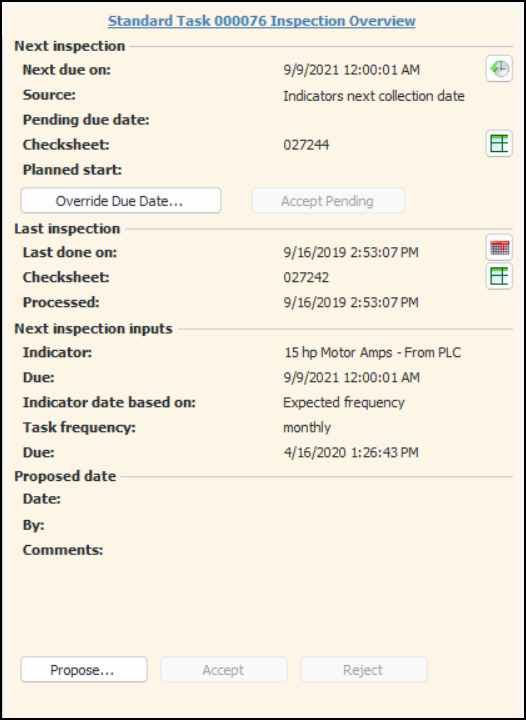
On the Overview tab, the information panel also displays this information. For example:
You can click:

To Accept a Deferred Due Date

1.
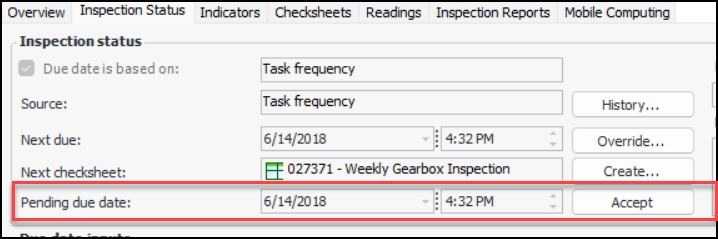
In the Standard Task window, select the Inspections view and the Inspection Status tab. For example:
2.
Click Accept. A message appears to confirm that you are setting the task’s due date to the pending date.
Tip: You can also click Accept Pending on the Overview tab.
3.
Click Yes to populate the Next due boxes with the date and time.

To Manually Override a Due Date

1.
In the Standard Task window, select the Inspections view and the Inspection Status tab.
2.
Click Override.
Tip: You can also click Override Due Date on the Overview tab.
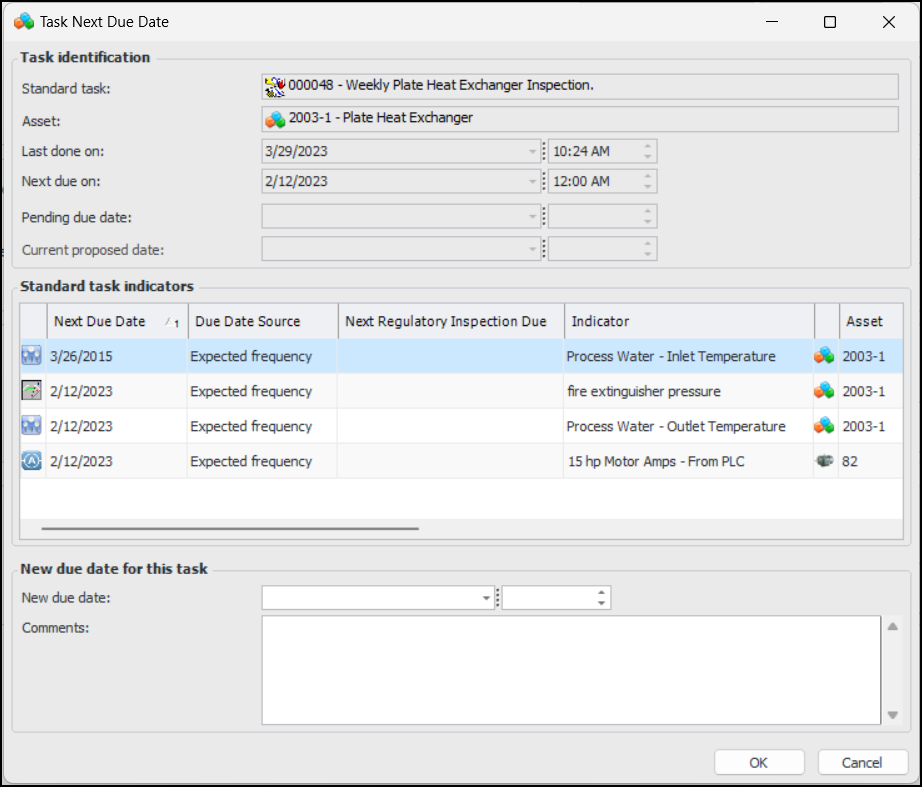
The Task Next Due Date dialog presents information about the standard task, including its indicators and their collection information. For example:
3.
4.
Click OK. The next due date changes accordingly.
Note: We recommend using security profiles to control access to the override feature.

To Propose a Due Date

1.
In the Standard Task window, select the Inspections view and the Inspection Status tab.
2.
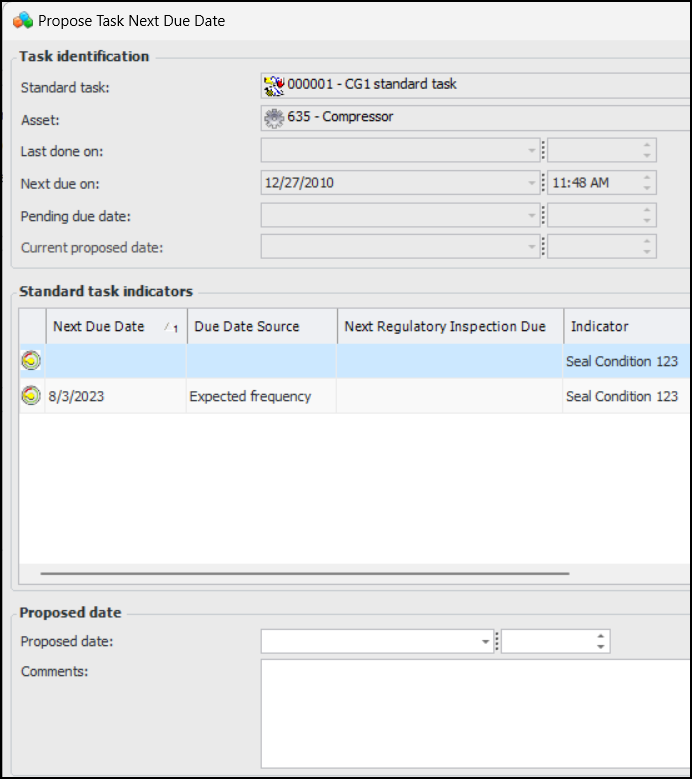
Click Propose. The Propose Task Next Due Date dialog displays information about the standard task, including its indicators and their collection information.
3.
4.
Click OK. The Proposed date area is updated. For example:

To Accept a Proposed Date

1.
Click Accept. A message appears to confirm the change.
2.
Click Yes. The Next due boxes are populated with the new date. The Proposed date area is cleared.

To Reject a Proposed Date

Click Reject. The Proposed date area is cleared.

To Override the Last Done On Date

1.
In the Standard Task window, select the Inspections view and the Inspection Status tab.
2.
In the Last inspection area, click Override.
Tip: You can also click on the Overview tab.
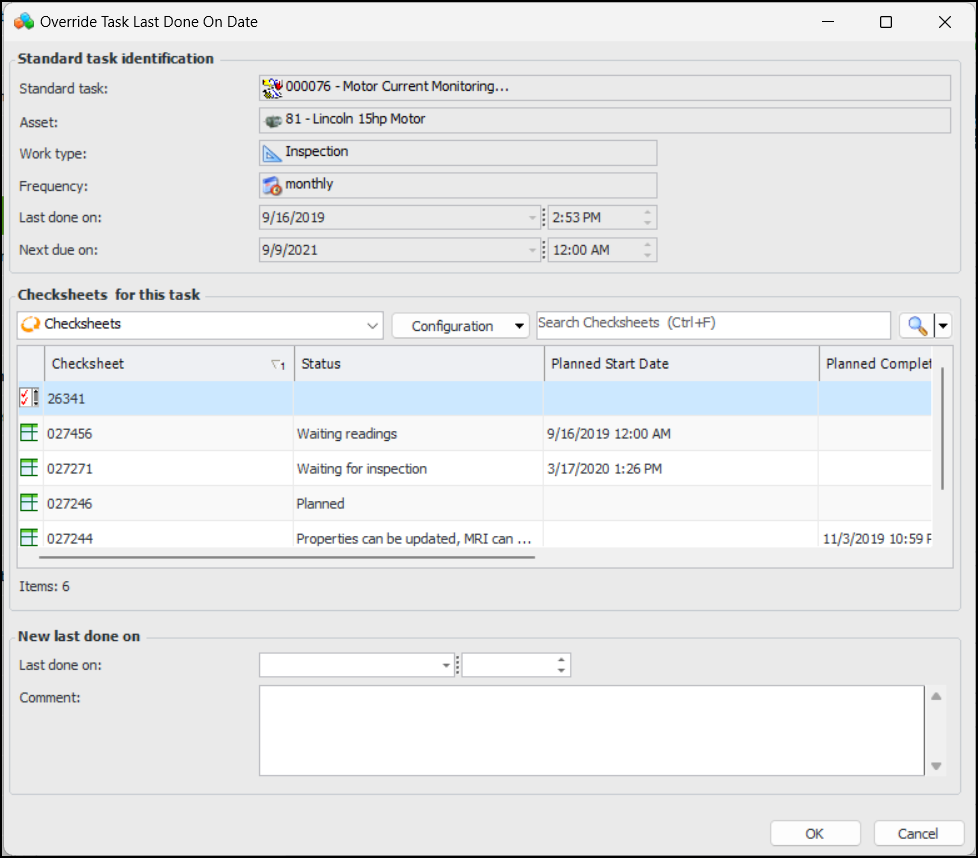
The Override Task Last Done On Date dialog appears:
The dialog shows information about the standard task and its checksheets.
3.
4.
Click OK. The dialog closes, the last done on date changes, and the next due date is recalculated, if appropriate.
Tip: You can select two or more standard tasks in a table, right-click, click Dates, and then Override Last Done On Date. The Override Task Done On Date dialog shows information about the first task. The new last done on date and comments you enter are copied to all of the selected tasks. Each task’s next due on date is recalculated appropriately.

To View Due Date Audit History

1.
On the Inspection Status tab, click History
On the Overview tab, click
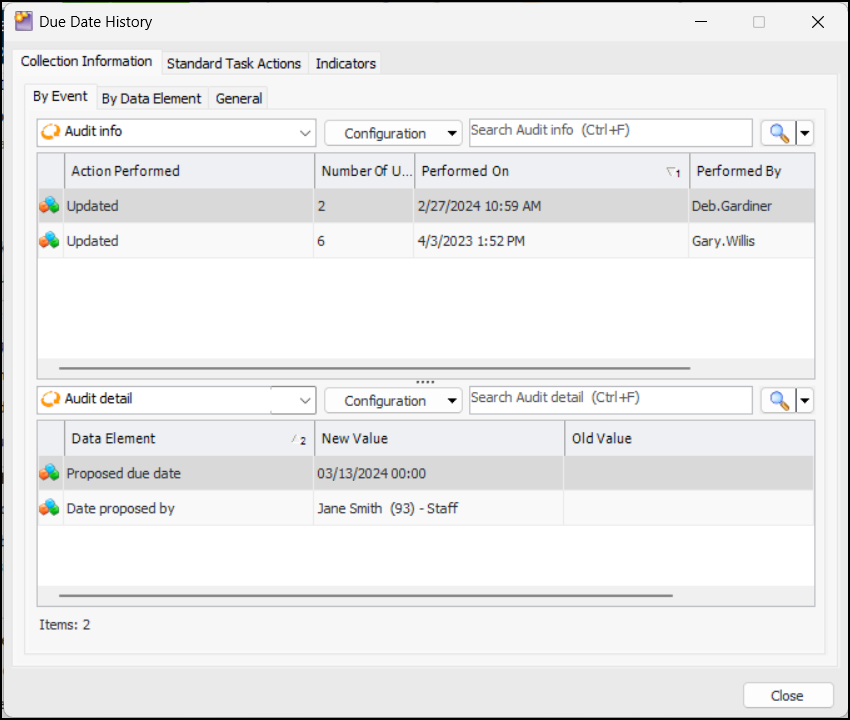
The Due Date History dialog appears. For example:
This dialog displays information about collection options, standard task actions, and indicators. Note that comments entered on overrides and proposals are recorded.
2.
Click Close.

To View Detailed Information about Indicators

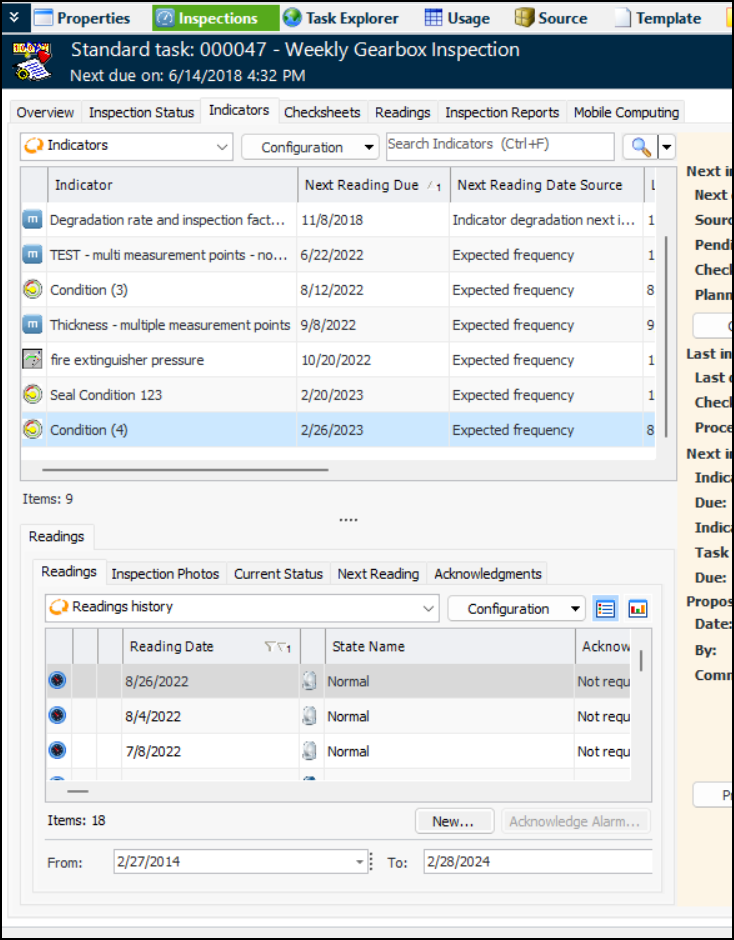
In the Standard Task window, select the Inspections view and the Indicators tab. This tab provides detailed information about individual indicators, including readings and status. Select an indicator in the top table to view its details below. For example:
The information panel on the right shows the task’s inspection overview. For degradation indicators, the rate analysis, degradation dashboard, and readings are displayed.