|
|


Setting Smart Mapping Defaults for Failure Mode Copying
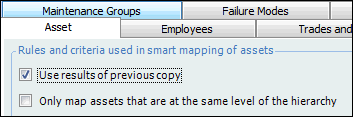
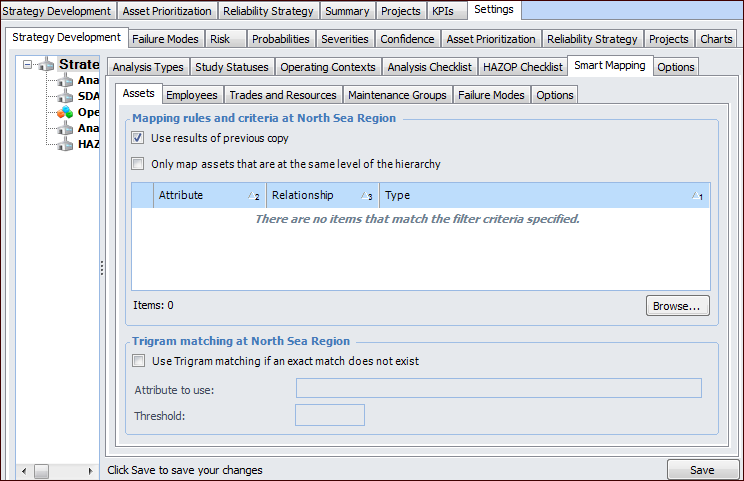
The copy function for failure modes includes smart asset mapping, which uses information about the source assets to identify matching assets in the target asset structure. Using the Copy Failure Modes wizard, you can select source and target asset structures, the failure modes to copy, and the criteria for identifying target assets. You can then confirm or change the matches that the system suggests. When you click Process, the wizard performs the copy and reports the results.You can define smart mapping settings at the site level to provide default values in the Copy Failure Mode wizard. When a copy request is initiated, the site-level settings are copied to the wizard. For example, if you select the Use results of previous copy option for assets, the Options dialog in the wizard shows the option selected by default:To Set Smart Mapping Defaults
Use Results of Previous Copy
When a failure mode copy is performed, the asset mappings are saved by the system. When Use results of previous copy is selected, the next time a copy is performed for the same asset structures, the system retrieves the saved asset combinations and reuses them. If more than one match is found, the most recent of the previous mappings is used.
Partial Structure Copies
Only Map Assets at the Same Level of the Hierarchy
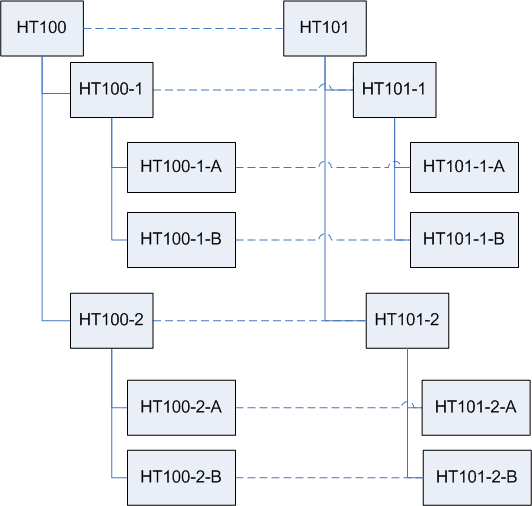
When this option is selected on the Asset tab, APM limits the suggested mappings to assets that are at the same relative level in their hierarchy structure as the source asset. The mapping starts with the starting asset in the source asset structure and the starting asset in the target asset structure. The first-level assets are mapped, then the second-level descendants, and so on. The mappings can also involve ancestors of the starting assets. As with descendants, first-level source ancestors are mapped to first-level target ancestors, and so on up the hierarchy.Properties Used in Smart Mapping
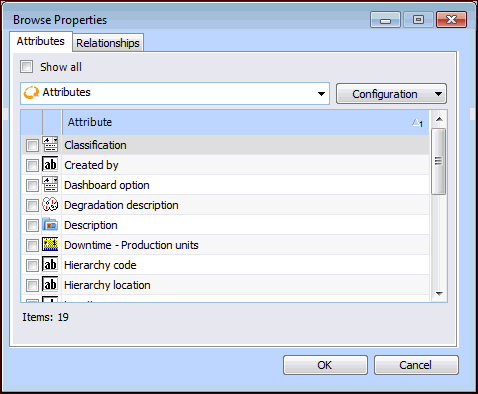
To Add Properties to Use in Smart Mapping
Trigram Matching
Select Use Trigram matching if the string attributes that you selected for smart mapping might not match the target values exactly. Trigram searching is useful for identifying the closest match when the exact syntax or spelling of the target object is not precisely known.To Use Trigram Matching
Reviewing the Results of Trigram Matching
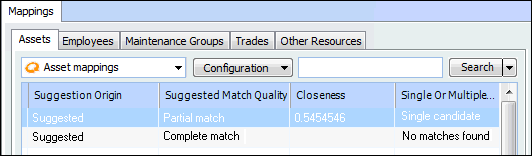
You can see the results of Trigram matching when you are reviewing suggested mappings in the Copy Failure Modes wizard. The Asset mappings table includes the following columns. You can also double-click a mapping to view its properties.