|
Creating an APM User ID
• End-user: This is the basic privilege for all users. Users can do everything in APM except customize the software, create custom reports, create customer-level table configurations, create purging rules, and use the Security Setup mode.
• Administrator: This privilege is used by APM administrators and personnel who need to customize the software, create custom reports, activate CMMS integration, or set up and assign security profiles. Users with this privilege can perform Customer-level customizations, create shareable table configurations, work with purging rules, and use the Security Setup mode.When Windows authentication is in use, you can enter the domain name for the user and click the Validate button to confirm the domain. If you leave the domain name blank, the software will attempt to select the correct domain when the user logs on.To Create an APM User ID
1.
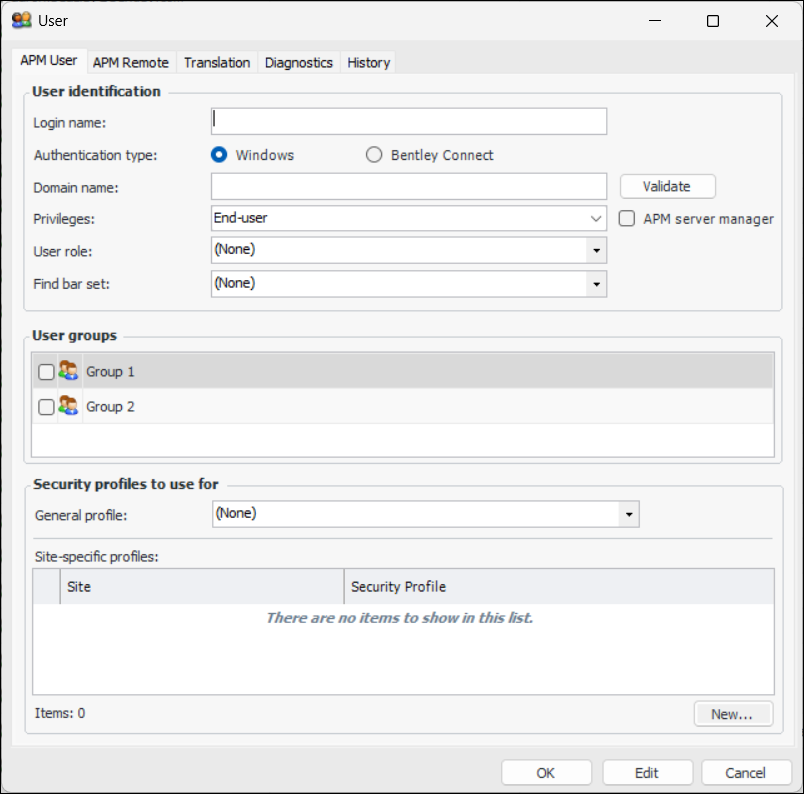
2. Click New. The User dialog appears.
3. Enter the login name. This name must be the same as the user’s Windows login name or Bentley CONNECT login name (username@domain.com).
4.
6. In the Privileges box, “End-user” is selected by default. If you are adding a user who needs to create and assign security profiles, create table configurations, or customize the software, select “Administrator” from the list.
7. Note: For information about assigning user roles for APM workflows, see Assigning Roles to APM Users.
9. If you have multiple sites set up for your organization, you can provide a user with more (or less) access to objects on other sites by assigning site-specific security profiles. Click New, select the site name and the profile name, and click OK.Tip: You can select the History tab to view audit information about the user ID.