Editing Properties for the Top Site

Once you have defined your site types in APM, you are ready to set up the top site in your site hierarchy.
APM comes pre-configured with one Install Site. For APM to work correctly, the Install Site needs to be the top site in your site hierarchy. You can change its name to represent your head office or the name of your organization if you have only one location/site. This topic explains how to edit the properties of the Install Site.
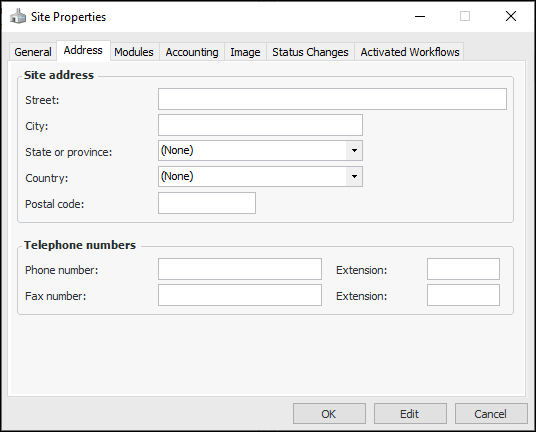
Note: In order for taxes to be computed correctly on purchase orders, the applicable locality, state or province, and country must be set for each site.
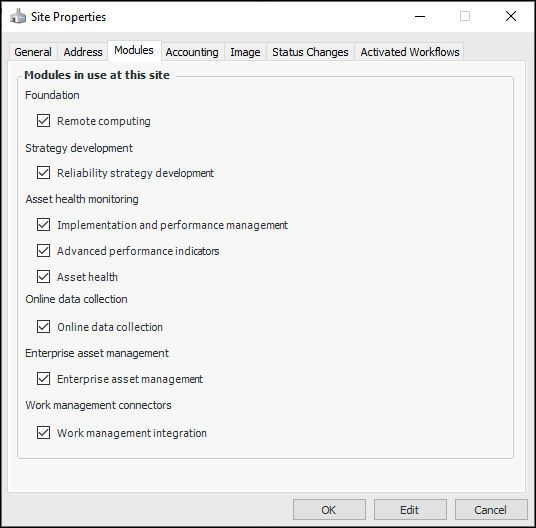
The top site should have all of the licensed application modules activated to ensure that lower-level sites have access to value lists owned at the top site.

Select the Install Site

1.
In the Enterprise window, select the Sites view, Site Hierarchy tab.
2.
Right-click the Install Site and click Site Properties. The Site Properties dialog appears.
3.
Click Edit to open the dialog for editing.
Note: The CMMS tab is displayed if CMMS integration or interoperability is active. For information about using it, see the integration guide for the integration plugin you are using or APM Interoperability Guide for SAP Plant Maintenance.
4.
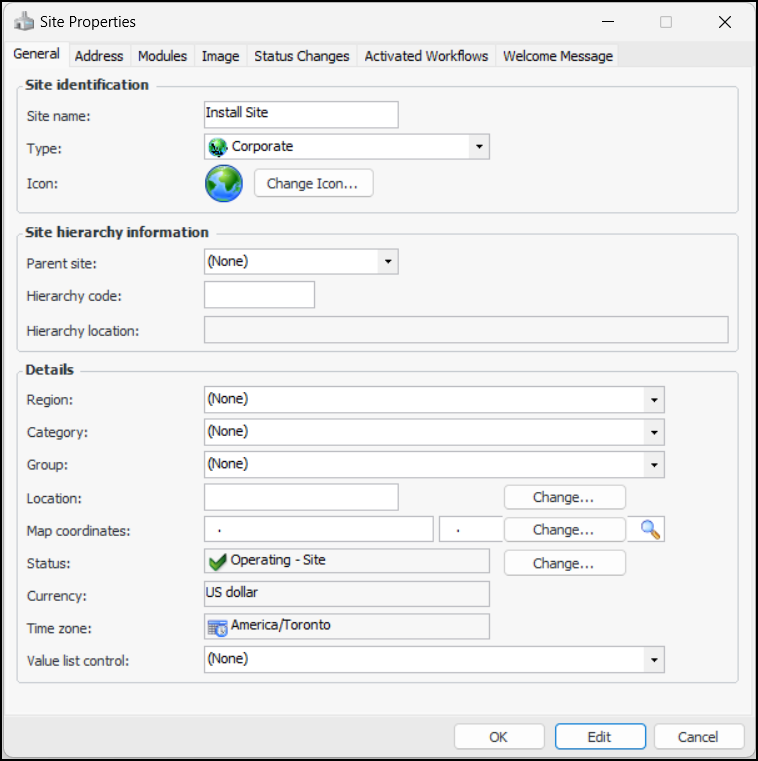
On the General tab, fill out the following:
APM constructs a full hierarchy location using the code that you enter in the Hierarchy code box joined with the hierarchy codes for its parent/ancestors. The codes are separated by a period (.). Hierarchy locations are updated whenever the asset or one of its ancestors is moved within the hierarchy (or if a hierarchy code changes).
5.
If you know the longitude and latitude of the asset’s location, enter them in the Map coordinates boxes. Otherwise, you can click the browse icon and point to the location on a map to have APM assign the coordinates. For more information, see Setting Map Coordinates.
6.
If appropriate, you can change the site currency by clicking Change. Usually you will select the currency of the country where the site is located.
The time zone at this site. By default this is the top site’s time zone. If the Time zone field is blank, APM looks up the site hierarchy to find the first site with a time zone.
7.
Select the Address tab.
8.
9.
Select the Modules tab. Select all of the available modules. This ensures that lower-level sites have access to value lists owned at the top site. For example:
10.
Select the Image tab.
Note: The Status Changes tab lists previous site status changes. This tab is for information only and does not contain any settings that you can modify.
11.