Creating Simple Schedules

This topic explains how to create a simple schedule for a maintenance group.
Simple schedules provide the basic scheduling functionality for maintenance groups that perform small, relatively straightforward jobs. Using simple schedules, you can schedule tasks for a specific date or during a specific week without having to manage multiple schedules and track availability.
With simple schedules, you do not need to create templates or a schedule hierarchy. Just assign planned work order tasks to a maintenance group and then set the planned start date or work week. You cannot specify the time when the work should be done or how long it will take, and you cannot track the availability of requirements.
In order to use simple scheduling, you must create one schedule for each maintenance group that uses simple scheduling. This schedule is used by the system to track simple schedule entries.
Note: A maintenance group that uses simple schedules must be included in the maintenance group hierarchy before you create its simple schedule. For information on adding a maintenance group to the hierarchy, please see Setting up the Maintenance Group Hierarchy.

To Create a Simple Schedule for a Maintenance Group
1.
From the Site, select the Administration menu, then select Personnel Management Settings.The Personnel Management Settings dialog appears.
2.
Select the Maintenance Groups tab, and then the Hierarchy tab.
3.
In the Top maintenance group box, select the top maintenance group for the hierarchy. The top maintenance group and its child groups appear.
4.
5.
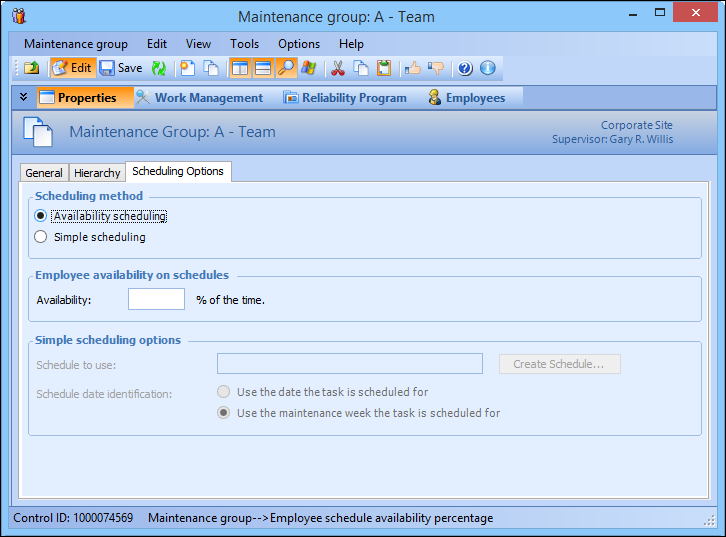
Select the Properties view, and then the Scheduling Options tab. For example:
6.
In the Scheduling method section, select Simple scheduling. The maintenance group can still use availability schedules when necessary.
7.
In the Simple scheduling options section, click Create Schedule. The Create Simple Schedule dialog appears.
8.
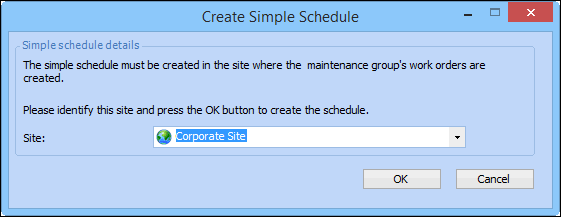
Select the Site of the maintenance group from the list, and click OK. APM creates a simple schedule for the group. The schedule name is displayed in the Schedule to use box.
9.
In the Schedule date identification section, choose whether tasks are scheduled for a specific date or for a maintenance week. When tasks are scheduled by work week, APM adds tasks to the schedule starting on the first day of the selected week.
10.
11.
Click OK to close the Personnel Management Settings dialog.