Setting up Triggering Cycles on a Job Template

You can set up standard jobs and preventive maintenance (PM) routes so that they will automatically be triggered to create work orders.
Each time the standard job or PM route is automatically triggered, you can have APM include all of the standard tasks or only some of the tasks. For example, you may want tasks A and C to be triggered every week, and task B only every four weeks. You can control which standard tasks are included on a work order using triggering cycles.
You can set up your triggering cycles on the job template. This will make the creation of standard jobs that use triggering cycles faster and easier.

To Set up Triggering Cycles on a Job Template

1.
2.
3.
Select the Properties view, Triggering Cycles tab.
4.
Select Only trigger a subset of tasks based on the cycles below. The Triggering Cycles area of the tab can now be edited.
5.
Example:
There are three standard tasks on the standard job:
Task A is done every two weeks
Task B is done every four weeks
Task C is done every 52 weeks
To calculate the total number of cycles: 52 / 2 = 26 cycles.
6.
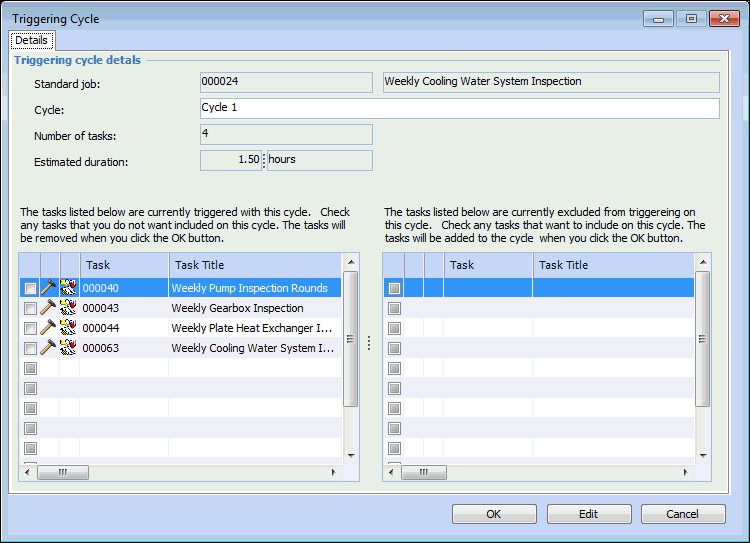
APM adds the cycles to the Cycles tab. Give each cycle a unique name to make it easier to identify which cycles trigger which tasks. To name a cycle, double-click it. In the Triggering Cycle dialog, enter the cycle name and click OK.
7.
To change the cycle that will be triggered next, select the Next Triggering tab and click Change. In the dialog, select the next triggering cycle list and click OK.
8.
Select the Tasks tab. This tab lists the triggering cycles and each cycle’s tasks.
9.
10.
11.
Repeat steps 9 and 10 for each of the remaining cycles.
Tip: You can also assign individual standard job tasks to one or more cycles. In the Standard Job window, Properties view, select the Tasks tab. Double-click a task to open the Standard Job Task dialog, where you can specify which cycles the task is to be performed on.
12.