Setting up a Site Hierarchy

If you are using multiple sites, you must select a top site and create child sites to form a site hierarchy. You can organize the hierarchy in the way that is most appropriate for your organization’s size and structure. For example, you can have a simple hierarchy with a top site and a few child sites. Or you can choose a more complex hierarchy with multiple levels. If you have only one location and maintenance organization, you can choose not to have a site hierarchy at all.
You should define your sites at the levels you use to partition your data. For example, if you want to view a cost summary of two separate operating locations, define a higher-level site in which to capture the consolidated costs. If you wish to share certain objects (for example, templates), they need to be owned at a higher-level site.
Tip: The APM install database comes with Install Site, Division, and Plant sites already created. You can adjust this simple hierarchy as required, as well as review and change default settings for the sites.
Use the following procedure to add sites to your hierarchy.
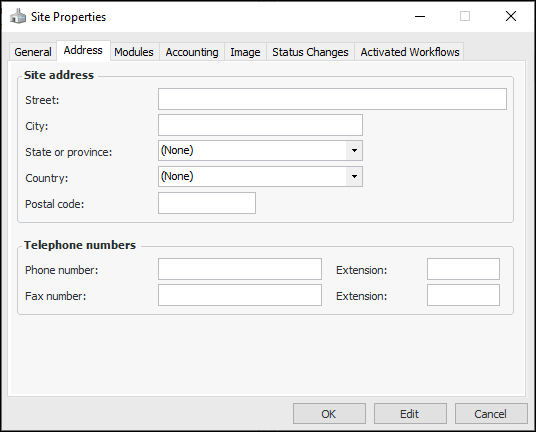
Note: In order for taxes to be computed correctly on purchase orders, the applicable locality, state or province, and country must be set for each site.
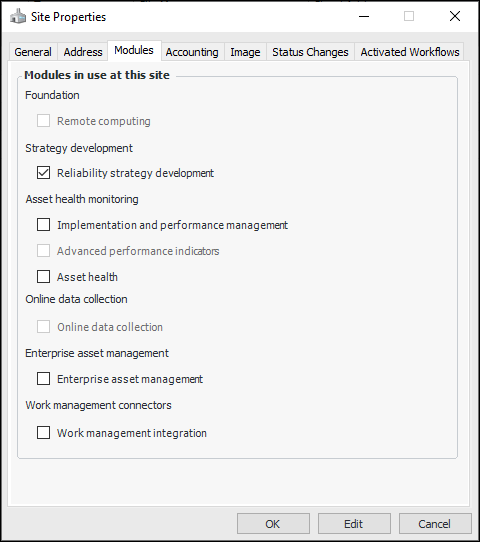
When you add a new site to the enterprise, all of its application modules are turned off by default. On each site, enable the application modules appropriate to it. For example, you might have licensed the Strategy Development and Asset Health Monitoring products, so you can enable four modules on a site. However, one of the sites you are creating is starting their implementation by performing reliability strategy development analysis on key assets. You can turn off the other modules, thereby keeping the look and feel of APM appropriate for their use. When the site is ready, the Implementation and Performance Management, Advanced Performance Indicators, and Asset Health modules can be enabled.

To Add Sites to Your Site Hierarchy
1.
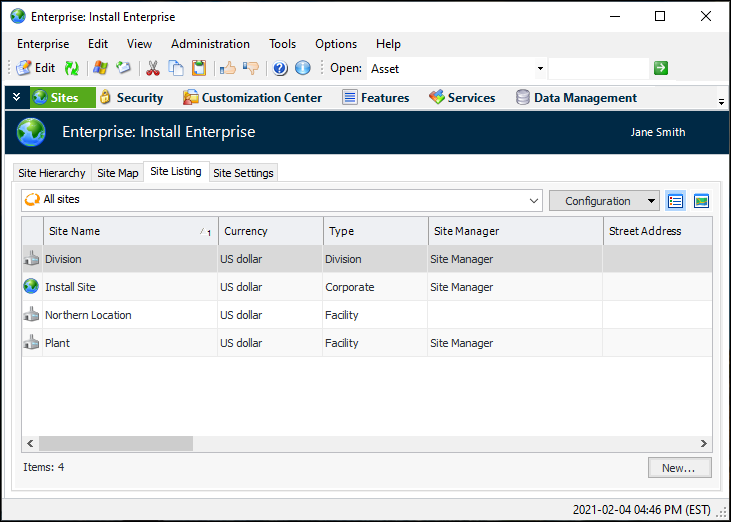
In the Enterprise window, select the Sites view, Site Listing tab.
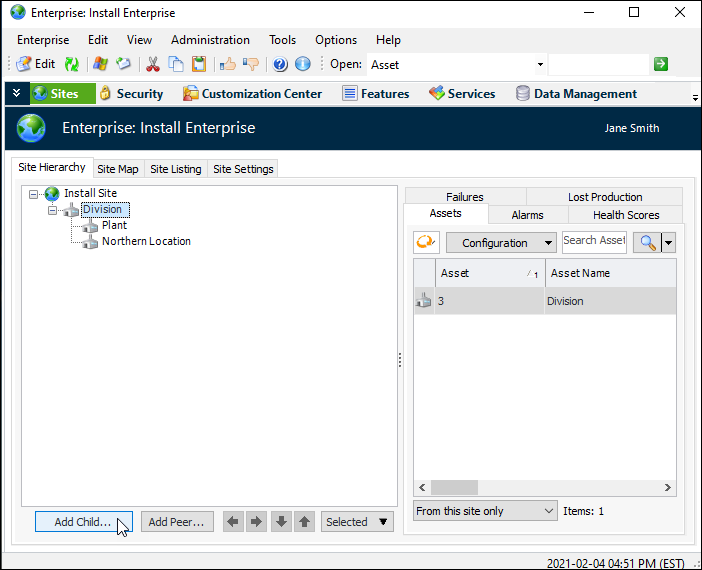
Tip: You can also add child or peer sites at any location in the hierarchy by selecting the Site Hierarchy tab, selecting the site, and clicking Add Child or Add Peer. Use the arrow buttons to move sites in the hierarchy. For example:
2.
3.
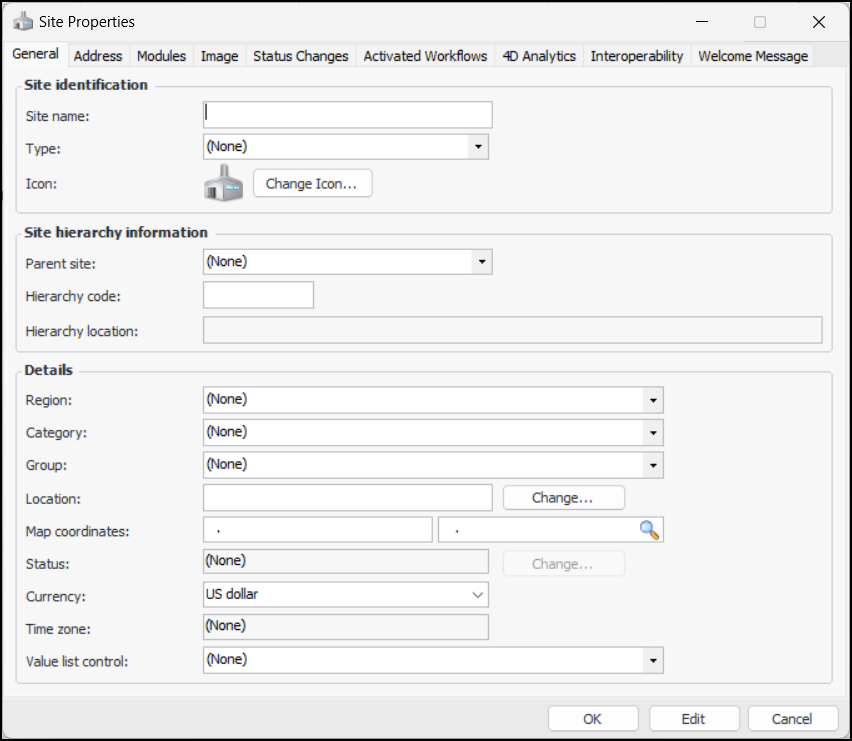
Click New. The Site Properties dialog appears.
4.
Tip: To quickly create a site type, click in the Type box and press F3. The Site Type window appears, where you can define a type.
To use a different icon, click Change Icon, select a graphic, and click OK.
APM constructs a full hierarchy location using the code that you enter in the Hierarchy code box joined with the hierarchy codes for its parent/ancestors. The codes are separated by a period (.). Hierarchy locations are updated whenever the asset or one of its ancestors is moved within the hierarchy (or if a hierarchy code changes).
5.
If you know the longitude and latitude of the asset’s location, enter them in the Map coordinates boxes. Otherwise, you can click the browse icon and point to the location on a map to have APM assign the coordinates. For more information, see Setting Map Coordinates.
6.
If appropriate, you can change the site currency by clicking Change. Usually you will select the currency of the country where the site is located.
The time zone at this site. By default this is the top site’s time zone. If the Time zone field is blank, APM looks up the site hierarchy to find the first site with a time zone.
** Indicates a mandatory setting
7.
Select the Address tab.
8.
9.
Select the Modules tab.
This tab lists the APM products and shows their statuses.
10.
Note: If you enable Enterprise Asset Management and wish to use indicators or failure tracking, enable Implementation and Performance Management as well.
11.
Select the Image tab.
12.
Note: The Status Changes tab lists previous site status changes. This tab is for information only and does not contain any settings that you can modify.
Note: For information about adding activated workflows to the site, see Activating APM Workflows.
13.