Setting up the GraphQL Service Provider

Setting up a GraphQL service provider involves creating and installing a server instance and setting up the service provider.

Create and Install the Server Instance for the GraphQL Engine

Set up a secondary server to run as a service for GraphQL functionality, which receives calls from 4D Analytics to create alarm readings in APM. It also provides 4D Analytics with information about indicator alarm states.
When you use SELECTserver licensing and install a service, APM automatically runs the Grant User Permissions for License utility, which sets permissions for the current user and all service users to access the registry location and licensing folder.

To Create the Server Instance for the GraphQL Engine

1.
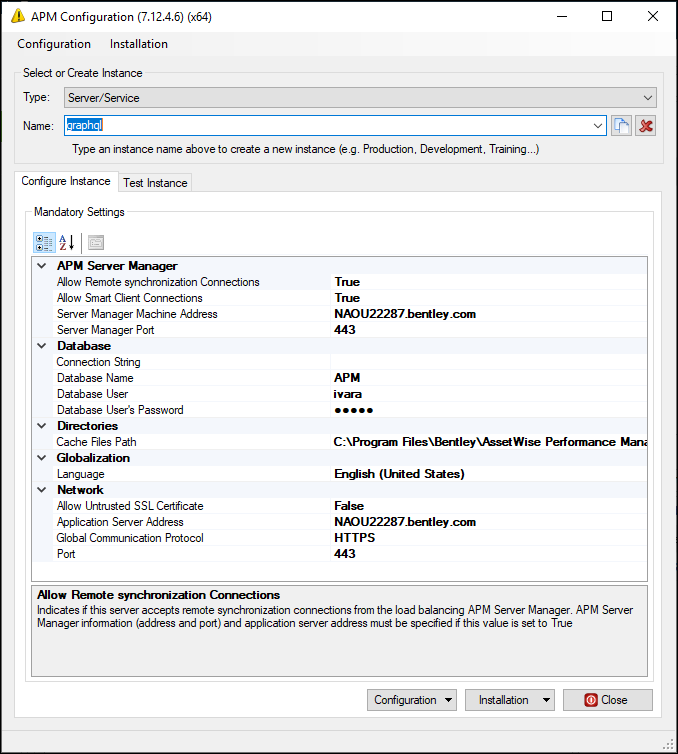
Launch APM Configuration. For example, on the Start menu, click Bentley, and then Configure APM. The APM Configuration window appears.
2.
In the Type list, select Server/Service.
3.
In the Name box, enter a name for the server, for example, “graphql”. The name cannot contain spaces.
Tip: You can copy an existing instance and modify it to include the properties that you want.
4.
5.
Enter the connection string for DSN-less connections to a SQL Server database or, in the Database Name list, select the ODBC data source for the APM database.
6.
7.
8.
Click the Configuration list and then Full Settings. The Settings Editor appears.
9.
In the File menu, click Show Advanced Settings.
10.
Select Mandatory Settings in the tree.
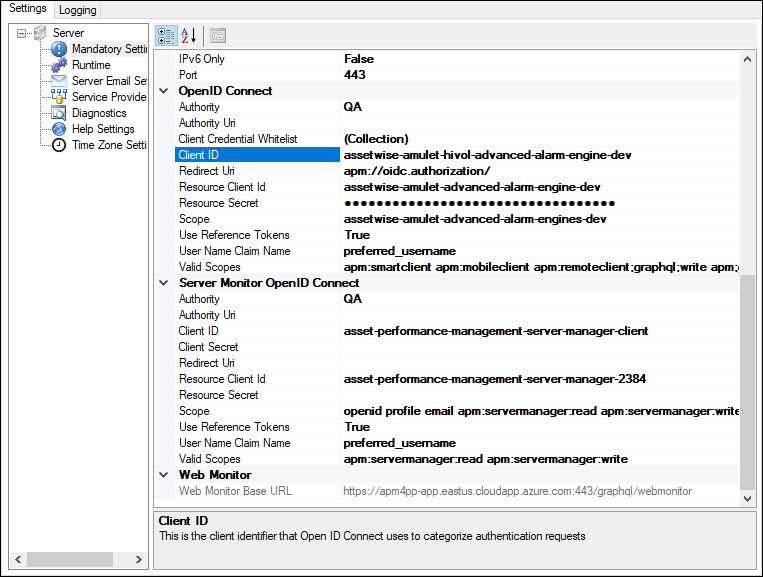
Scroll down to the OpenID Connect node. For example:
Enter values in the Client ID, Redirect Uri, Resource Client Id, Resource Secret, and Scope properties.
Set Use Reference Tokens to “True”.
Add the following to the Valid Scopes property:
apm:graphql;write apm:graphql:read
11.
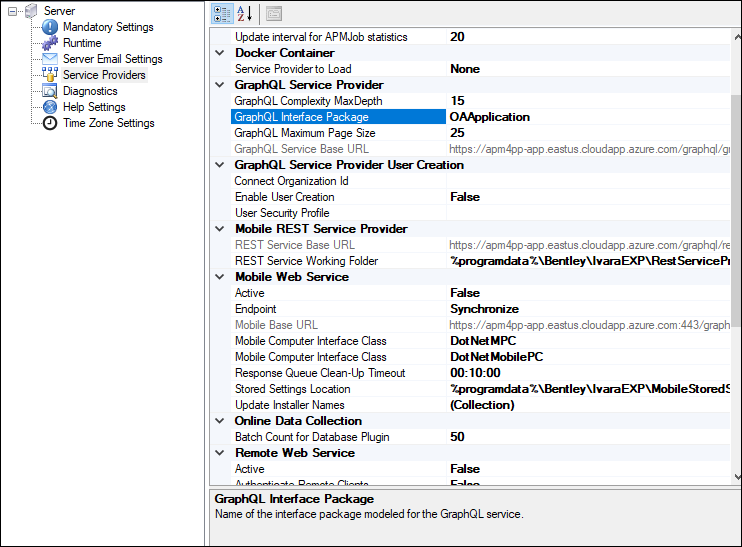
Under the Server node, click Service Providers. Scroll down to the GraphQL Service Provider section.
12.
In the GraphQL Interface Package box, enter “OAApplication”. For example:
13.
In the File menu, click Save and then Exit.

To Install the Service

1.
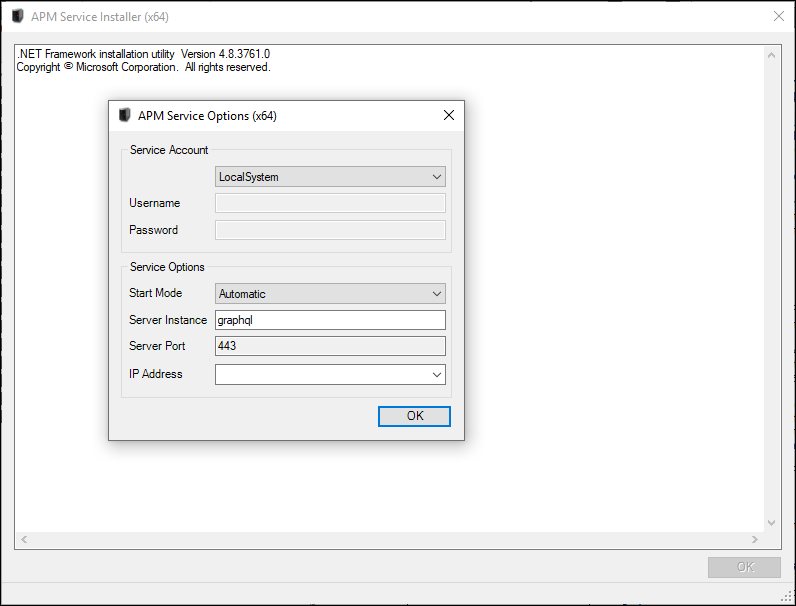
In the APM Configuration window, Configure Instance tab, click the Installation list and then Install Service. The APM Service Options dialog appears. The APM Service Installer window also appears to show the status of the installation as it progresses:
2.
We strongly recommend using the default selection, “LocalSystem”.
3.
Automatic - The service starts automatically when the operating system starts
Manual - The service starts when started manually or by a related service
Disabled - The service is installed but it and its dependencies are prevented from running
4.
5.
6.
Click OK. The APM Service Installer window shows the result of the installation process. If no errors occurred, a message that the installation is complete and successful appears.
7.

Setting up the Service Provider for the GraphQL Engine

Setting up the GraphQL component involves adding the GraphQL service provider plugin to the server instance that you created. This section explains how to add the server machine, server instance, and service provider in APM.

To Set up a Service Provider for the GraphQL Engine

Note: When setting up the service provider, you will need to enter the name of the instance that you created in Create and Install the Server Instance for the GraphQL Engine.
1.
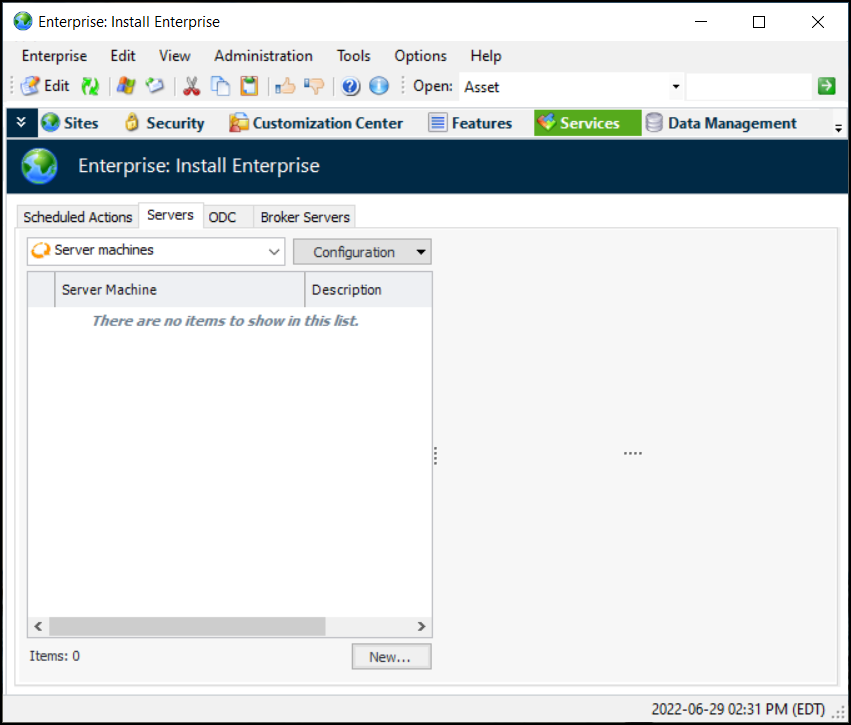
From the Enterprise window, select the Services view and the Servers tab. This example shows the tab before a server machine has been set up:
2.
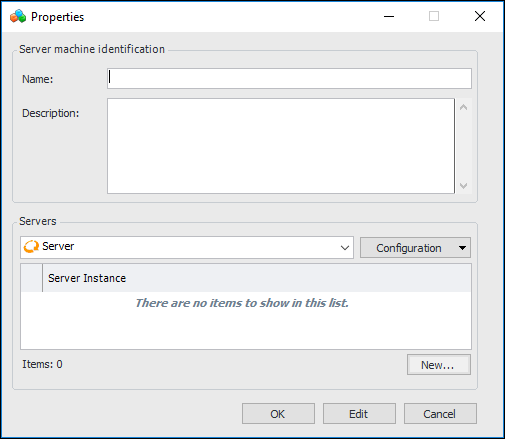
Click New to create a server machine. The Server Machine Properties dialog appears. For example:
3.
4.
Click New to add a server. The Server dialog appears.
5.
6.
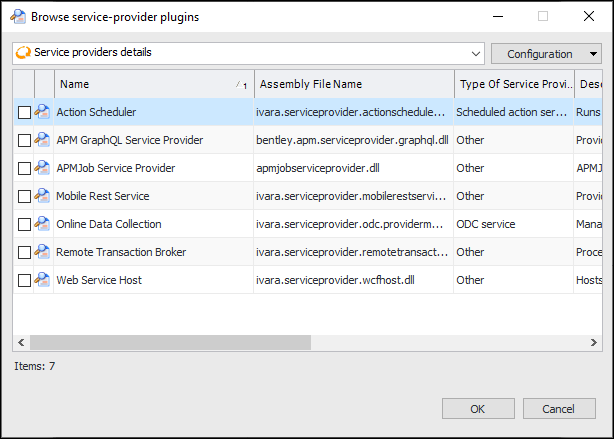
Click Browse to add a service provider. The Browse Service Provider Plugins dialog appears:
7.
Select APM GraphQL Service Provider and click OK. The service provider is added to the table.
8.
Click OK in the server Properties dialog to close it.
9.
Click OK in the server machine Properties dialog to close it.
The service provider will be activated when the server instance is restarted.