
Setting up Scheduled Actions to Execute 4D Calculations

The Action Scheduler is an APM service provider that runs on Windows in the background. At scheduled intervals, the Action Scheduler logs on to APM, evaluates the list of scheduled actions, and turns the actions into Windows Task Scheduler tasks, which run independently of each other.
Set up one Execute 4D Analytics Calculations action for each site that uses 4D indicators. Each scheduled action should run no more frequently than once daily.
Note: Set your scheduled actions to run after the ingestion of bulk readings into 4D Analytics is complete.
This topic explains how to create a scheduled action to run the 4D calculation processing engine. It assumes that a service provider has already been set up for the Action Scheduler, either on its own server or an existing server. For information about setting up the action scheduler service provider, configuring polling intervals, monitoring the Action Scheduler, and viewing historical information, see APM Installation Guide.
For information about running the calculation engine from the command line for testing purposes, see Command Line Options for the Calculation Engine.

To Set up a Scheduled Action to Process 4D Calculations Daily
1.
Open the Enterprise window, select the Services view and the Scheduled Actions tab.
2.
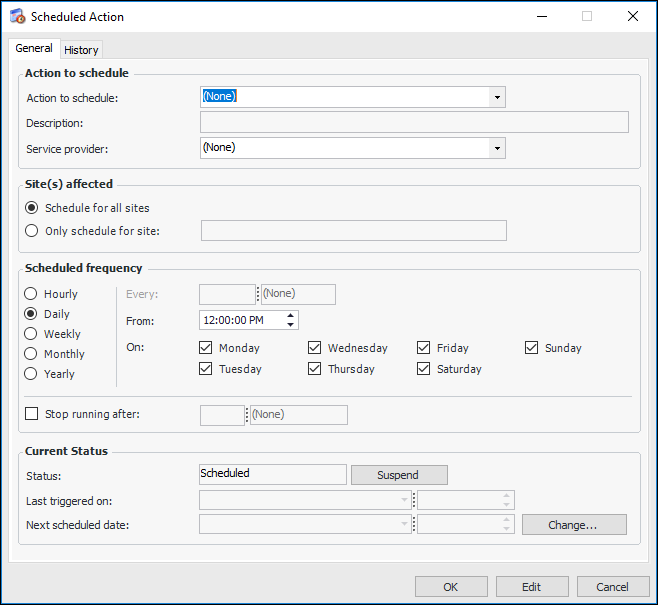
Click New to open the Scheduled Action dialog:
3.
In the Action to schedule list, select “Execute 4D Analytics Calculations”.
4.
5.
Click Only schedule for site and select the site from the list.
6.
In the Scheduled frequency area, select Daily and select the time.
7.
Click OK to save the scheduled action and close the dialog.