Setting up Logging for 4D Calculated Indicators

A log records activities that have occurred in the application or on the server for subsequent audit and analysis. Typically, administrators use logs to diagnose problems or monitor performance.
Log files are stored on the computer where the process is running, in the default log directory:
%programdata%\Bentley\IvaraEXP\Logs
You can change the log file location, as explained in “Changing the Default Location for Log Files” in APM Installation Guide.
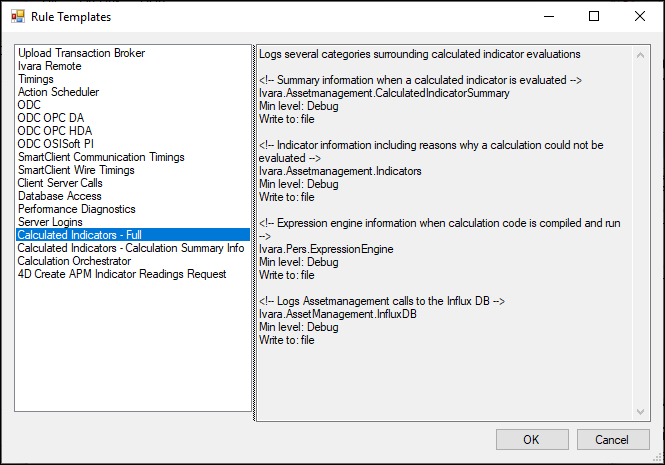
You can use as many as four logging templates to record information about 4D calculated indicators. For all of these templates, the default information level is Debug and the default target is file.
The easiest way to set up logging is to use the APM Logging utility to add rules based on the templates.

To Set up Logging with the APM Logging Utility
1.
2.
Click the Configuration list and then Full Settings. The Settings Editor appears.
3.
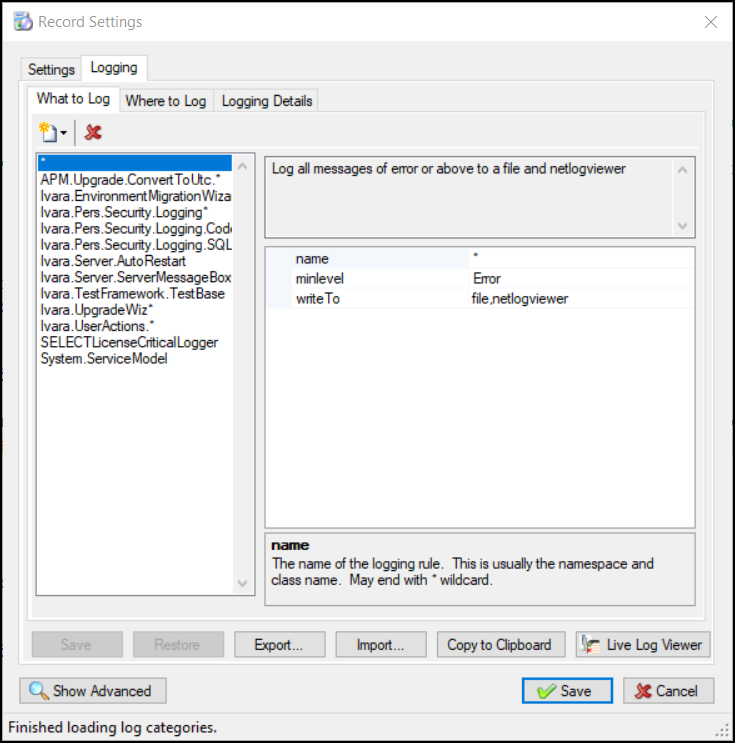
Select the Logging tab. The rules and targets are loaded into the utility from the logging.config file (located in the AssetWise Performance Management\bin folder). For example:
4.
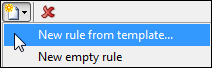
In the What to Log tab, click the New button and then New rule from template:
The Rule Templates window appears.
5.
6.
Select the template and click OK. The rules are displayed in the What to Log tab.
7.
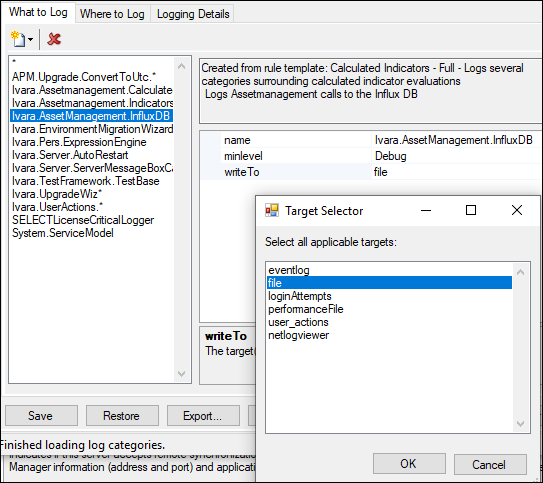
You can adjust the name, level, and target as required. When you click the browse button in the writeTo list, the Target Selector dialog appears, showing all targets defined in the logging.config file:
8.
Update logging.config by clicking Save. The original file is saved to logging.config.bak and logging.config is saved with your changes