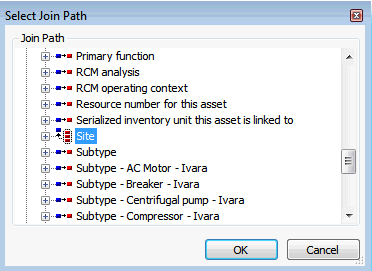
Setting the Join Path to Site

All custom classes have as a data member a join path to the top parent class (the Site class). This means that relationships specified in the join path must be mandatory (null behavior is set to Error). Setting this join path ensures that date and time data is converted to the appropriate time zone, the correct site is selected when site security profiles are enforced, and that the correct currency is always selected for currency conversions (EAM module only).
When you set this join path, you can select any relationship that is owned by the custom class and that is one of the following types:
Note: The relationship that you select must be mandatory. That is, the Null behavior setting on the relationship must be set to Error.

To Set the Top Parent Join Path for a Custom Class

1.
2.
From the Enterprise, select the Customization Center view, then the Classes tab, and then the Custom tab.
3.
4.
Click Lock for Customization. The APM icon in your Task bar now has a key on it:
5.
6.
On the Data Members view, select the Custom Relationships tab.
7.
Review the entry in the Join path to site box at the bottom of the tab.
8.
9.
Tip: If the Select Join Path dialog is empty, the class does not have an appropriate relationship or the custom class was not created from scratch. You must first create a relationship to another custom class that is mandatory, and uses an appropriate relationship type (References one, Scoped by, Owned by). For more information, see Adding a Relationship.
10.
11.
When you are finished reviewing classes, in the Customization Center, click Unlock System. The system should automatically regenerate the schema and cache files. This may take a few minutes.
Note: If the system does not automatically generate the schema and cache, click Generate and then Schema, and Generate and then Cache Files in the Customization Center.
12.