
|
Setting Expiry Notification Rules on a Contract
Note: In order for notification and expiry to work, the Check for Expiring Contracts method must be run on a regular basis. Your system administrator can schedule this method for the site. You can also run the method manually from the site’s Tools menu. To schedule this method, please see Creating a Scheduled Action.To Set Expiry Notification Rules on a Contract
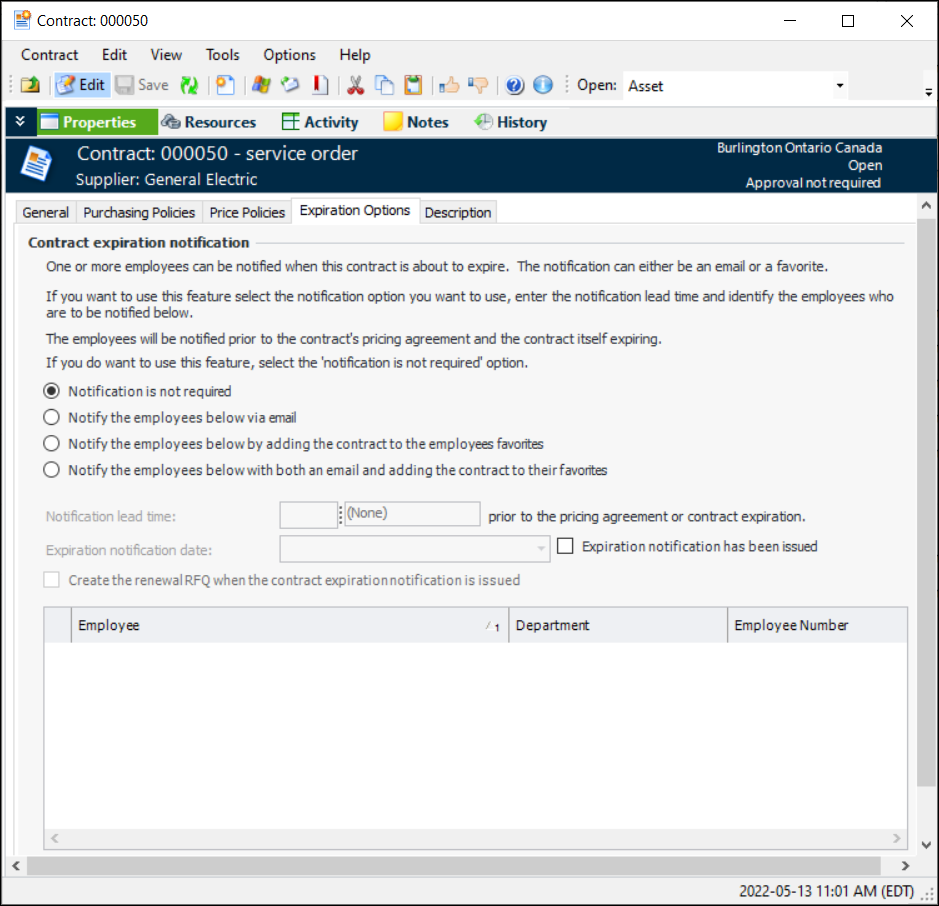
2.
• Notification is not required: The system will not notify any employees.
• Notify the employees below via email: The system will send an email to the selected employees.
• Notify the employees below by adding the contract to the employees’ favorites: The system will add the contract to the list of favorites for each selected employee. Employees can view their favorites from the site’s Favorites view.
• Notify the employees below with both an email and by adding the contract to their favorites: The system will notify the employees using both methods described above.
4. If you are using notification, enter the Notification lead time. This is the amount of time prior to the expiry date that the notification will be sent.
5. To have a renewal RFQ created at the same time, click the Create a renewal RFQ option.
6. To select an employee who should be notified when the contract is about to expire, click Browse. The Employee Selector dialog appears.
8.