
Setting the Consignment Inventory Group for a Warehouse Item

To track a consignment resource in inventory, you must first create a warehouse item (assign the resource to a warehouse). To identify the item as a consignment item, select a consignment warehouse inventory group for replenishment of the resource.
Although unlikely, it is possible for the same resource to be consigned with two different suppliers. In this case, create two warehouse items: one for each supplier’s inventory group. This situation usually only occurs if you are switching consignment suppliers and in some multi-site environments.
This topic describes how to create a warehouse item for a consignment resource and select a warehouse inventory group. This procedure assumes that the resource is already entered into the resource catalog and that you have set up your warehouse and warehouse inventory group.

To Create a Warehouse Item and Select a Warehouse Inventory Group for a Resource
1.
In the Site window, select the Resource Management view and then the Inventory tab.
2.
On the Warehouses tab, double-click the warehouse in which the resource will be stocked. The Warehouse window appears.
3.
Select the Stocked Items view, Stocked Items tab. This tab lists the items currently stocked in the warehouse.
4.
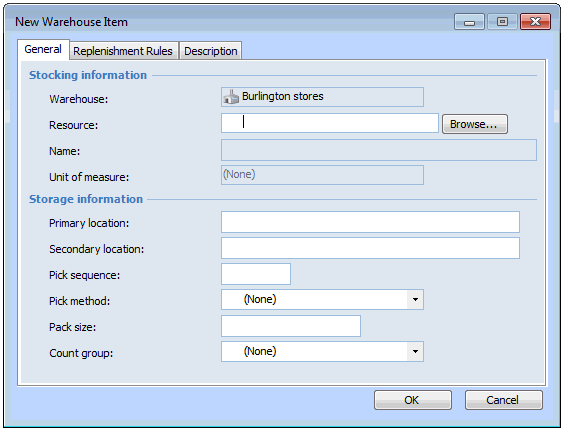
Click New. The New Warehouse Item dialog appears.
5.
Click Browse to select the resource. Select the resource in the selector dialog and click OK.
6.
Enter the Storage information section as required.
7.
Select the Replenishment Rules tab. Set the Replenishment method, Replenishment policy, Review rule, and Lead times.
8.
9.
10.
11.
12.
When you are finished entering information for the item, click OK. The new warehouse item is saved and added to the warehouse.
13.
To enter information about the current quantity and value of the item, right-click the item and select Adjust Item. The Inventory Adjustment dialog appears. For detailed information on filling out the adjustment, see Adjusting Consigned Inventory.
14.