|
Setting Options and Work Order Rules for a Job Template
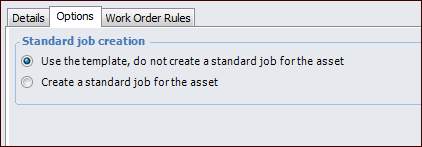
For each job template, you can set options and rules that control the behavior of the work orders created from the template’s standard jobs. This includes standard job creation and scheduling options and rules for whether or not other users are allowed to modify the work orders created from the job.To Set the Template’s Work Order Options and Rules
3.
5. Select the Work Order Rules tab.
7. You can have the system automatically schedule all work orders that are created from this template’s jobs. To do this, select Automatically schedule work orders using temple. Select a Schedule template. When a work order is created from the template, the system looks for an open schedule based on the schedule template. If one exists, the work order is added to the schedule. If one doesn’t exist, the system creates a new schedule.
• New tasks may not be added to this job’s work orders. When a work order is created from this standard job, no tasks can be added to it.
• Tasks may be added to this job’s work orders. When a work order is created from this standard job, users can add tasks to them.
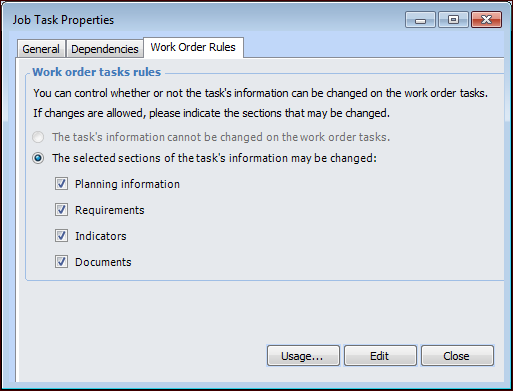
9. The Task options table lists the job’s tasks. For each task, the current rule is shown for whether information can be changed when the work order task is generated for the standard job. Open a task by double-clicking it. The Job Task Properties dialog appears.
• Select the Work Order Rules tab.
• The standard task’s information cannot be changed on the work order tasks: When a work order task is created from this standard job’s task, all of the information on the task will be locked.
• The selected sections of the standard task’s information may be changed: When a work order task is created from this standard job’s task, users can change the selected information. Select the information that you want users to be able to change.