
Overriding RFQ Policies on a Resource or Trade

If your site uses APM requests for quotation (RFQs), you can set the site policies for when demand RFQs will be required. The available settings include whether or not RFQs are required for:
In addition, you can select when an RFQ is required for each of the above purchase types:
Effective price: If there is no supplier resource price or if the price is expired, an RFQ is required.
Cost: If the estimated cost of the work order requirement is less than or equal to the set cost, an RFQ is not required. If the cost of the requirement exceeds the set cost, an RFQ is required.
Last purchased: If the resource has not been ordered recently, an RFQ is required. You must set the period of time that is considered “recently ordered”. For example, if the resource has not been ordered for 180 days, an RFQ is required. This rule only applies to catalog resources. For non-catalog resources, there is no way to track when the resource was last ordered.
Because a resource can be used at the site where it was created and lower-level sites, it could be used at a site with a different currency. In this case, APM converts the resource’s RFQ threshold value (Cost) to the resource demand’s site currency when it checks that the amount is within price tolerances.
You can override the direct-purchase site policies on any individual resource or trade. This allows you to tailor the rules for each of your resources.

To Override RFQ Policies For a Resource

1.
For a resource: From the site, select the Resource Management view. Open the resource you want to edit. The Resource window appears.
For a trade: From the site, select the Personnel view, Trades tab. Open the trade that you want to edit. The Resource window appears.
2.
On the Properties view, select the Procurement tab.
3.
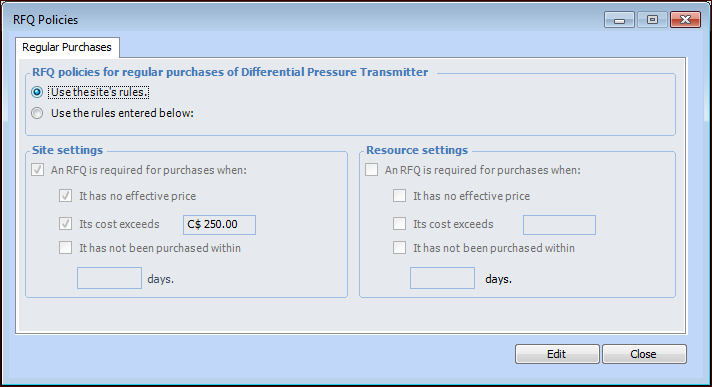
In the RFQ policies area, click Details. The RFQ Policies dialog appears.
4.
Select the tab for the type of purchase you want to edit (Regular purchases, Repair orders, Equipment rentals, or Service orders).
5.
To override the site’s settings, select Use the rules entered below. The Resource Settings become open for editing.
6.
7.
8.
Repeat steps 4 to 7 for each purchase type that you need to edit.
9.