
|
Sending a Work Order for Approval
Your site’s approval settings determine if work orders require approval. If approval is required, you might need to send the document to be approved before you can report activity, create requisitions, purchase orders or pick lists, schedule, or close the work order.If a single-step process is used, approving the work order approves both the work order and all of its requirements: both the work that is being done and any requirements that have to be purchased to complete it.To Send a Work Order for Approval
1. From the Site window, select the Work Management view, Work Orders tabs, and then open the work order that you want to have approved.
2.
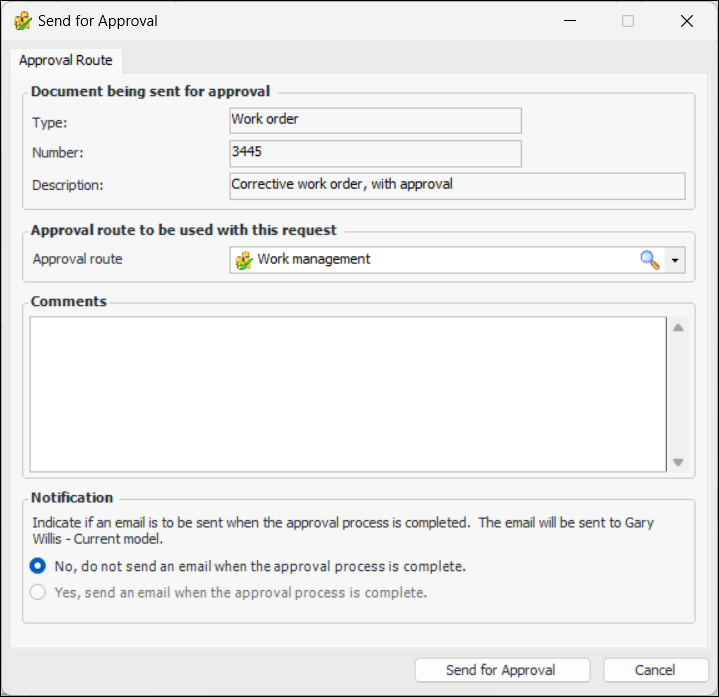
• If a two-step work order approval process is used, select the approval route for approving the work in the Approval route box. To change the selected route for each requirement, select the line and press F2. The Approval Route box can then be edited. Select the approval route from the list. Only valid approval routes for requisitions will be listed.
4. Enter a comment, if you wish. Requester comments are displayed in the site’s Approvers view, Requests tab, as well as in the Approval Request window in the Request Info tab.
To have APM automatically send an email to the originator once all approvers have reviewed the request, select Yes, send an email when the approval process is complete.
6. Click Send for Approval. The approval request is sent to the first approver on the approval route(s) selected, and the document’s status is changed to “Waiting for approval”.Note: If you have sent a work order for approval and one or more of the planned items requires a request for quotation (RFQ), the work order is not sent to the approvers until the RFQ process is complete. If the process of obtaining and analyzing bids is taking too long, you can release the work order for approval before the process is complete. The approval is based on the estimated cost of the resources. See Releasing a Work Order for Approval.