
|
Sending Purchase Orders for Approval
To Send a Purchase Order for Approval
1. On the site’s Purchasing view, select the Purchase Orders tab, then the Purchase Orders tab. By default, this tab lists all purchase orders for the site.
2.
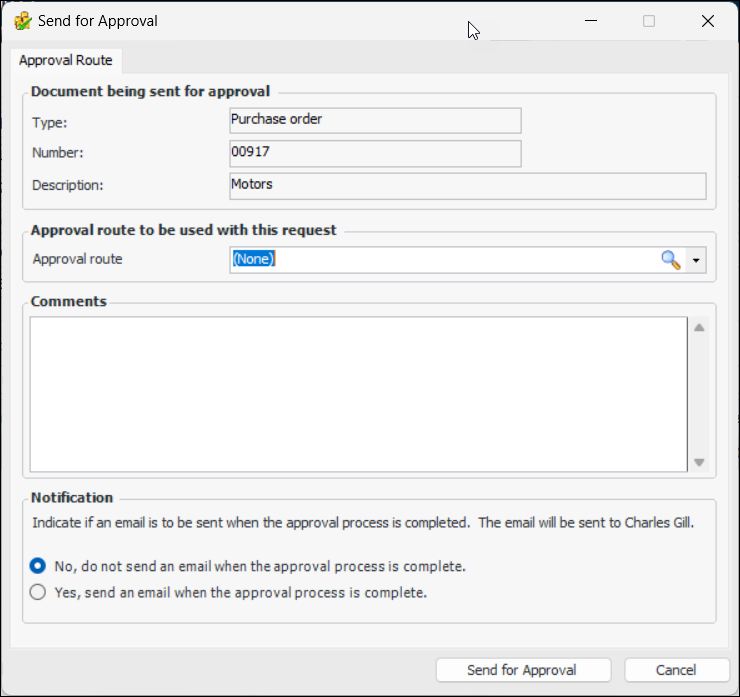
3. Click the Purchase Order menu and then Send for approval. The Send for Approval dialog is displayed.
4. Select the route from the Approval Route list. Only valid approval routes for purchase orders are listed.
5. Enter a comment, if you wish. Requester comments are displayed in the site’s Approvers view, Requests tab, as well as in the Approval Request window in the Request Info tab.To have APM automatically send an email to the originator once all approvers have reviewed the request, select Yes, send an email when the approval process is complete.
7. Click Send for Approval. The approval request is sent to the first approver on the approval route selected, and the document’s status is changed to “Waiting for approval”.