Sending RFQs to Suppliers

These methods are available for communicating an RFQ to a supplier:
Mail: A copy of the document is printed to your default printer. You can then send the printout to the supplier by mail.
Fax: A copy of the document is faxed to the supplier. If the selected contact already has a fax number, the system enters it here. Otherwise, you must enter the fax number for this contact.
Note: Before you can send a document by fax, your APM administrator must have set up the Microsoft fax service.
Email: APM creates a report using the file format specified in Purchasing Management settings. The report is then attached to an email message and emailed to the supplier. If the selected contact already has an email address, the system enters it here. Otherwise, you must enter the email address for this contact.
You can export an RFQ bid sheet in Microsoft Excel format to one or more suppliers. On the RFQ, the supplier must be set to have the RFQ sent to them by email, and on the Email Info tab, the Spreadsheet option must be selected as the attachment type.
If you are sending an Excel spreadsheet to suppliers, they can enter their bid information in the document and email it back to you. You can then import the bid information into the RFQ.
Note: To send a purchasing document by email you must be using a MAPI-compliant messaging application such as Microsoft Outlook or Outlook Express.
Note: If you will be sending the document as an Excel spreadsheet, you must have MS Excel 2010 or later installed on your computer.
Phone: The document is communicated to the supplier in some other manner (for example, over the telephone). If the selected contact already has a telephone number, the system enters it here. Otherwise, you must enter the telephone number for this contact.
Courier: A copy of the document is printed to your default printer. You can then send the printout to the supplier using the selected courier.
For mail transmission, a cover letter is included with the RFQ containing the following text:
Heading: The heading shows the requesting site’s address, logo, telephone number, and fax number. The requesting site is the site that owns the RFQ. Also included is the current date.
Contact: The buyer’s name, title, and contact information (for example, phone, fax, email)
Issued To: The address of the supplier is identified on the RFQ
Bid Instructions: The bid instructions, as entered on the General tab of the RFQ
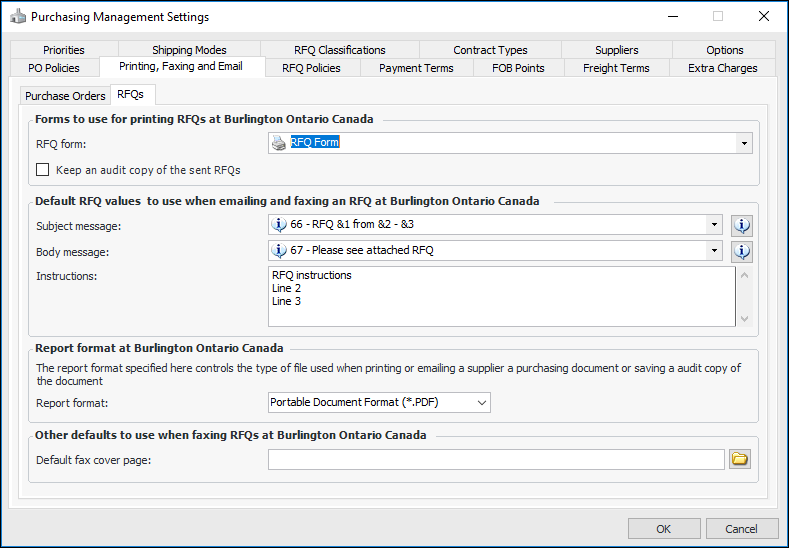
For email and fax transmission, you can specify the messages that will be used for the subject line and body. These are defined for the site in the Purchasing Management Settings, Printing, Faxing and Email tab, RFQs tab.
To set the RFQ faxing options for a site, see **Setting up RFQ Forms, Faxing, and Email Defaults.
This topic explains how to verify the contact method and information and then send the RFQ to each supplier. It also explains how to export a bid sheet to Excel.
To set up the Microsoft fax server for fax transmission, see Setting up an APM Fax Server.

To Send an RFQ to Suppliers

1.
2.
3.
On the Properties view, select the Suppliers tab. This tab lists the suppliers to which you will send the RFQ.
4.
5.
6.
If you are sending the document by mail or courier, ensure that the Mailing address information is correct. The system enters default values from the supplier record.
7.
Low: All faxes that have a normal or a high priority are sent before a fax that has a low priority.
Normal: All faxes that have a high priority are sent before a fax that has a normal priority.
High: The fax is sent with a high priority.
As soon as possible: Sends the fax as soon as the fax server is available.
Discount period: Sends the fax during a predefined discount period. The discount period can be set up on the fax server.
Specific time: Sends the fax no sooner than the selected time. The actual time the fax is sent depends on the availability of the fax server and the fax priority. Enter the date and time that you want the fax to be sent.
8.
Spreadsheet: The system exports the document to a Microsoft Excel file. For RFQs, the supplier can enter bid information into the file and then send it back to you. You must have Excel installed for this option to work.
Report: The system creates a printable report of the document. For RFQs, the supplier cannot enter bid information directly into this file.
9.
10.
11.
12.
Verify that the contact information is correct and click Yes. The system prepares and sends the print document, fax, or email.
13.
14.
Repeat steps 4 to 13 for each supplier.
15.

To Export an RFQ Bid Sheet to Excel

1.
Click the RFQ menu, Send To, and then All Suppliers.
Tip: You can also click the Suppliers tab, right-click a supplier, and click Send to Supplier.
The system uses the selected transmission method to send the RFQ to the suppliers. Suppliers who receive RFQ bid sheets via email will see an attachment to the email. The format of the Excel file name is Bid sheet #, RFQ#, Supplier name.xlsx.
The Excel spreadsheet contains two worksheets: a summary worksheet and a detail worksheet. The summary worksheet contains information about the RFQ as a whole and the bidding process in general. This includes:
The detail worksheet identifies the RFQ resources. A row is added to the spreadsheet for each resource on the RFQ. The following information is included for each resource and is not changed by the supplier:
Columns are included for the supplier to enter for the following:
Once the supplier has completed the spreadsheet with bid information, he or she will return it by email. The buyer can then import the bid information into the RFQ.