Introduction to Security Profiles

This section describes security profiles and how they work.

What is a Security Profile?

A security profile is a set of security settings that define which actions a group of users are allowed to perform and the information that they are allowed to view. A security profile consists of a default security level and overrides to that default level for selected objects (classes), information (attributes and relationships), actions (methods), views, pages, and reports.
A security profile includes a name and a default security level for the site (Editable, Read-only, Hidden). You can override the default security level for specific classes (for example, Asset or Standard Task) and their views, pages, actions, attributes, relationships, and reports.
The name of a security profile should describe the type of access it provides; a job title often makes a good name. In a multi-site implementation, you might want to name the profile for the site to which it applies, such as the home site or the top site.

Security Levels

When you create a security profile, you can choose from three possible security levels. This is the default security level for the profile. This default level can then be overridden for a class or for attributes and relationships, actions, views, pages, and reports within a class. The three security levels are:
Editable (Full access): This level allows a user to perform any task, including viewing data, entering new data, and editing existing data. All actions are enabled, and all views and pages are visible. A user whose profile has the Editable default level will have access to all actions and data in the system, except for any items with overrides.
Read-only: This level allows a user to view data, but not to add or modify data. Actions are disabled, but views and pages are visible. A user whose profile has the Read-only default level is able to view all objects in the system, but is not able to edit them, or to create new ones, except for items with overrides.
Hidden (No access): This level means that a user cannot view, add, or modify data. Actions are disabled, and views and pages are hidden. A user whose profile has the Hidden default level is not able to open objects in any view, or perform any actions, unless overrides are added to the profile.

Selecting an Appropriate Security Level for a Profile

The default security level in a profile determines the default level of access a user will have for all objects. When selecting the default security level for a security profile, you should consider what proportion of access a user with that profile will typically need. There are three strategies that you can use when creating security profiles:
Note: If you start from a read-only or hidden profile, there might be some classes, attributes, relationships or methods that are not available for override. If this is the case, you will need to create the profile using the editable default access level.

Examples

For example, an employee who administers the APM system will need access to most of the objects and menu items at their home site. There might be some objects and functions that are restricted, but these are exceptions. An “Administrator” security profile should have a default security level of editable. Then, you can set read-only or not accessible security levels for the exceptions.
However, an employee who works as a data collector can only use a small part of the system. You could give the “Data collector” security profile a read-only default security level, and then provide full access to the data collection parts of the system. An employee who logs in as a data collector will then be able to create checksheets, upload and download checksheets to a mobile device, and enter indicator readings, but will only be able to view information on assets and work orders.
You might wish to start from the hidden default security level if a user will use only one or two features, such as creating work requests. If you make the site’s Work Requests page and the work requests class editable, users will be able to create and view work requests, but will not be able to open other pages or objects.

Security Profile Components

A user’s security profile can link to any number of supplementary profiles, which in turn can each link to other profiles. These profiles are evaluated at run-time for each element (view, page, attribute, relationship, method, or report), and the access level defined in the APM security settings used for that element. For more information about applying security settings, see Applying Composite Profile Security Settings.
For example, an additional profile could be assigned to multiple users in order to hide Enterprise Asset Management (EAM module) functionality from them.
The supplementary profiles for each profile can be seen in the Security Profile window, Composite Profile tab.

Methods for Building Security Profiles

You can use either of two methods to create and edit security profiles: using Security Setup mode or manually adding overrides.

Security Setup Mode

APM enables you to quickly and easily build security profiles by directly setting security levels on items within the user interface (UI), such as menu actions, views, and fields. You can do this by entering the Security Setup mode for a security profile. Click Setup Mode on the General tab of a security profile.
When you enter Security Setup mode, you can add class, action, attribute, relationship, view, and tab overrides by navigating through the UI. You can change the security setting for any class (object), view, tab, table, action (menu item), and attribute or relationship (field) by right-clicking the item and selecting the appropriate Mark as option.
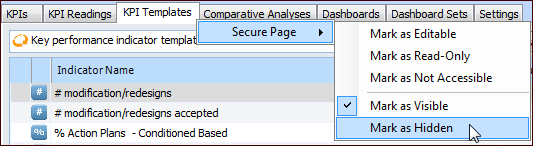
For example if you want to hide the site’s KPI Templates page for a profile, you would open the site, select the Analytics view, right-click the KPI Templates tab, and select Secure Page and then Mark as Hidden.
Note: To use Security Setup mode, you must launch the application as an APM administrator.
When you are in Security Setup mode, the cursor displays an open lock icon:

Editing a Profile Manually

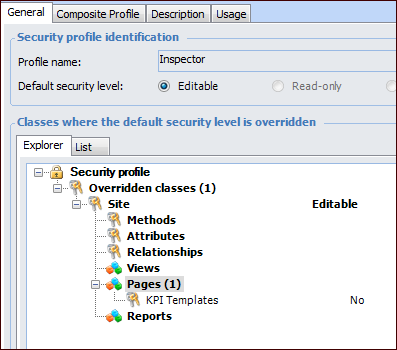
When you work in Security Setup mode, APM converts your security settings to overrides saved in the security profile. These overrides are tied to items in the APM object model: classes, methods, attributes, relationships, views, pages, and reports. For example, if you mark the site’s KIP Templates page as hidden in Security Setup mode, in the profile you will see a new override added for the site class’ pages:
You can manually edit a security profile by adding or deleting individual overrides for classes or for items within a class. For example, you might find that after using the Security Setup mode, there are some items that need more or less access. In that case, you can edit or delete the appropriate class or item overrides that were created in Security Setup mode.

Security and the APM Object Model

In order to edit a security profile manually, you must have a basic understanding of the APM object model. This information is also useful when testing and refining security profiles.
Classes are the main building-blocks of the object model. A class is like a template for system objects that all have the same basic characteristics. The design of each class and how the classes relate to each other provide the basic structure of the application. All objects in APM are based on classes. Objects that behave the same way belong to the same class. For example, each asset in the system is based on the Asset class.
Each class can own:
Each security profile can contain overrides for any class of objects in the system (class security). Within each class security, you can create overrides for any of the class’s methods, attributes, relationships, views, pages, or reports.
For more information, see Object Model Overview.

Class Security

The default security level for a profile applies to all of the objects in the system, unless that default is specifically overridden for a class of objects (such as assets).
By default, attributes and relationships have the same security level as that set for the class. Actions are either enabled or disabled, and views and pages are either visible or hidden, depending on the security level for the owning class. You can override the class security level for any attribute, relationship, action, view, page, or report.
The following table summarizes the default security settings for classes, attributes, relationships, actions, views, pages, and reports for each of the three security levels for a security profile.
Disabled1

1
Some actions are enabled by default when a class’s security is read-only (for example, Exit or Email shortcut). You can disable these actions if necessary. Table configuration actions (for example, sort and filter) are always enabled, and cannot be disabled.

Multiple “Objects” in a Class

In some cases, what appears in the system to be different objects are members of a single class. For example, both key performance indicators (KPIs) and asset indicators belong to the indicator class. This means that when you set security for the indicator class, you are affecting access to both KPIs and asset indicators. In addition, when you set security for items shown in the KPI window you might also be affecting the security settings for items in the Indicator window.
Tip: When you have launched APM as an administrator and select a control or table row, the control ID, class name, and element are displayed at the bottom of the window. Here is an example from the Analytics view, KPIs tab:

Report Security

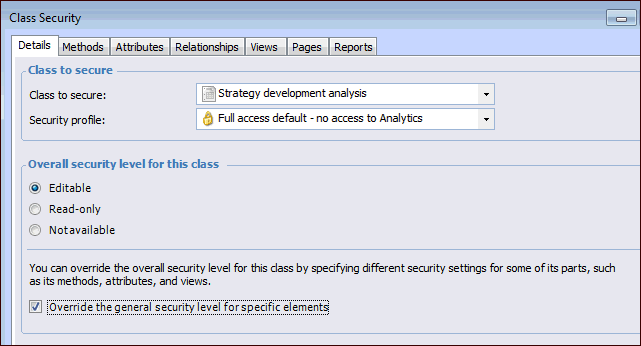
You can disable or enable standard reports in the security profile by adding the class to the list of overridden classes and then applying an override for the individual report. For example, you could add the Strategy development analysis class to the profile and override the general security level.
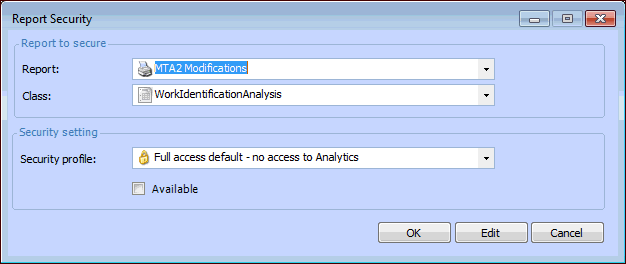
Then select the Reports tab, click Browse, select the Reports tab in the selector dialog. Select the report from the list. When you click OK, the report is added to the list. Double-click the report to see the Report Security dialog. For example:
In this example, the Modifications report will not be available to users with this security profile who select to print an MTA2 report. Note that the classes contained in the report would also need to be secured.
Note: If a report is enabled, but the data contained in the report has a lower level of security, users will be able to view and print the report. For example, if the failure mode class is set to No access, but the RCM2 Failure Modes List report is enabled, users will be able to view and print the report.