|
Scheduling a Work Order Task Using Availability Scheduling
To Schedule a Work Order Task
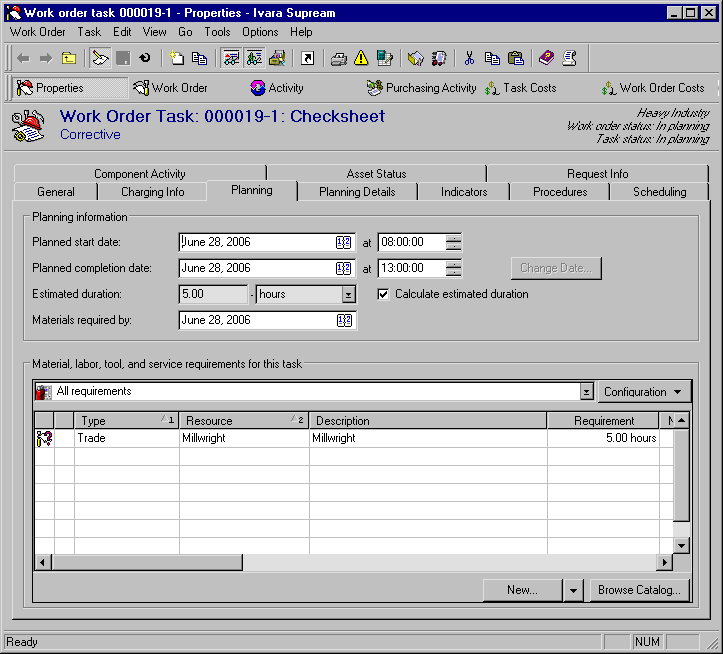
2. Select the Planning tab. This tab shows the planned start and completion dates, and the estimated duration for the work order task.Check that this information is correct. APM uses the Estimated duration to calculate the end date and time for the task on the schedule. If the task is planned for a shutdown schedule, a shutdown type should be entered on the Planning Details tab.
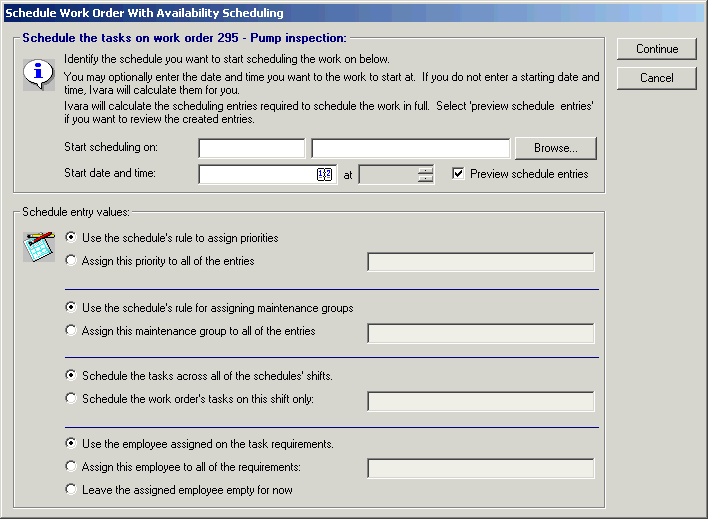
3. To schedule the task, from the Task menu select Schedule (Availability Scheduling). The Schedule Work Order With Availability Scheduling dialog appears.Note: If the maintenance group selected for the task uses simple scheduling, the Availability Scheduling option is not available.Tip: You can also schedule the entire work order by selecting the Work Order menu and then Schedule Work Order.
4. To select a schedule for the task, click Browse. Select the schedule from the selector dialog, and then click OK.
5. You can select a Scheduled start date and time for the task. APM will use this information, along with the estimated duration, to calculate the end date and time for the schedule entry.
6. If you want to preview the schedule entries that will be created, select the Preview schedule entries box.
7. In the Schedule entry values section, select the values that APM will use to create the schedule entries for the work order task.
8. When you are done, click Continue. The Schedule Entries dialog appears showing a list of schedule entries created for the task.
10. To select an employee, click Add Employee. Select the employee from the selector dialog, and then click OK. To save and close the Requirement dialog, click OK again.
11.
12. To save and close the Schedule Task dialog, click OK. APM enters the task on the selected schedule.