Creating a Set of Schedule Templates

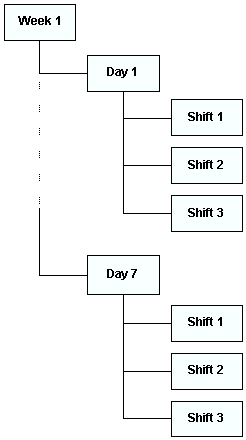
You can organize a set of schedule templates as a hierarchy. The hierarchy structure allows you to quickly see how the schedule templates are related to each other. When you use a set of schedule templates to create a set of schedules, the new schedules will also be organized in a hierarchy.
For example, using a set of schedule templates you can create a weekly schedule, 7 daily schedules, and 21 or more shift schedules in one step. Below is a diagram of a typical set of schedule templates in a hierarchy.
To create a set of schedule templates, you will first need to create and define the top schedule template (for example, the weekly schedule), and then create and define each child schedule template (for example, Monday to Friday schedules and shift schedules).
Note: The My Desk view only displays the tabs described below, if you are set up as a scheduler on the Properties view, Roles tab, Scheduling tab of the employee record.

To Create a Set of Schedule Templates

1.
From the Site window, select the Work Management view and then the Schedules tab.
2.
Select the Templates tab. This tab lists your existing schedule templates.
3.
4.
Select the Properties view and the Hierarchy tab, and then right-click the parent schedule template and select New child. APM creates and opens a new schedule template. The new template inherits its properties from the parent template. This template becomes the top (or parent) template for this set of schedule templates.
5.
On the Properties view, General tab, enter or edit the template name in the Template name box.
6.
7.
select the Hierarchy tab. You can create either a child schedule template (for example a Sunday template on a weekly schedule), or a peer schedule template (for example a Monday template beside a Tuesday template):
To create a child schedule template, right-click the parent template in the hierarchy, then select New Child. APM creates and opens a new template and inserts it below the parent template in the hierarchy. The parent template settings are transferred to the new template.
To create a peer schedule template, right-click the peer template in the hierarchy, then select New Peer. APM creates and opens a new template and inserts it at the same level as the peer template in the hierarchy. The peer’s settings are transferred to the new template.
8.
Repeat steps 3 to 7 until you have created a complete set of schedule templates.
Tip: You can move templates around in the hierarchy either by selecting the template and clicking the appropriate directional icons , or by dragging and dropping the template into the desired location.
9.