Setting up Schedule Templates for a 28-Day (4-Week) Shift Rotation

Some organizations use rotating shifts to schedule their employees. Creating a set of templates to handle shift rotations can take some time, but will make creating accurate schedules faster and easier.
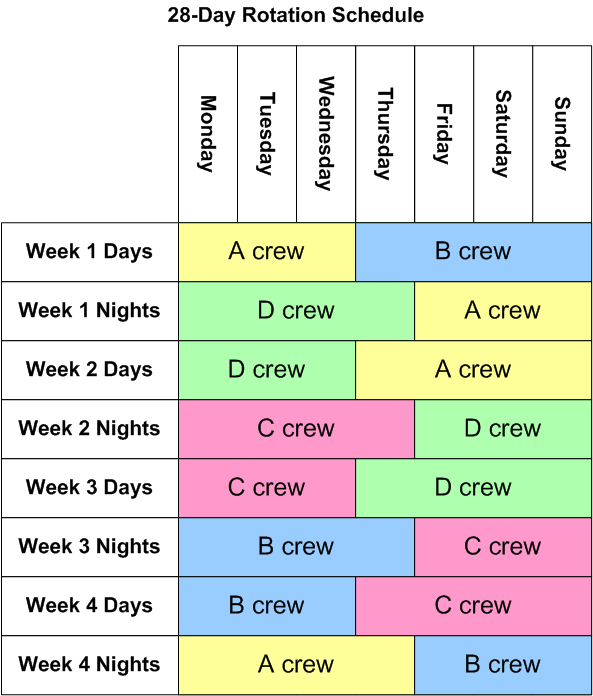
For example, consider an organization where 4 maintenance groups are working 12-hour shifts, and the shift rotation repeats every 28 days.
To accommodate this situation, 4 sets of schedule templates are created to cover each 7-day period within the 28 days.
This topic explains how to create a set of templates for the 28-day shift rotation example described above. You may modify these templates to match your organization’s scheduling system. This example assumes that you need to calculate employee availability. If you do not use employee availability for scheduling, you may not need to create this level of detail in your templates.
This topic describes the types of templates you will need to create, and the basic settings to use on each type of template. For more information on setting schedule template properties, see Setting Schedule Template Properties.

Prerequisites

Before you start creating templates, make sure that:

To Create a 28-Day Rotation Hierarchy

Create the Top Schedule Template

1.

Hierarchy tab:

General tab, Details tab:

Followed by: Schedule Template Name

General tab, Maintenance Groups tab:

Maintenance Groups: Select each of the four teams

General tab, Shifts tab:

Shifts: Select both shifts

Availability tab:

Create the Weekly Schedule Templates

2.

Hierarchy tab:

General tab, Details tab:

Followed by: Schedule Template Name

General tab, Options tab, Options tab:

“Week 1” template: 0 days
“Week 2” template: 7 days
“Week 3” template: 14 days
“Week 4” template: 21 days

General tab, Maintenance Groups tab:

Maintenance Groups: Select all four teams

General tab, Shifts tab:

Shifts: Select both shifts

Availability tab:

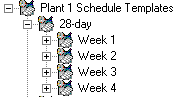
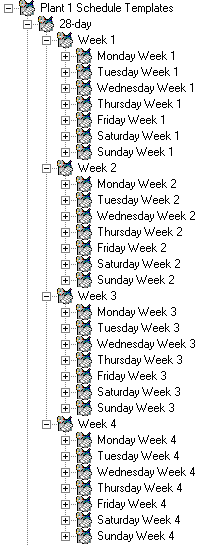
When you are finished with the weekly schedule templates, your hierarchy should look like this:

Create the Daily Schedule Templates

3.

Hierarchy tab:

General tab, Details tab:

Schedule starts on: whatever day the template represents (that is, Monday for “Monday Week 1,” Tuesday for “Tuesday Week 1” etc.)
Followed by: Schedule Template Name

General tab, Options tab, Options tab:

General tab, Maintenance Groups tab:

Maintenance Groups: Select all four teams

General tab, Shifts tab:

Shifts: Select both shifts

Availability tab:

4.
Repeat step 3 for the Week 2, Week 3, and Week 4 templates, making the appropriate changes to the names.
Tip: You can quickly create the daily templates for each week by making copies of the Week 1 daily templates and then renaming them (schedule templates must all have unique names). You will also need to move the copies to the correct location in the schedule template hierarchy. You can do this from the General tab of any template.
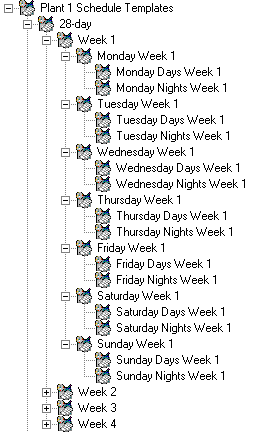
When you are finished with the daily schedule templates for each week, your hierarchy should look like this:

Create the Shift Schedule Templates

5.

Hierarchy tab:

General tab, Details tab:

Schedule starts on: whatever day the template represents (that is, Monday for “Monday Days Week 1,” Tuesday for “Tuesday Days Week 1” etc.)
Followed by: Maintenance Groups
Followed by: Shifts

General tab, Options tab, Options tab:

General tab, Maintenance Groups tab:

Maintenance Groups: Select ONLY the team that will be working that shift on that day (Team A, B, C or D). For example, if you look at the diagram of the shift rotation at the beginning of this topic, you will see that A-Team is working the day shift from Monday to Wednesday, and B - Team is working the day shift from Thursday to Sunday.

General tab, Shifts tab:

Shifts: Select the “12-hour Days” shift.

Availability tab:

6.
Repeat step 5 for the week 1 night shifts. All of the settings will be the same, except for:

Details tab:

Maintenance Groups: Select ONLY the crew that will be working the night shift on that day (Team A, B, C or D). For example, if you look at the diagram of the shift rotation at the beginning of this topic, you will see that D-Team is working the night shift from Monday to Thursday, and A-Team is working the night shift from Friday to Sunday.
Shifts: Select the “12-hour Nights” shift.
When you are finished with the week 1 shift schedule templates, your hierarchy should look like this:
7.
Repeat steps 5 and 6 for the Week 2, Week 3, and Week 4 templates, making the appropriate changes to the names and maintenance group selections.
Tip: You can quickly create the shift templates for each week by making copies of the Week 1 day and night shift templates and then renaming them (schedule templates must all have unique names). You will also need to move the copies to the correct location in the schedule template hierarchy. You can do this from the General tab of any template.

Test the Schedule Template Hierarchy
8.
From the Schedule Template menu select Create Schedules.
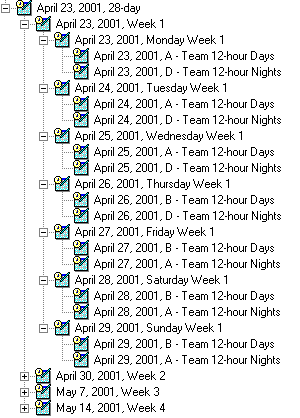
The system creates a schedule for each template in the hierarchy. This will take several minutes to complete. When the generation of schedules is finished, APM opens the top schedule.
The resulting schedule hierarchy should look similar to this (your dates may be different):
9.