Viewing Information about Safety Objects

APM provides summary information about assets and safety objects. You can set up key performance indicators to analyze safety data, for example, to track the number of override incidents that occur in a given period. In a safety provision’s version window, you can select the Usage view to see the failure modes linked to the version and the highest risk level scores. APM records changes made to safety provisions and versions, including the user responsible for the change, the date of the change, and the before and after values of the property that was changed.
This topic explains where to view information and the types available. It explains how:
Tip: You can also view the history of failure modes and action plans on the Strategy Development view. The Inspection Management view, Indicators tab contains the Indicator History, Indicator States History, and Collection Policies History tabs.

To View a Site’s or Asset’s Safety Objects

1.
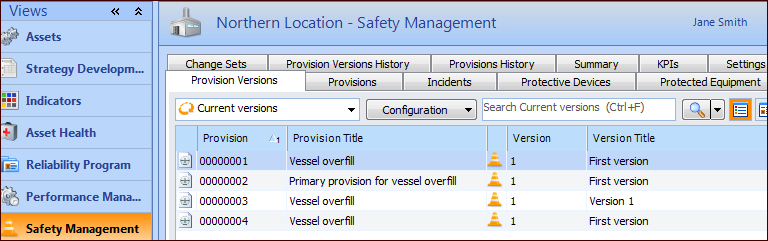
Open the Site or Asset window and select the Safety Management view. Here is an example for a site:
This view contains tabs that list provision versions, provisions, incidents, protective devices, protected equipment, and summaries. On the Site window, you can also view and create change sets and view provision and version history.
Tip: On the Provision Versions and Provisions tabs, select the default table configuration and scroll to the right to view the most recent override incidents, as well as their statuses, start and end dates, and titles.
Most tabs contain table configurations that allow you to refine the list of items. For example, select the Provision Versions tab and the “All versions with failure mode count” configuration to see information like the number of failure modes linked to each version and the highest risk level.
Tip: You can select two or more objects in a table, right-click, and click an option to perform actions on the selected objects at the same time. For example, on the Provision Versions tab, create incidents. On the Provisions tab, create versions. On either tab, you can change the status of two or more objects at a time.

To View the Statuses of Safety Objects

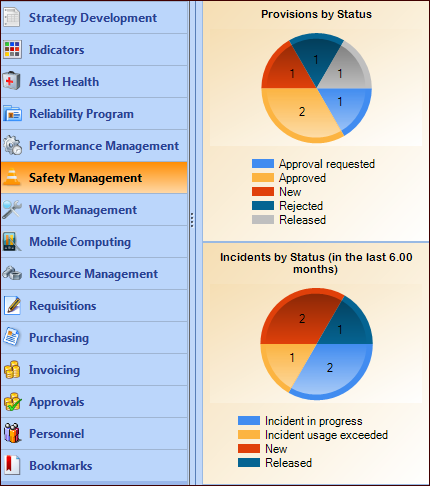
On the Site window, select the Safety Management view. If your APM employee record has been assigned a site sidebar dashboard set that contains the Safety management sidebar, you will see charts showing the statuses of safety provisions and override incidents. For example:
Tip: For information about setting up the safety management sidebar dashboard set, see Defining Sidebar Dashboards.
Tip: You can also view the safety provision versions and analyses that use a specific change set. Open the change set and click Usage. The Usage dialog lists strategy development analyses, failure modes, and provisions that reference the change set. You can also change the status of these objects. See Updating Study Status using a Change Set.

To View a Summary of an Assets’ Safety Objects

1.
On the Site window, select the Safety Management view.
2.
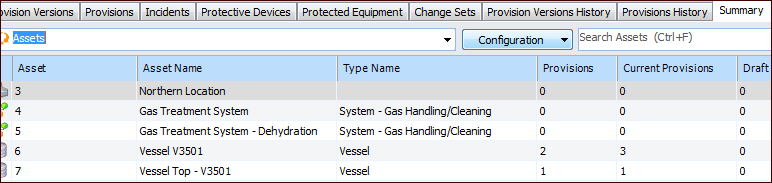
Select the Summary tab. The tab lists the site’s assets. For each asset, it shows the number of provisions, current versions, draft versions, open incidents, and incidents in the last six months. For example:
Tip: You can select “Assets with open incidents” from the list of configurations on this tab. Assets with open override incidents are shown.

To View Safety Management KPIs

1.
On the Site window, select the Safety Management view.
2.
Select the KPIs tab. This tab lists KPIs assigned to the Safety Management APM cycle element. Select a KPI to view a chart and readings, if available.
For more information, see Performance Indicators.

To View Audit Information about Provisions

1.
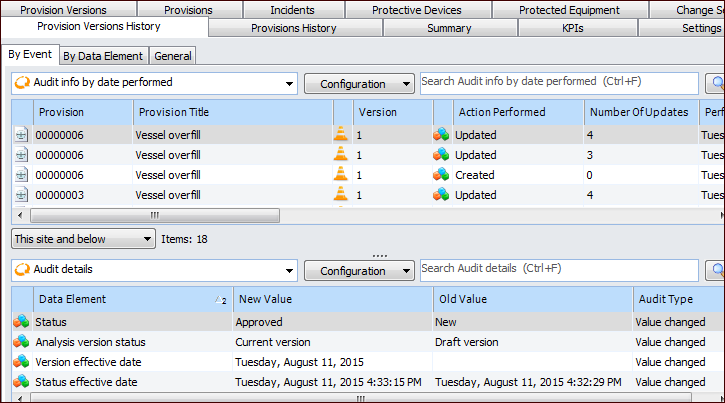
On the site’s Safety Management view, select the Provision Versions History tab to view the actions performed on safety provision versions. For example:
Select an item in the top table to view audit details in the bottom table.
2.
Select the Provisions History tab to view audit information about safety provisions.
Tip: You can also open a provision and select the History view to see information about actions performed on the provision, its versions, supporting provisions, and supported provisions.

To View a Version’s Highest Risk Level and Linked Failure Modes
1.
2.
Select the Usage view.
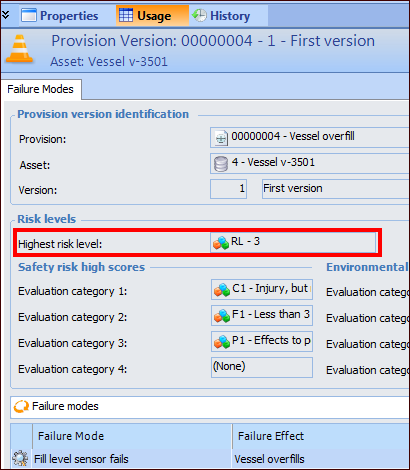
The Risk levels area shows the highest risk level achieved based on the failure modes to that the provision is linked to.
Note: If the provision version is not linked to a failure mode, you can select a level in the Highest risk level list.
For each of the consequence severity evaluations (for example, Safety, Environmental, Economic, Reputation), the responses with the highest severity are shown for each of the categories. The Failure modes table lists the failure modes where the provision has been added to reduce risk levels.
To ensure that the data is up to date, open the site window and click the Tools menu, Safety Management, and then Update Safety Provision Risk Levels. To have APM automatically update this information on a regular basis, you can set up the Update Safety Provision Risk Levels scheduled action. For more information, see Scheduling Actions.