|
Requesting Follow-up Work for an Override Incident
To Request a Follow-up APM Work Document
3.
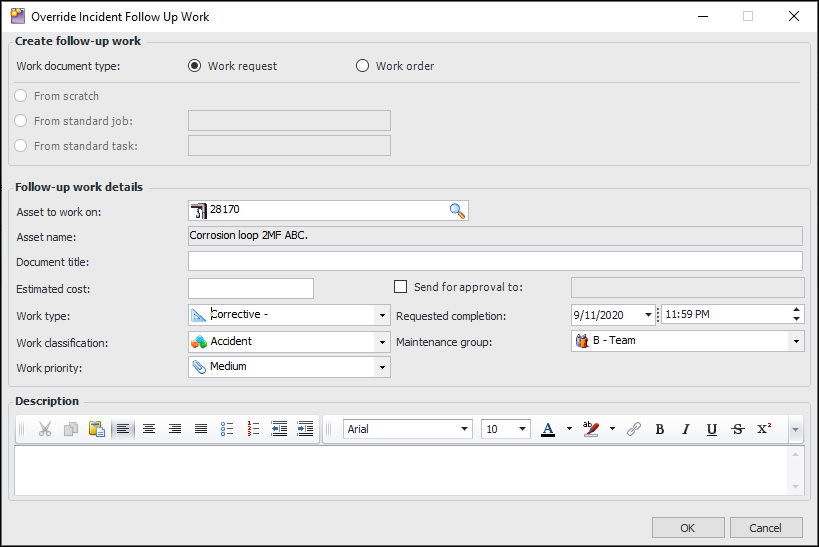
4. Click New. The Override Incident Follow Up Work dialog appears. Here is an example when APM work documents are used:
6. If you selected Work order, select the method for creating the document. The options are:
• From scratch – Add a new work order. See step 7.
• From standard job – Browse to select the appropriate standard job. Select the requested completion date
• From standard task – Browse to select the appropriate standard task. Select the requested completion date
8.To Request a Follow-up AWEIS Request for Work
3.
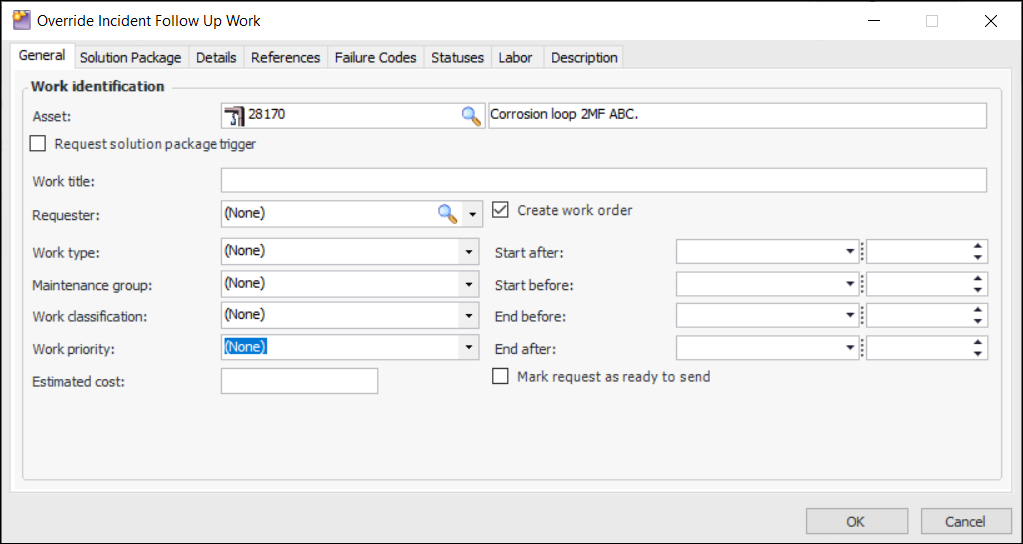
4. Click New. The Override Incident Follow Up Work dialog appears.To Request a Follow-up SAP Maintenance Order
3.
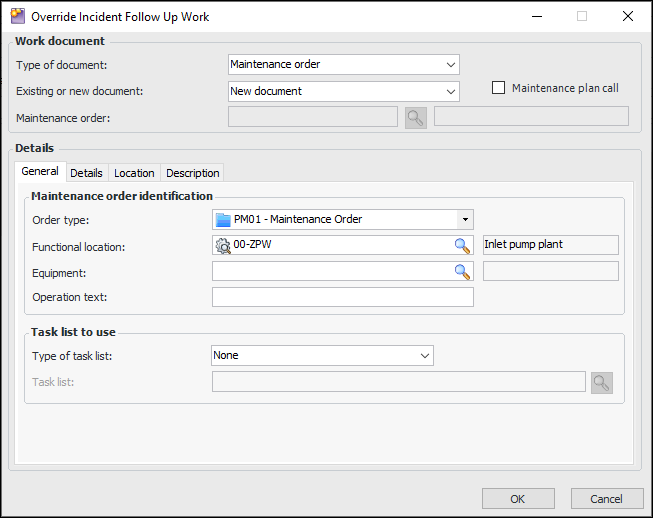
4. Click New. The Override Incident Follow Up Work dialog appears.
5. To use an existing maintenance order, select the New or existing document list and click “Existing document”.
• Select the maintenance order and click OK. The maintenance order number and description are displayed in the dialog.
• Click OK to add the follow-up work to the incident.
6. To create a maintenance call, select Maintenance plan call.
• Select the maintenance plan and click OK. The maintenance plan’s identifier and description are displayed in the dialog.
• Click OK to add the follow-up work to the incident.
7. To create a maintenance order, select the New or existing document list and click “New document”.
•
• Click OK. The Override Incident New Follow-up Work dialog closes. The maintenance order is created in SAP and its number and title are returned to the record in APM. The maintenance order is added to the Follow Up Work tab.To Request a Follow-up SAP Notification
3.
4. Click New. The Override Incident Follow Up Work dialog appears.
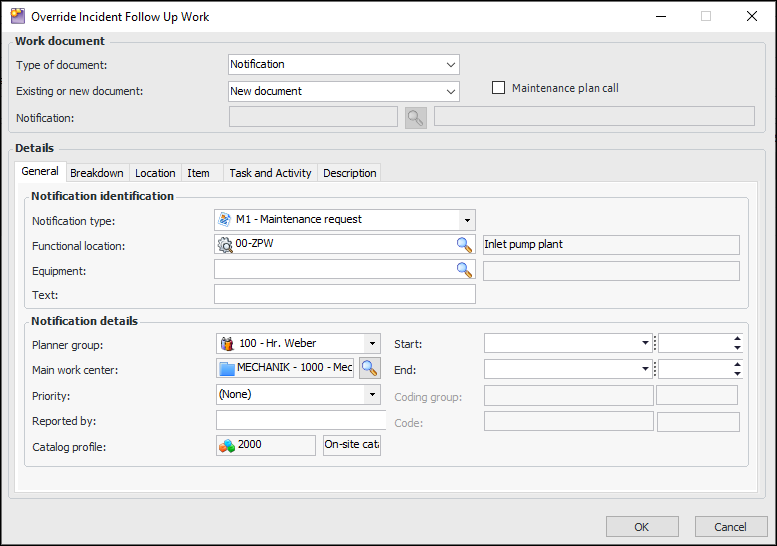
5. In the Type of document list, select “Notification”. The Override Incident New Follow-up Work dialog changes as follows:
6. To use an existing notification, select the New or existing document list and click “Existing document”.
• Select the notification and click OK. The notification number and description are displayed in the dialog.
• Click OK to add the follow-up work to the incident.
7. To use a new notification, select the New or existing document list and click “New document”.
• In each of the Breakdown, Location, Item, Task and Activity, and Description tabs, review and change the values, as needed.
• Click OK. The Override Incident New Follow-up Work dialog closes. The notification is created in SAP and its number and title are returned to the record in APM. The notification is added to the incident’s Follow Up tab.