Creating a Safety Provision

The safety design team identifies the safety processes, systems, and procedures that prevent or mitigate hazards. Safety provisions record the actions to be performed, the checklist of items, and instructions.
The provision version defines the safety override that identifies the procedures that an operator or technician should follow when a safety device malfunctions in order to keep the facility operating safely while the device is being fixed or replaced. It also defines a table of protected assets and the assets (for example, safety devices and control equipment) that protect them.
The team assigns a safety integrity level (SIL) to each safety provision version. This numeric value, usually on an ascending scale between 0 and 4, is a measure of the amount of risk inherent in the failure that the provision prevents or mitigates. The provision’s SIL is used in SIF analyses to calculate the impact of a possible failure.
Tip: Once the provision has been added to SIF or HAZOP analyses, you can view the list of failure modes in the Safety Provision window’s Usage view. For a version, select the Usage view in the Safety Provision Version window to see a summary of the high risk scores taken from all of the failure modes that cite the version. If you wish to update this information, click the Tools menu and then Update Risk Levels.
Note: You can set up a scheduled action (Update Safety Provision Risk Levels) to update this information in provision versions. For more information, see Scheduling Actions.
Tip: If a provision is not linked to failure modes, you can set the highest risk level yourself. In the Safety Provision Version window, select the Usage view. Select the level in the Highest risk level list, which is enabled when the provision has not been added to failure modes.
Provision versions maintain active links to indicators that monitor assets and the standard tasks and jobs that maintain equipment safety.
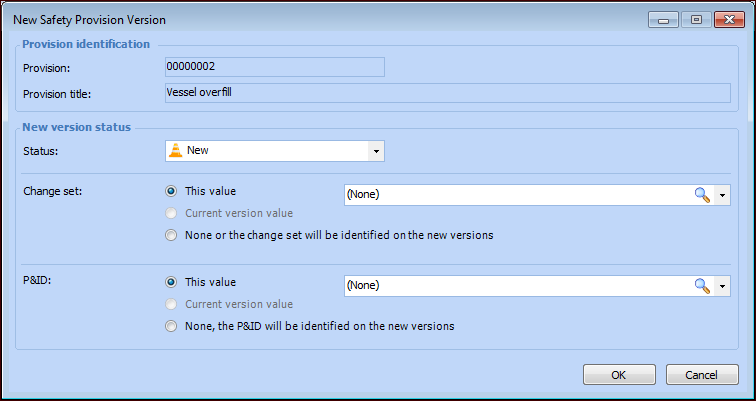
Tip: You can quickly create versions for two or more provisions that do not already have drafts. Select the provisions in the site’s Safety Management view, Provisions tab. Right-click and click New Version. The New Safety Provision Version dialog appears, where you can select a status and options for the change set and P&ID document. This information is applied to all of the new versions. When you click OK, Safety Provision Version windows open for each of the new versions.
This topic provides background information and detailed instructions:
Where applicable, this topic provides links to related topics.

Mandatory, Optional, and Unavailable Information

Depending on the settings on the safety type assigned to the provision, information might be mandatory, optional, or unavailable. The types of information are:
Mandatory information must be included in the provision version before the provision can be approved or marked as accepted. If a type of information is unavailable, its tab does not appear in the Safety Provision Version window.

Versions, Approvals, and Safety Type

A safety provision or override incident is developed using three versions: draft, current, and historical. When the draft version is promoted, it becomes the new current version. When a new current version becomes available, the previous current version becomes historical. Typically, the draft is promoted once it has been vetted.
The safety type assigned to the safety object (provision or override incident) determines whether or not the formal approval process is required. When approval is required, the object is sent to one or more employees on an approval route. Each approver reviews the object and approves, rejects, or forwards the request.
If your organization prefers the alternative to the formal approval process, the object can be reviewed and marked as “Accepted.” In the safety provision’s window, the Versions view lists the versions and shows their current statuses.
The safety type also determines the status of the object when system events occur, for example, when an object is created or approved. The status, in turn, determines what actions can be performed on the object.
For information about the approval process, see Sending a Safety Object for Approval. For information about the acceptance process, see Marking a Safety Provision Draft as Accepted.

Safety Statuses

The provision’s safety type can determine its status when the provision is created and when key events occur, for example, when it is approved or accepted. The status, in turn, controls the actions you can perform on the provision. For example, the status determines if properties can be updated or the provision can be sent for approval or marked as accepted. Changing the status can also perform an action, such as promoting a draft to the current version.

To Create a Safety Provision

1.
In the Site window, select the Safety Management view and the Provisions tab. This tab lists any provisions that have already been created.
2.
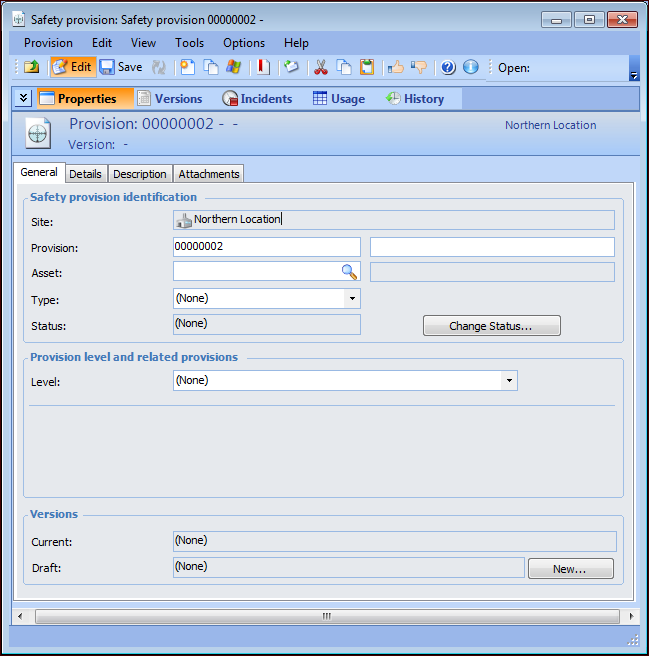
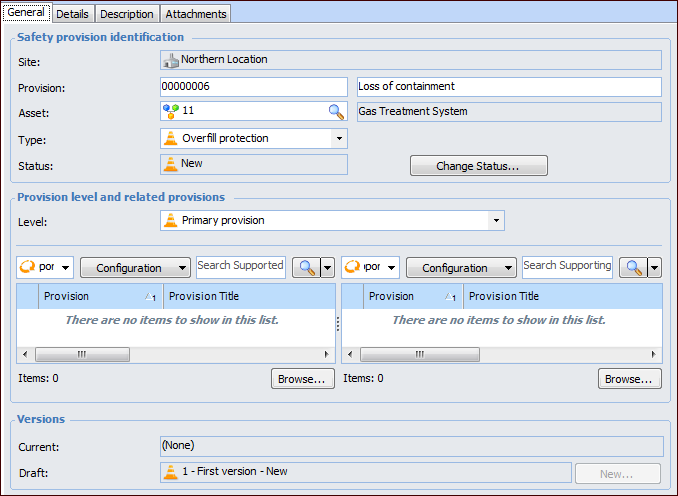
Click New. The Safety Provision window appears.
Tip: You can also create a provision by opening an asset and selecting the Safety Management view, Provisions tab. Click New. The Safety Provision window appears, and the asset information is filled in.
3.
4.
5.
6.
The status describes the provision’s stage of development. It is usually provided by the safety type. For information about changing a status, see step 8.
7.
Tip: A demand-reducing provision is put in place to reduce the demand placed on the asset, for example, by reducing flow or pressure.
When you select a level, the Supported provisions table, Supporting provisions table, or both appear. Any secondary or supporting provisions that reference the current provision are listed in the table. You can click Browse to select supported or supporting provisions.
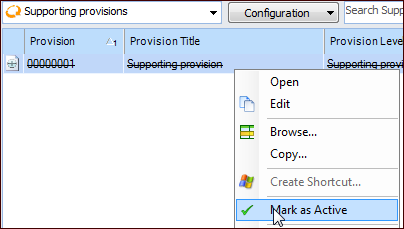
Tip: If a supported or supporting provision no longer applies to the current provision, mark it as expired. Right-click the provision in the table and click Mark as Expired. The provision is now shown as struck-through.
To activate an expired provision, right-click it and click Mark as Active:
Note: A provision’s “Marked as expired” status on one provision does not extend to other provisions where it is listed.
Tip: Select the History view on the Safety Provision window to see information about actions performed on the provision, its versions, supporting provisions, and supported provisions.
8.
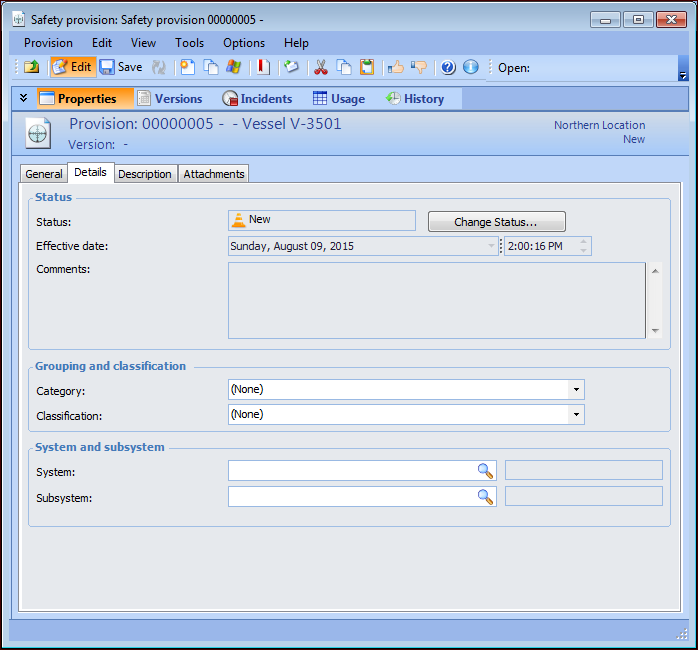
Select the Details tab.
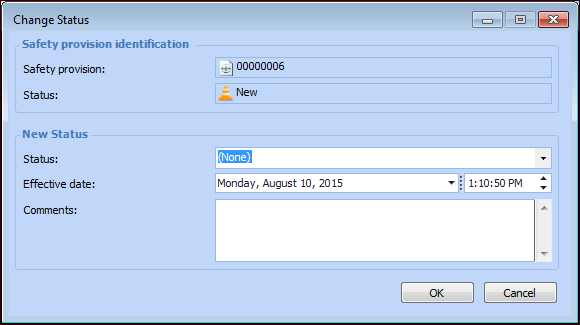
Tip: Whenever you wish to apply a status manually, click Change Status. The Change Status dialog appears. For example:
Select a new status from the list, enter the reason for the change in the Comments box, and click OK. The date and time when the status went into effect are shown on the Details tab, as well as your comments.
9.
In the Grouping and classification area, select a category from the list. Safety categories are used to display safety objects in groups that are relevant for your site. You can filter and sort lists of objects by category.
10.
11.
In the System and subsystem area, you can click the browse icons to identify the system and subsystem associated with the provision.
12.
Select the Description tab to provide detailed information about the provision.
13.
Select the Attachments tab to add files, folders, notes, URLs, or shortcuts to the version. For more information, see Adding Attachments to Objects.
14.

To Create a Draft Version

1.
On the General tab, click New to add a version. The New Safety Provision Version dialog appears.
The provision’s number and title are shown.
2.
3.
This value – Select a change set from the list or click the browse icon.
Current version value – If an existing version has a change set, you can choose to use it with this version.
None or the change set will be identified on the new version – Select this option if a change set is not required or will be added to the version later.
This value – Select a P&ID from the list or click the browse icon to open the Standard Document Selector dialog.
Current version value – If an existing version refers to a P&ID, you can choose to use it with this version.
None or the P&ID will be identified on the new version – Select this option if a P&ID is not required or will be added to the version later.
4.
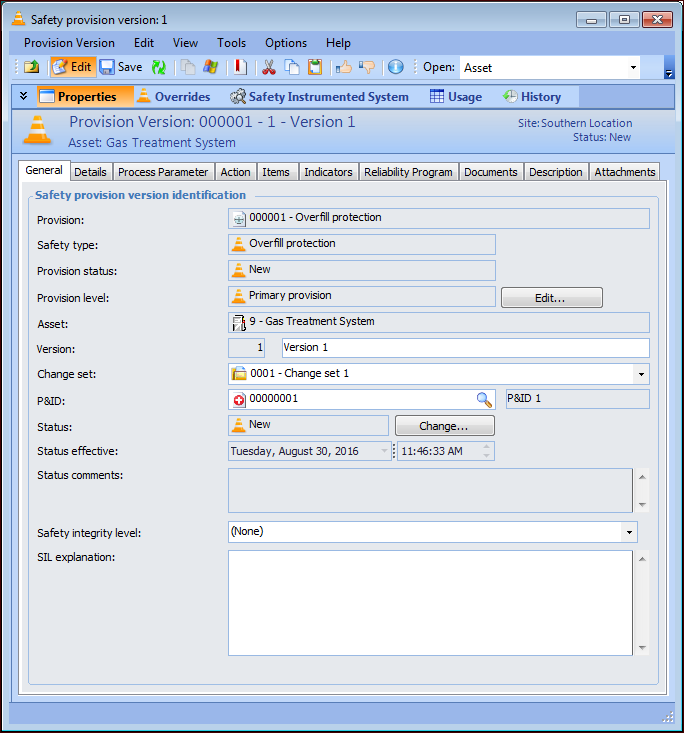
Click OK. The Safety Provision Version window appears.
APM numbers the version automatically.
5.
On the General tab, provide a title for the version.
6.
7.
8.
Whenever you wish to apply a status to the version manually, click Change Status. The Change Status dialog appears, where you can select the status, adjust the effective date, and add comments. When you click OK, the change is made on the Safety Provision Version window, where the effective date and comments are also shown.
9.
10.
In the SIL explanation box, provide the reasons for selecting the SIL.
11.
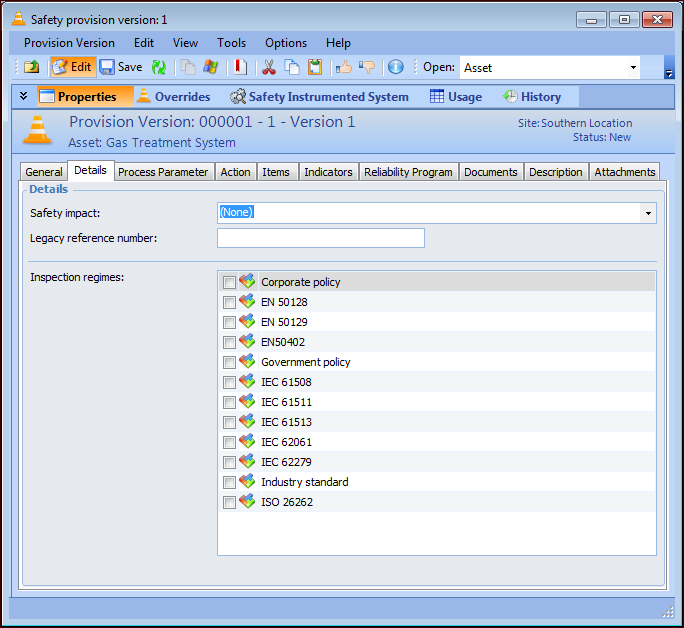
Select the Details tab.
12.
13.
On the Project tab, you can assign the safety provision version to a reliability project and associate it with a project task. Reliability projects are typically used to organize and track analyses and objects. They usually use project tasks rather than work orders.
14.
Select the Process Parameter tab if you wish to add one. A process parameter defines the amount of time that is needed for the safety process to go into action after a problem is detected. After you have entered values, the results are shown in a chart. For more information, see Adding a Process Parameter to a Provision Version.
15.
Select the Action tab, where you can enter a description of the actions to be performed to prevent or mitigate a hazard.
16.
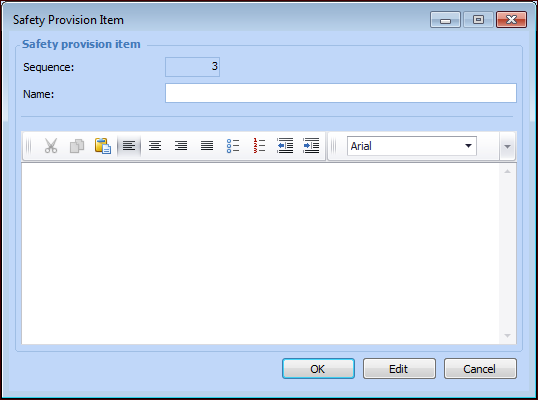
Select the Items tab to create a checklist of items. Click New to create an item. The Safety Provision Item dialog appears.
Provide a name and description for the item and click OK. The item is added to the Safety Provision Items table.
Tip: To change the sequence of an item, select it in the table and click Move Down or Move Up, as needed. The sequence numbers change accordingly.
17.
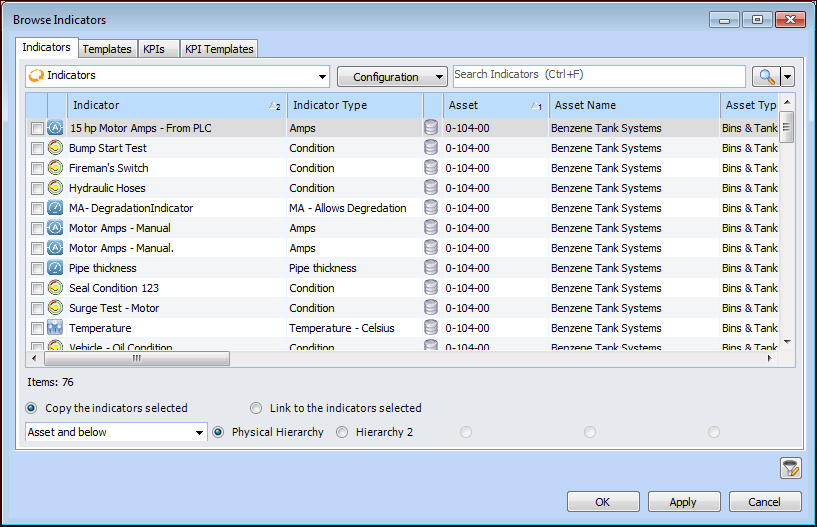
Select the Indicators tab to link or copy indicators to the provision’s asset. Click Browse to select indicators, key performance indicators (KPIs), or templates. The Browse Indicators dialog appears. For example:
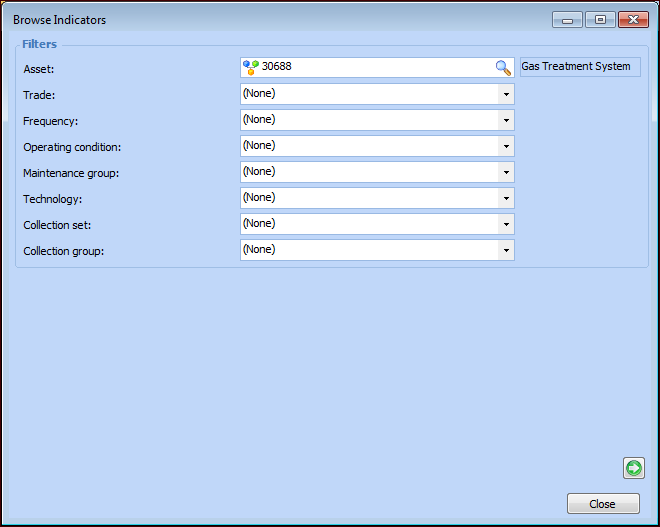
Tip: You can refine the list by clicking to open the list of filters:
Select the filter values and click to return to the Browse Indicators dialog.
18.
When you have selected the indicators, click OK. The indicators are added to the Indicators table.
19.
Select the Reliability Program tab to browse for standard tasks, standard jobs, and job tasks to reference on the version.
Tip: The browse dialogs for tasks, jobs, and job tasks are similar to the Browse Indicators dialog explained in step 17.
20.
Select the Documents tab to browse for standard documents to add to this version. You can also create a standard document to add to the version. For more information, see Creating a Standard Document.
21.
Select the Description tab to provide a general description of the provision.
22.
Select the Attachments tab to add files, folders, notes, URLs, or shortcuts to the version. For more information, see Adding Attachments to Objects.
23.
Select the Overrides view.
24.
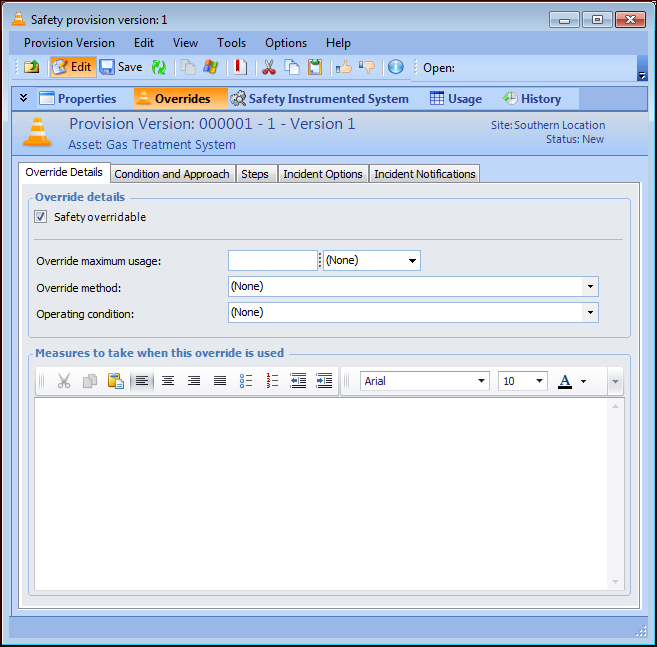
Safety overridable is selected by default. When this option is selected, you can define the procedures that an operator or technician should follow when a safety device malfunctions. You can clear this option, if required.
For instructions on creating overrides, see Defining a Safety Override on a Provision.
25.
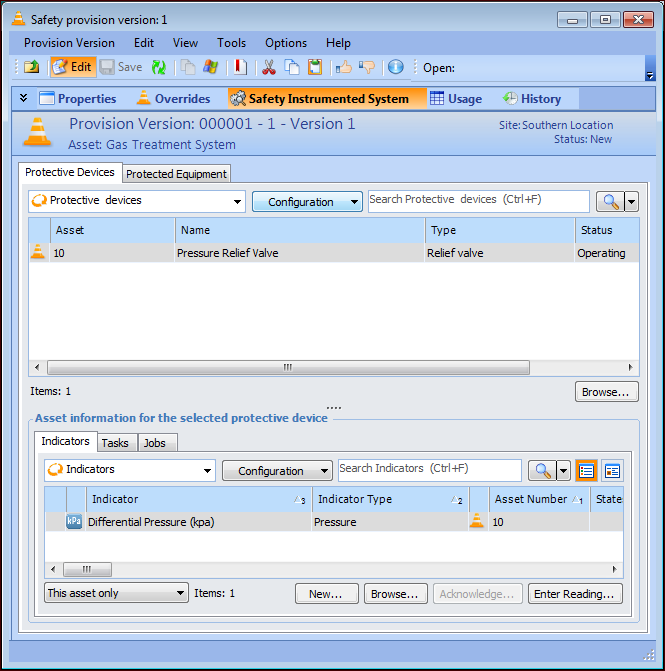
Select the Safety Instrumented System view and the Protective Devices tab. Click Browse to open the Browse Assets dialog, where you can select one or more assets that have been designated as protective. When you click OK, the assets are added to the table.
Select an asset in the Protective devices table to view information about it below. For example:
You can add new or existing indicators, standard task, and jobs to the selected asset.
26.
Select the Protected Equipment tab. Click Browse to open the Browse Assets dialog, where you can select one or more assets that have been designated as protected. When you click OK, the assets are added to the table.
27.
Depending on your organization’s requirements, the next step is to either send the provision for approval or have a reviewer mark the draft as accepted. For more information, see Sending a Safety Object for Approval or Marking a Safety Provision Draft as Accepted.
When the draft has been vetted, it can be promoted to the current version.