|
Creating an Override Incident
Tip: To track the incident and review its history and context, select the Incidents view. This view provides information about similar incidents and the override’s history of incidents. Select the History view to see information about actions performed on the incident, its extensions, and approval requests.Tip: To view provisions’ or provision versions’ most recent override incidents, select the site’s Safety Management view, the Provision Versions or Provisions tabs, and the default table configuration. Scroll to the right to view the most recent override incidents, as well as their statuses, start and end dates, and titles.Depending on your organization’s requirements, incidents can be sent for approval, typically to vet incident extensions. For information about the approval process, see Sending a Safety Object for Approval.Safety Type and Statuses
How Start Dates are Set on Override Incidents
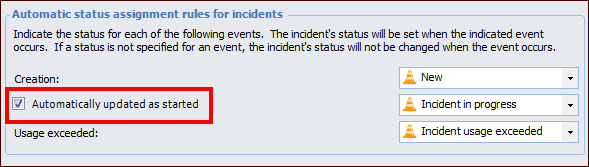
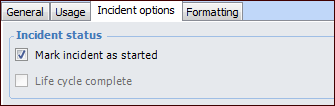
When Automatically updated as started is selected on the safety type, the specified safety status is applied to the incident.An incident’s start date and time are shown on the Override Incident window, Properties view, Timeline tab. For example:Tip: You can manually perform the scheduled action’s tasks using a command on the site. On the Site window, click the Tools menu, Safety Management, and then Update Open Override Incidents. APM updates the remaining time on all open override incidents. It also reviews open incidents that have not yet started to determine if their planned start dates are in the past and their safety types allow start dates to be set automatically. It sets each qualified incident’s start date and time to its planned values.To Create an Override Incident
1. In the Site window, select the Safety Management view and the Incidents tab. This tab lists any incidents that have already been created.
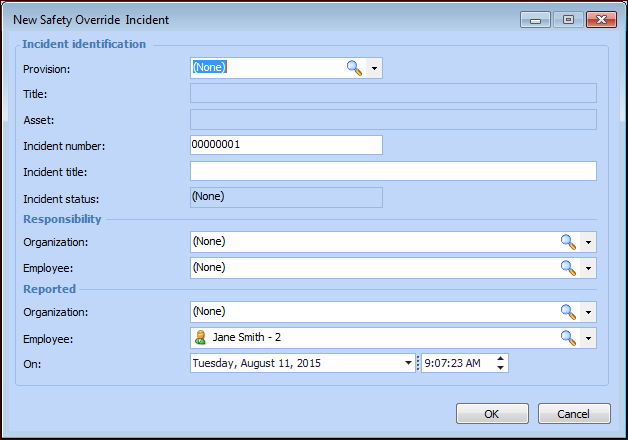
2. Click New. The New Safety Override Incident window appears.Tip: You can also right-click a current provision version and click New Incident. Or open a provision, right-click its current version, and click New Incident. In both cases, the Override Incident window appears, and the provision information is filled in.
6. In the Responsibility area, select the employee who has operational responsibility for the asset involved in the safety incident, as well as the related organization.
7. In the Reported area, identify the employee who reported the incident, the related organizational asset, and the date and time when the incident was reported.
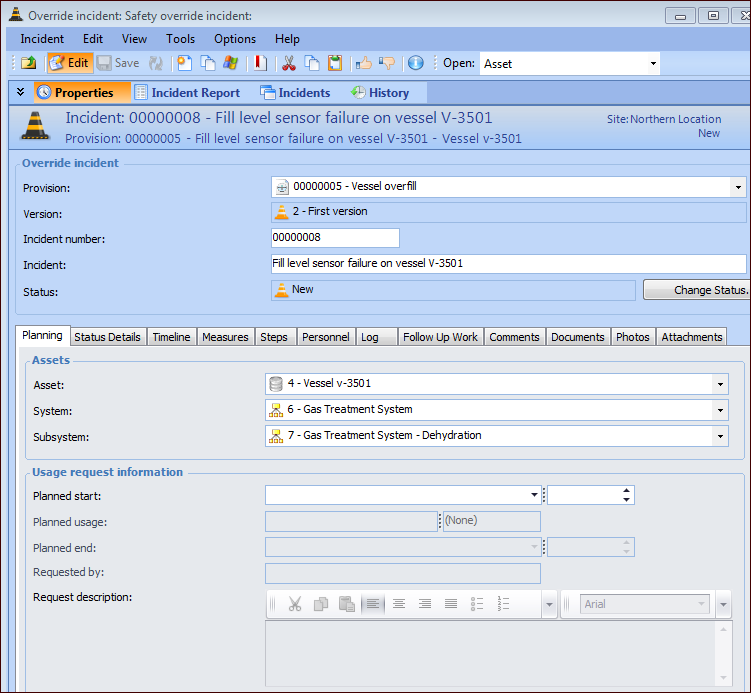
8. Click OK. The dialog closes and the Safety Override Incident window appears. For example:
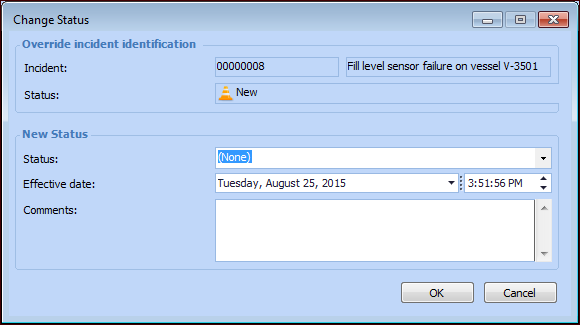
9. The status describes the incident’s stage of development. Whenever you wish to set a status manually, click Change Status. The Change Status dialog appears. For example:Select a new status from the list, enter the reason for the change in the Comments box, and click OK. The date and time when the status went into effect are shown on the Status Details tab, along with your comments.
10. The Planning tab displays information about the assets. In the Usage request information area, select the date and time when the override measures are planned to start.
11. In the Planned usage boxes, select the estimated amount of time that the override measures will be active. If this value exceeds the maximum usage recommended on the override, you will need to request an extension on the Timeline tab.
14. In the Request description box, provide information to explain why the request is necessary.
15. Select the Status Details tab to view and change the incident’s status. This tab shows the effective date and time and status comments.
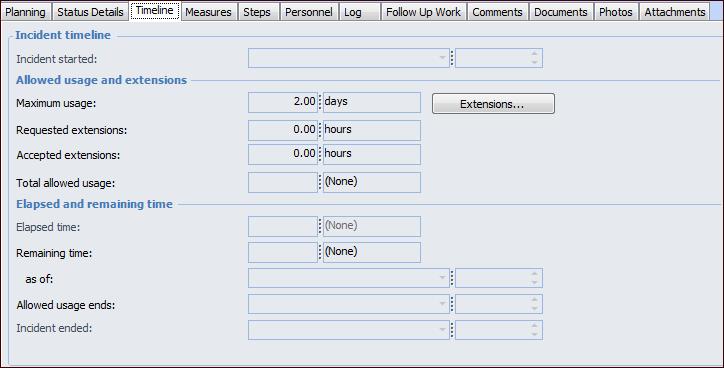
16. Select the Timeline tab. For example:
17. The Incident started boxes display the date and time when the incident is updated as started. In this example, the incident’s life cycle has not started.
18. The rest of the Timeline tab displays the following information:
When the incident’s life cycle has completed, the data and time are displayed in the Incident ended boxes.
19. Select the Measures tab to view the measures to be taken, as defined in the safety override.
20. Select the Steps tab to view the steps defined in the safety override.
21. Select the Personnel tab to view information about the employee with operational responsible for the asset and the employee who reported the incident.
22. Select the Log tab to add and review log entries.
23. Select the Follow Up Work tab. Each incident can have one work request or work order automatically created for follow-up work based on the safety override’s settings and a safety status applied to the incident. When the work document is created automatically, it is listed in this tab.You can also click New on this tab to create a work document. For more information, see Requesting Follow-up Work for an Override Incident.
24.
25. Select the Documents tab to view and open standard documents from the safety override.
26. You can select the Photos tab to browse for inspection photos.
27. Select the Attachments tab to add files, folders, notes, URLs, or shortcuts to the incident. For more information, see Adding Attachments to Objects.
28. Select the Incident Report view to enter a report and make recommendations.To Request and Process Extensions
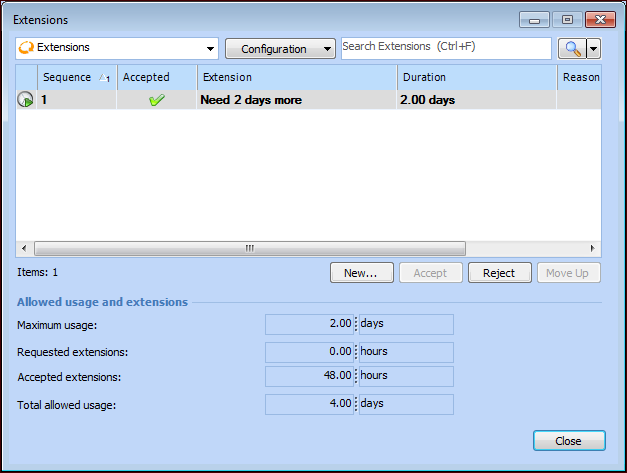
1. Select the Timeline tab and click Extensions. The Extensions dialog lists existing extension requests. For example:If approvals are required, the Accept and Reject buttons are not available. Instead, send the incident for approval. Otherwise, you can accept and reject extensions using these buttons.Tip: You can change the order of extensions using the Move Up button.
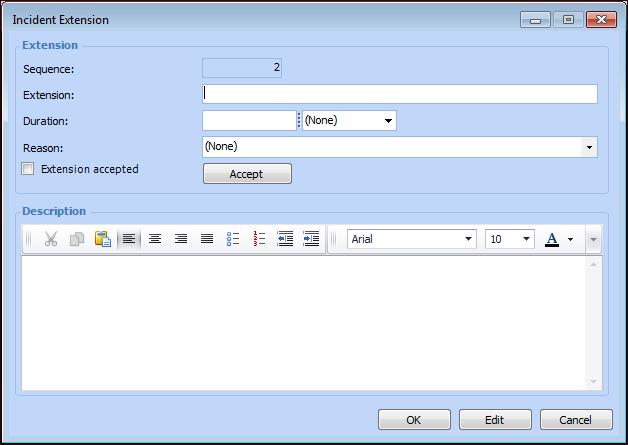
2. Click New. The Incident Extension dialog appears.The sequence number is automatically assigned. If you are using the approval process, the Accept button is not available.
3. In the Extension box, enter a descriptive title for the extension.
6. In the Description box explain the reason for the request.
7. If allowed, you can accept the extension request at this point. Click Accept. A confirmation message appears. Click Yes. The Extension accepted option is selected.
8. Click OK. The Incident Extension dialog closes and the extension request is added to the Extensions table.
9. Click Close to close the Extensions dialog. If the extension was accepted, the information on the Timeline tab is updated immediately. If the incident must be sent for approval, this information is updated when the incident has been approved.