Working with SIF Action Plan Task Statuses

You can define action plan task statuses for use with failure modes and action plans in addition to the statuses provided by APM (Facilitation Incomplete, Facilitation Completed, Implementation Completed, and Implementation Not Required). Facilitators and implementers can then use the additional statuses to co-ordinate their efforts, for example, marking an action plan for follow-up or review. The status can be set manually on the Maintenance Action Plan window, Details tab.
You can set up the statuses required by your organization in failure mode settings at the site level.
For information about creating action plan task statuses, see Setting up Action Plan Task Statuses.
This topic explains:

To Assign a Task Status to an Action Plan

1.
From the site’s Strategy Development view and tab, select the Action Plans tab. Locate and double-click the action plan to open the Maintenance Action Plan window.
On the Strategy Development Analysis window, select the Facilitation view and then the By Asset or By Hierarchy tab. Locate and double-click the failure mode to open the Maintenance Action Plan window.
2.
Select the Details view.
Tip: To assign a task status to a secondary action plan, select the Implementation view in the Maintenance Action Plan window. Select the Secondary Action Plans tab. Double-click the action plan to open its Maintenance Action Plan window. Select the Details view.
3.
4.
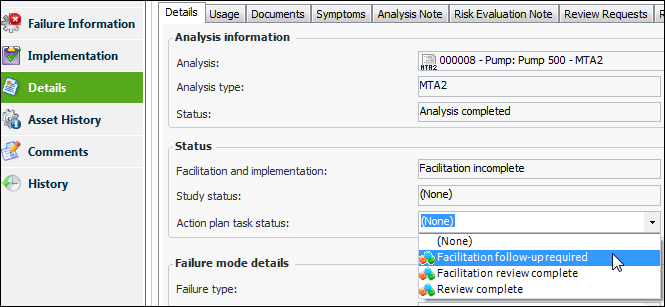
Select the Details tab. In the Action Plan Status list, select a status. Here is an example for an MTA2 failure mode:
5.

Viewing Action Plans’ Task Statuses for the Site

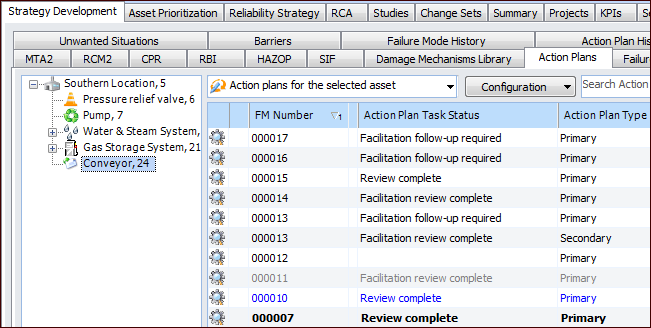
To view action plans with the statuses that you have set up and assigned, select the site’s Strategy Development view and tab, Action Plans tab. Select an asset in the tree to list its action plans in the table. The Action Plan Task Status column displays the statuses assigned to all of the asset’s primary and secondary action plans. For example: