|
Creating a SIF Template
•
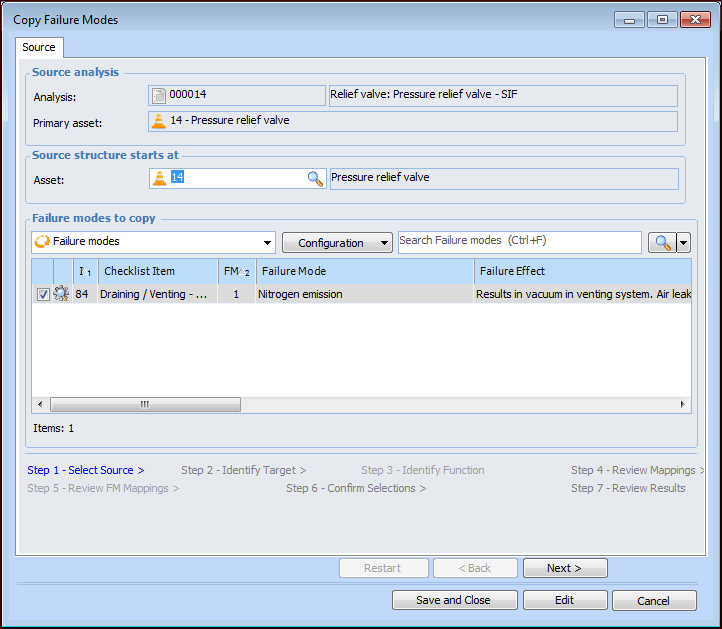
• No information is displayed in the Asset boxes and columns in the analysis.To Create a SIF Template Based on an Existing Analysis
2.
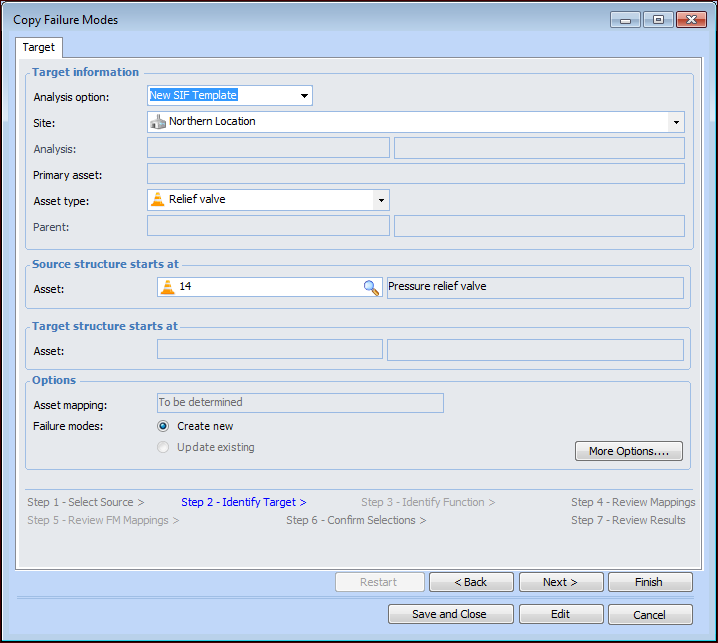
4. Click Next. The Identify Target step appears.
5. In the Analysis option list, select “New SIF Template”.
7. The Asset type box displays the asset type of the primary asset of the source analysis. Select another asset type, if appropriate.
8. If you wish to adjust mapping options for copying employees, trades, and maintenance groups, Click More Options. For more information, see Setting Mapping Options for a Failure Mode Copy.
9. Click Next to view the Review Mappings step. This page displays matches for employees, trades, maintenance groups, and other resources.
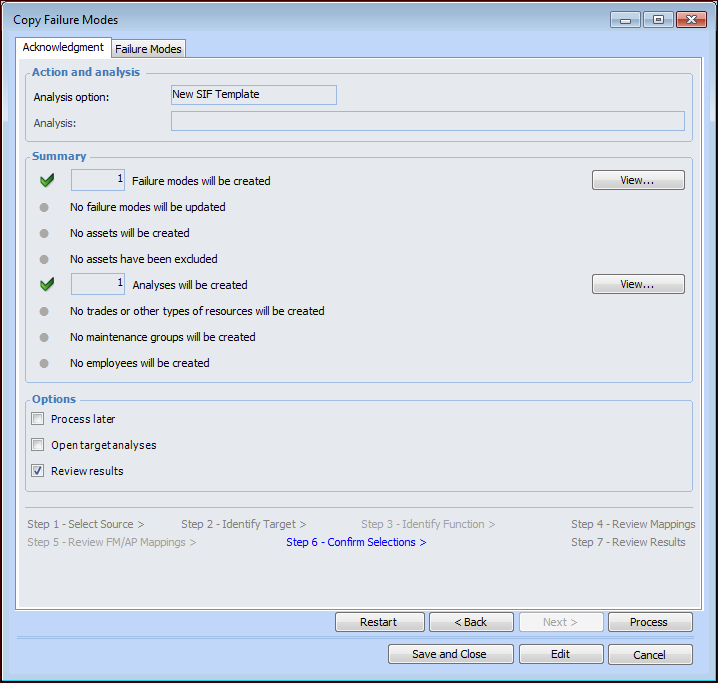
10. Click Next. The Confirm Selections step appears. For example:
11. Check the items that will be created or updated. If an incorrect copy request is processed, you will have to make the corrections manually. Click View to see more details about the items.
12. The Failure Modes tab displays information about the failure modes. If you wish to remove a failure mode from the list, right-click it and click Remove. Click Back to make adjustments on previous pages.
13.
14.
• If Process later is selected, a confirmation message appears. Click Yes to save the copy request to be completed later.
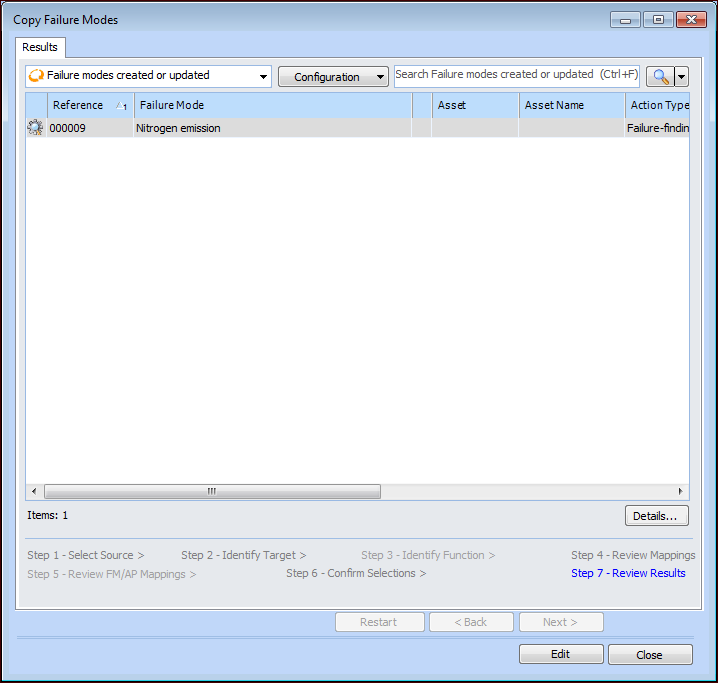
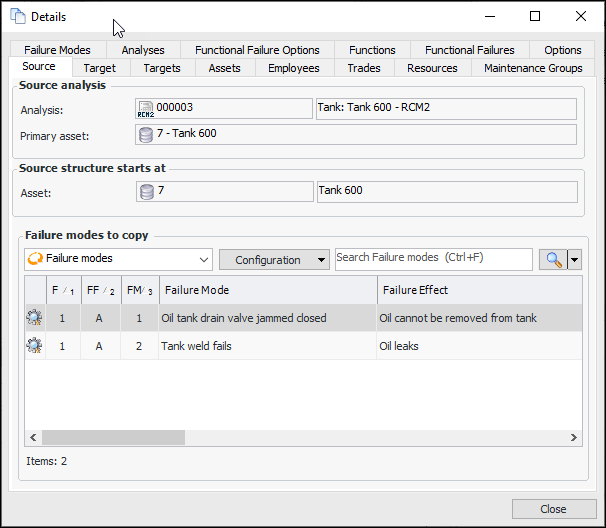
• If processing has not been deferred, the copy is completed. If Review results is selected, the Review Results step appears. For example:To view more information, click Details. The Details window displays information about the source and target asset structures, asset mappings, employees, trades, maintenance groups, failure modes, and so on. For example:When you are finished reviewing results, click Close. You can view the information again on the Copy Requests tab for the site or the analysis.
• If Open target analyses is selected in the Confirm Selections step, the Strategy Development Analysis window appears.To Create a SIF Template from Scratch
1.
2. In the list of configurations, select SIF templates. The tab now lists all of the templates that have been defined for your site or its related sites.
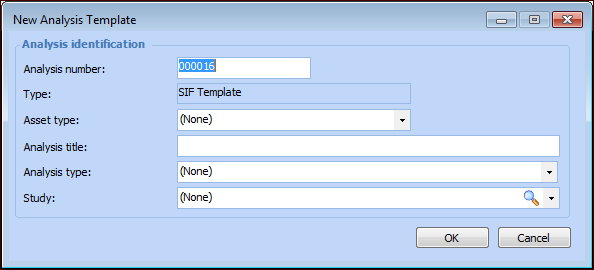
3. Click New. The New Analysis Template dialog appears.
6. In the Title box, the default name for the template follows this pattern:Asset type – SIF templateTip: You can also open the site’s Strategy Development view, Templates tab, and Asset Types tab. Select the asset type in the table, click the New list, and select the type of template to create. The Strategy Development Analysis window opens to the Properties view, General tab.
9. Click OK. The Strategy Development Analysis window appears. The Facilitation view, Info Worksheet tab is shown.
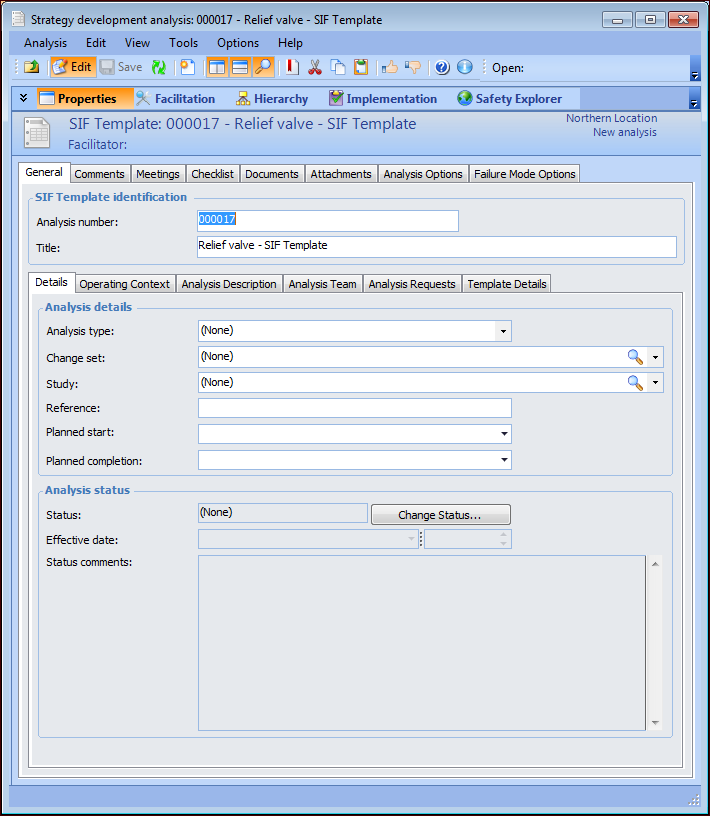
10. To set the general properties of the template, select the Properties view. The General tab displays information about the template. For example:
11.
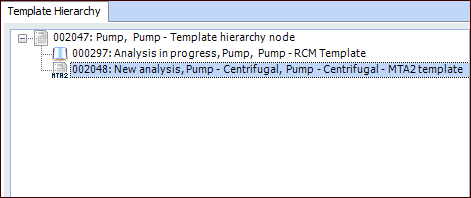
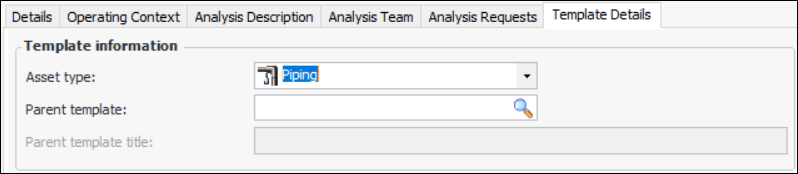
13. To add the new template to a hierarchy, select a parent template, for example, a hierarchy node. In the Hierarchy view, the new template appears below the parent and its child templates. For example:
14. Select the Documents tab to browse for standard documents that are relevant to the analysis. You can also click Refresh Documents to update the list of documents and their contents.
15. Select the Analysis Options tab to specify the sites where the template’s failure modes are to be available. For example, if the template is available at the current site only, its failure modes cannot be copied to analyses on other sites. You can also prevent the failure modes from being copied by selecting Not available for use.
16. Select the Failure Mode Options tab and the Template Options tab. The Failure mode descriptions can be changed option is selected by default. Clear this option if you want failure mode descriptions to be read-only.