Creating a SIF Analysis From a Template

A SIF analysis template is a group of settings that can be used as the basis for an analysis. The template identifies failure modes for a type of asset, rather than for a specific asset. Similarly, it refers to indicator templates, task templates, and job templates, not to specific asset indicators, standard tasks, and standard jobs. It includes a recommended strategy for each of its failure modes.
Creating a SIF analysis using a template typically involves these tasks:
Tip: To view information about an analysis’ source template, open the analysis, select the Action Plans view and the Source Templates tab.
This topic explains how to start a SIF analysis from a template. For information about creating an analysis from scratch, see Creating a SIF Analysis from Scratch.

To Create a SIF Analysis From a Template
1.
Select the site’s Strategy Development view, Strategy Development tab, and then the SIF tab.
2.
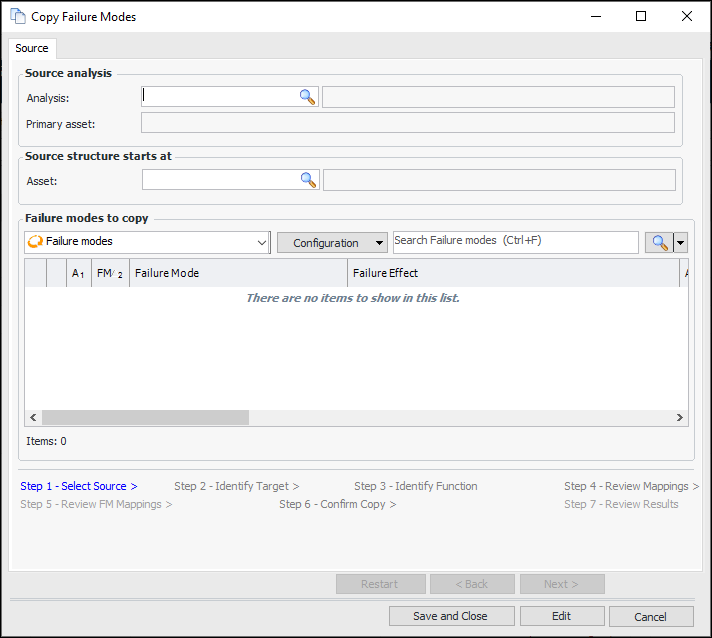
From the New list, select From a Template. The Copy Failure Modes wizard appears.
3.
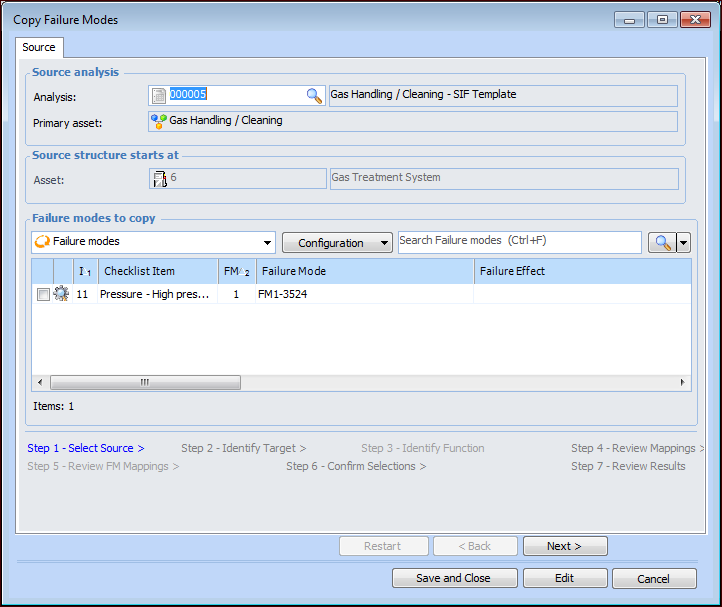
Click the browse icon in the Analysis box to select the source template. The Strategy Development Analysis selector dialog appears, displaying all analyses. Select an option from the Configuration list to view a specific type of analysis.
4.
Select a template and click OK. The Failure modes to copy table displays the source’s failure modes. The asset type is displayed. For example:
5.
6.
Click Next. The Identify Targets step appears.
7.
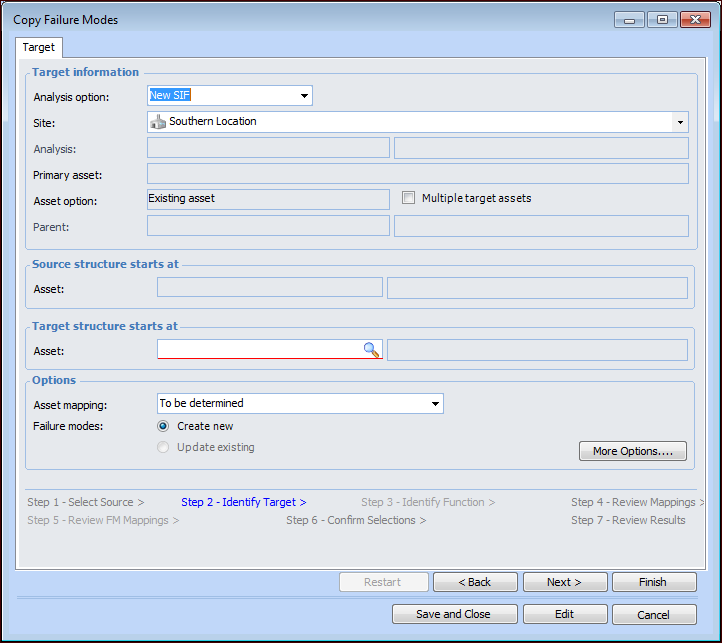
In the Analysis option list, select “New SIF”. For example:
8.
9.
In the Target structure starts at area, click the browse icon to select the target asset. This asset will be the primary asset in the analysis.
10.
Tip: For quick copies (when you do not need to adjust the mapping options or create a function), click Finish when you have selected the asset. The wizard performs the matching process and skips to the Confirm Selections step. Skip to step 15.
11.
Click Next. The wizard matches objects as needed and presents the mappings for your review. The Employees, Trades, and Maintenance Groups tables display the mappings.
Tip: To view information about a source object on any of the mapping tabs, right-click it and click Source. The Source dialog that appears contains tabs for the asset’s failure modes, indicators, tasks, jobs, job tasks, as well as the corrective tasks, jobs, and job tasks for the indicators. You can also view information about any secondary action plans included in the failure modes.
12.
The Suggestion Origin column displays the method used for matching. The options are:
The Suggested Match Quality, Closeness, and Single Or Multiple Candidates columns show you the results of the smart mapping process.
13.
To view more information about the matching process, click Criteria and SQL. The Mapping Criteria and SQL window appears. Click Close when you are finished.
14.
Tip: You can also double-click a mapping to review the Mapping dialog.
Note: If a mapping is marked as To be determined, the copy request cannot be processed. However, you can save and close it until you decide what to do with it. You can then re-open the request from a Copy Requests tab and finish defining and processing it.
15.
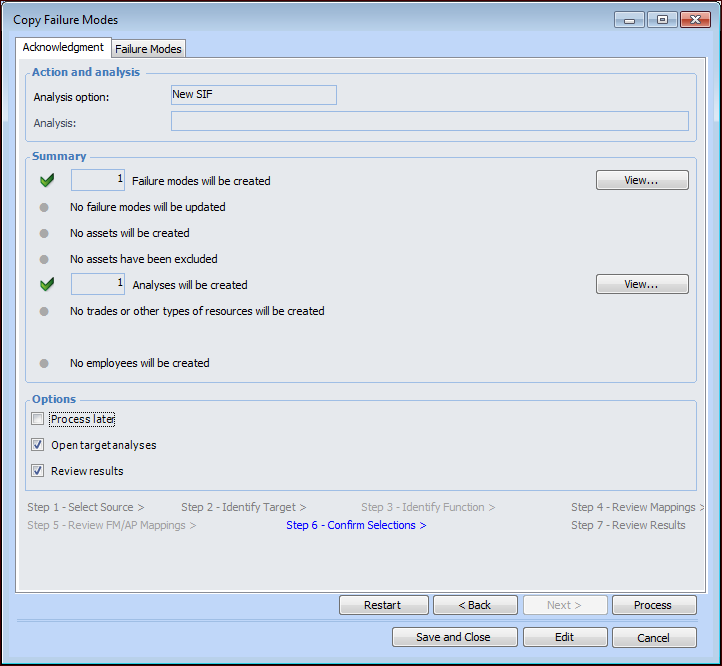
Click Next or Finish. The Confirm Selections step appears. For example:
16.
Check the items that will be created or updated. If an incorrect copy request is processed, you will have to make the corrections manually. Click View to see more details about the items. The Failure Modes tab displays information about the failure modes. If you wish to remove a failure mode from the list, right-click it and click Remove. Click Back to make adjustments on previous pages.
17.
In the Confirm Selections step, Acknowledgment tab, select the processing options:
18.
Click Process or Finish if Process later is selected. One of the following occurs:
If Process later is selected, a confirmation message appears. Click Yes to save the copy request to be completed later.
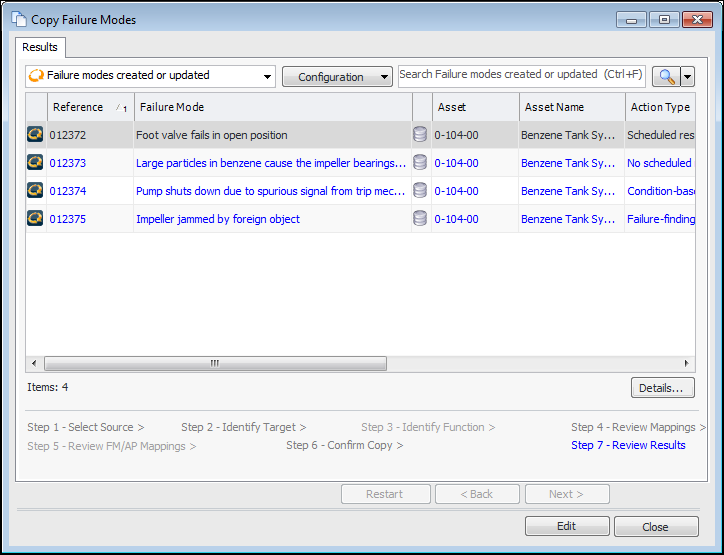
If processing has not been deferred, the copy is completed. If Review results is selected, the Review Results step appears. For example:
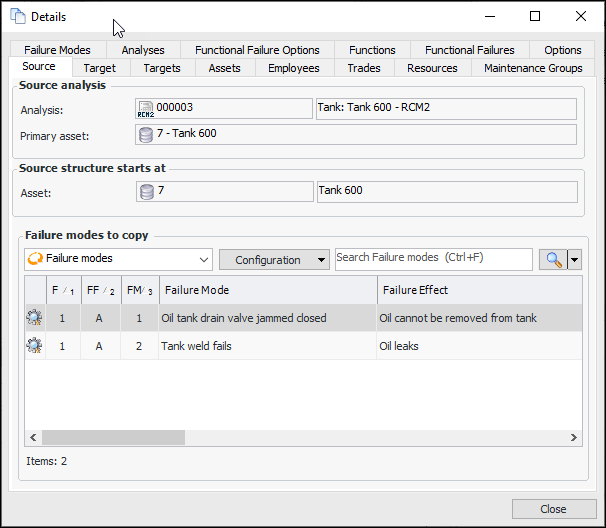
To view more information, click Details. The Details window displays information about the source and target asset structures, asset mappings, employees, trades, maintenance groups, failure modes, and so on. For example:
Click Close to return to the wizard.
When you are finished reviewing results, click Close. You can view the information again on the Copy Requests tab for the site or the analysis.
If Open target analyses is selected in the Confirm Selections step, the Strategy Development Analysis window appears.
19.
If you selected Open target analyses in the processing options, the analysis opens. Otherwise, open the analysis.
20.
21.
When you have completed these steps, you are ready to develop the analysis by creating failure modes and more. Refer to the following topics for more information: