
|
|


Adding Follow-up Work to SIF Action Plans
Tip: To view consolidated information about an analysis’ action plans, failure modes, recommended actions, corrective tasks, and indicators, select the Implementation view in the Strategy Development Analysis window.To Add APM Follow-up Work to an Action Plan
To Add AWEIS Follow-up Work to an Action Plan
To Add SAP Follow-up Work to an Action Plan
 is enabled.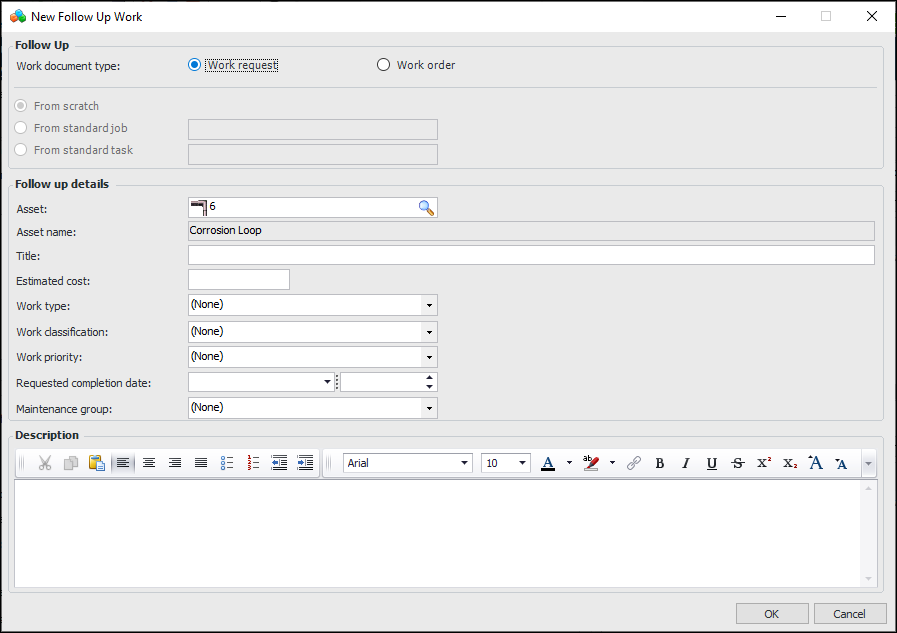
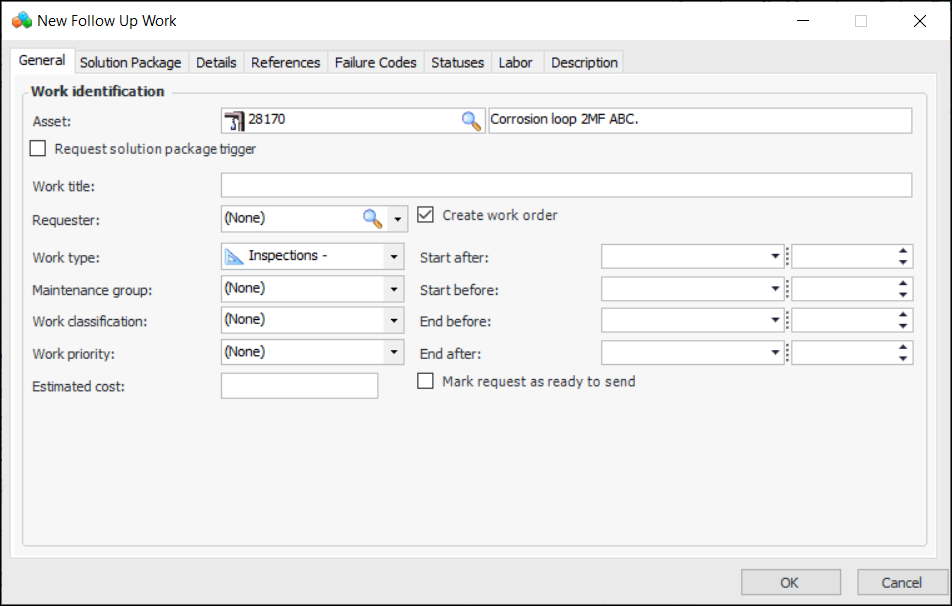
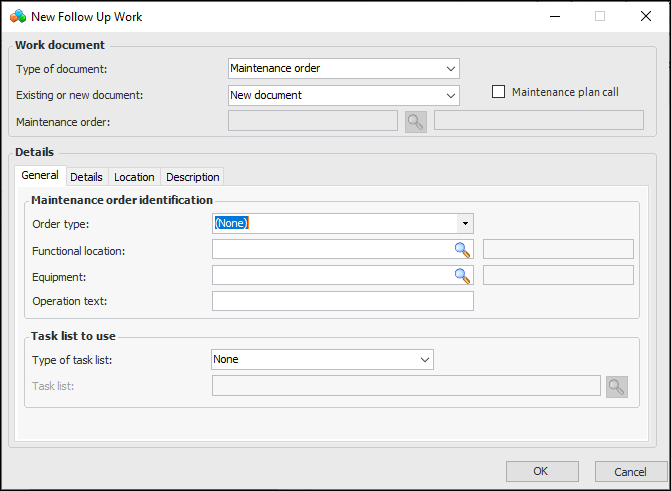
 ) to open the browse dialog, where you can select criteria for filtering the list of documents.
  to view the list of items. (You can return to the criteria to refine the filters by clicking
  .)
.)