Setting Failure Mode Options for a SIF Analysis

This topic explains how to set the failure mode options for a SIF analysis. These options include:
Hide or show the Failure mode note sidebar in Maintenance Action Plan windows
This topic explains how:

To Set Failure Mode Details

1.
2.
3.
On the Properties view, select the Failure Mode Options tab.
4.
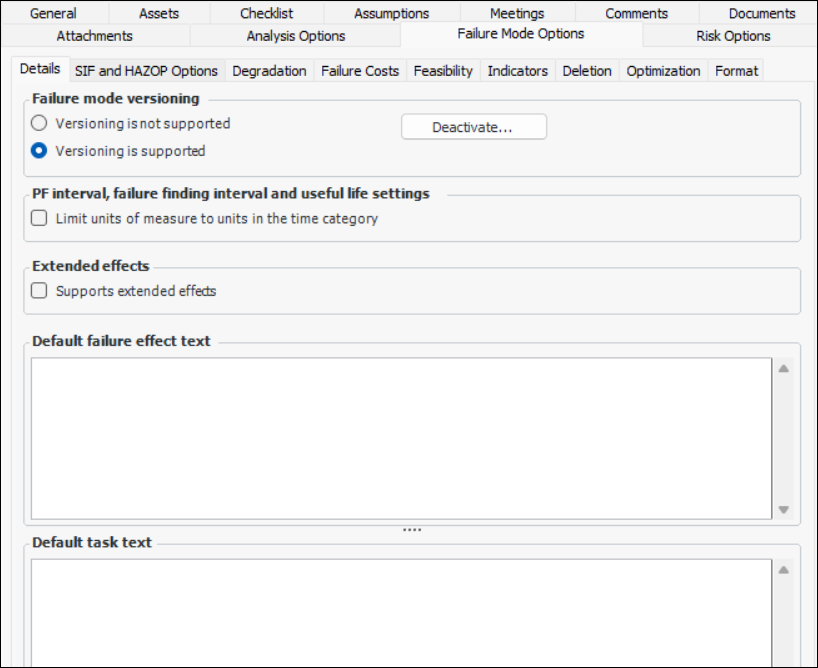
On the Details tab, set the following options:
5.
In the Default failure effects text box, you can enter text that will automatically appear in the Failure Effect box of new failure modes.
6.
In the Default task text box, you can enter text that will automatically appear in the Task boxes for new failure modes.

To Enable Provisions or Action Plans Only

1.
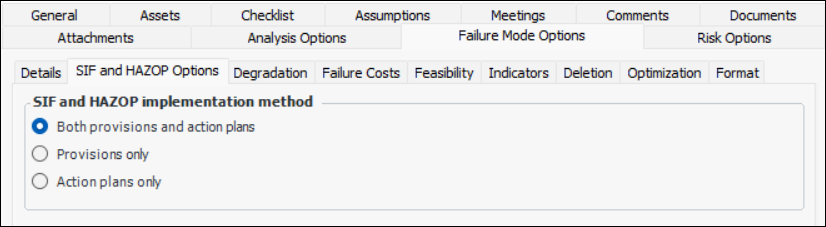
Select the SIF and HAZOP Options tab.
2.
Provisions only – On the Maintenance Action Plan window, the Safety Provisions view is available once the strategy is selected. The Feasibility (if applicable) and Implementation views are hidden.
Action plans only – On the Maintenance Action Plan window, the Feasibility (if applicable) and Implementation views are available. The Safety Provisions view is hidden.

To Set Failure Costs Options

1.
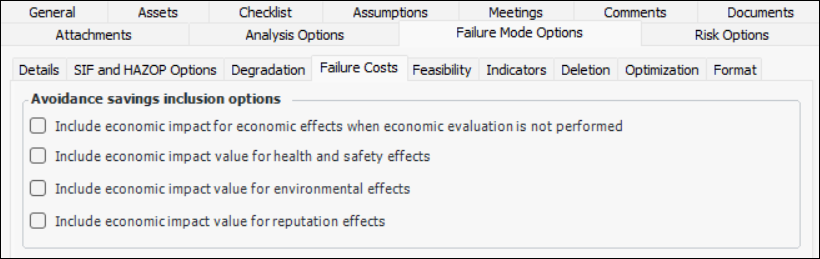
Select the Failure Costs tab.
2.

To Set Indicator Options

1.
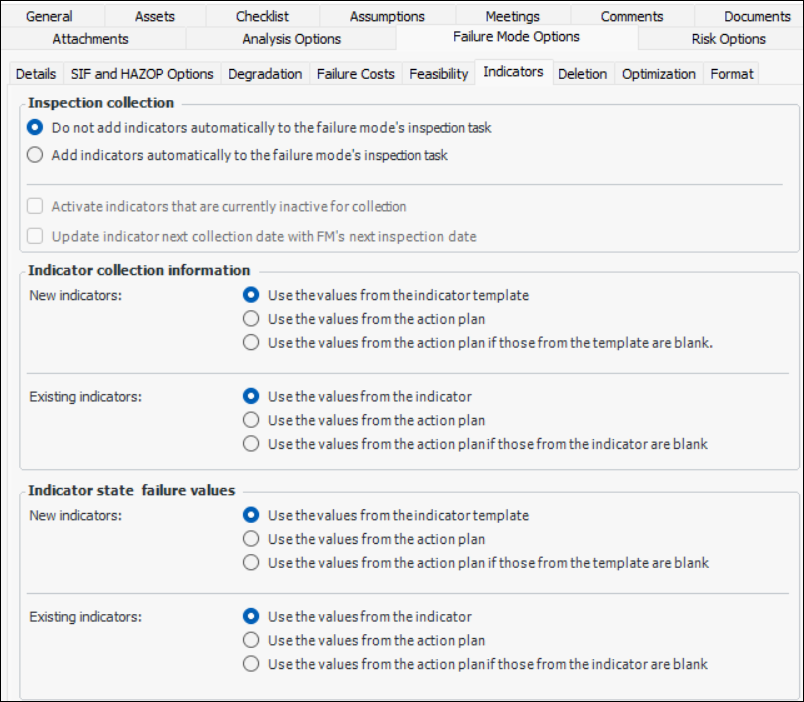
Select the Indicators tab.
2.
Add indicators automatically – when an inspection task is added, indicators currently on the action plan are added to the standard task. When indicators are later added to the action plan, they are automatically added to the standard task.
3.
To enable this functionality, select Activate indicators that are currently inactive for collection.
4.
To enable this functionality, select Update indicator next collection date with FM’s next inspection date.
5.
Note: When you create an indicator based on an indicator template, the system checks to see if the asset already has an indicator based on that template. If such an indicator exists, it is used in the analysis, and a new indicator is not created. In this situation, the indicator is not affected by the options described above. If you want the indicator to be updated with the action plan’s values, be sure to set the appropriate option for adding existing indicators to analyses, as described next.
6.
7.
8.
9.
Note: If indicators are to be updated, they are modified when the action plan’s status changes to “Implementation completed”.

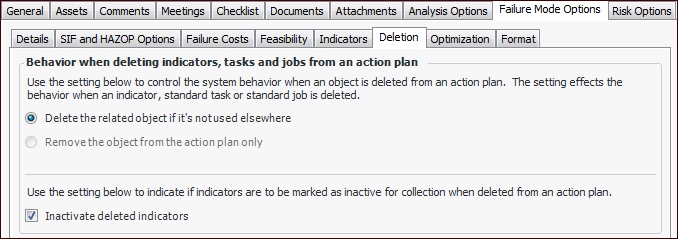
To Set Deletion Behavior Options

1.
Select the Deletion tab.
2.
Note: Skip the Optimization tab. Isograph Availability Workbench is not available for SIF analyses.

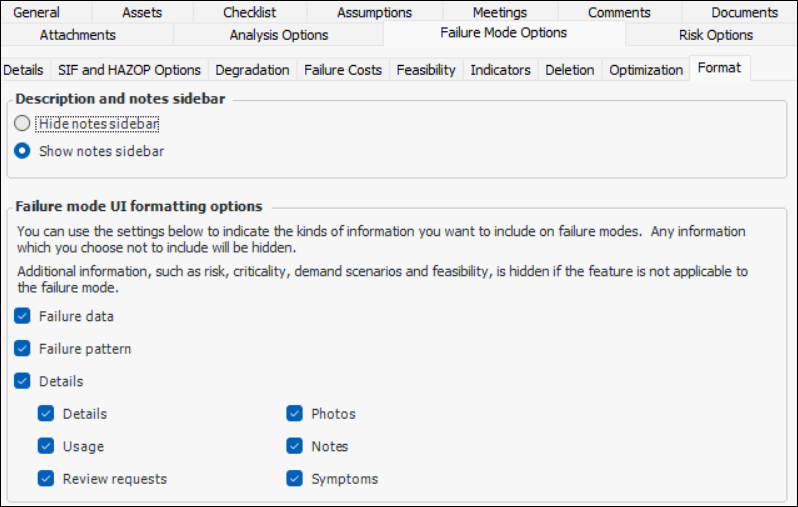
To Set Format Options

1.
Select the Format tab if you wish to hide tabs on the Maintenance Action Plan window.
2.
Hide or show the Analysis note and Evaluation comments areas in the Maintenance Action Plan window.
Tip: The analyst can add information to the Analysis Note and Evaluation Note tabs located in the Details view, if available.
When this option is selected, the Failure Data tab appears in the Maintenance Action Plan window.
When this option is selected, the Failure Pattern tab appears in the Maintenance Action Plan window.
When this option is selected, the Details tab appears in the Maintenance Action Plan window.
When this option is selected, the second Details tab appears on the Details tab in the Maintenance Action Plan window.
When this option is selected, the Usage tab appears on the Details tab in the Maintenance Action Plan window.
When this option is selected, the Review Requests tab appears on the Details tab in the Maintenance Action Plan window.
When this option is selected, the Photos tab appears on the Details tab in the Maintenance Action Plan window.
When this option is selected, the Notes tab appears on the Details tab.
When this option is selected, the Symptoms tab appears on the Details tab in Maintenance Action Plan windows.