Reviewing Demand

You can review purchase demands that come from work order requirements or requisitions using the My Desk view. If necessary, you can override the original demand information. After you review the demand, you can mark it as reviewed.
Note: The My Desk view only displays the tabs described below if you are set up as a buyer on your employee record and the Purchasing Desk option is selected on the My Desk Settings tab.

To Review Demand

1.
Select the site’s My Desk view and the Purchase Demands tab.
2.
From the configuration list, select Waiting to be reviewed by you. This list shows all purchase demands assigned to you as a buyer and that have not been marked as reviewed.
Tip: To see unreviewed purchase demands for all buyers, select the Waiting to be reviewed by purchasing option from the list.
3.
4.
5.
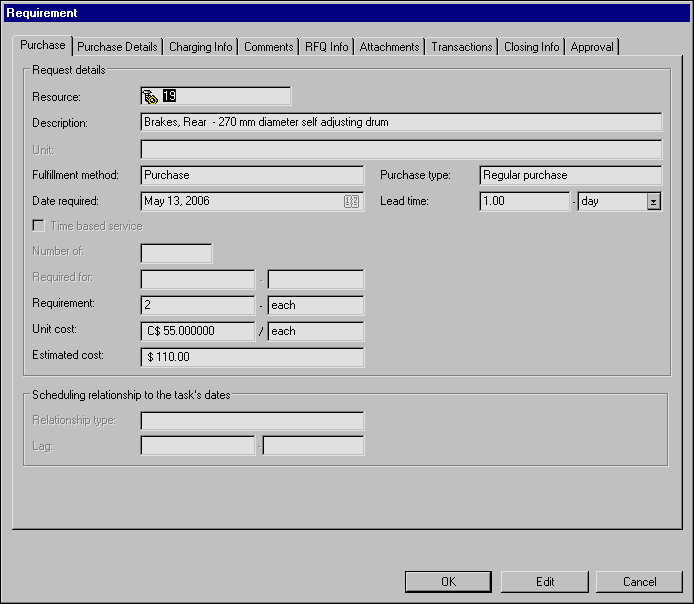
Select the Purchase Details tab. This tab shows information about the selected supplier, where the item should be delivered to, and the actual quantify and cost of requirements received.
6.
Select the Charging Info tab and verify the accounting information.
7.
Select the Comments tab.
8.
9.
10.
Click Request a Quotation. This sets the status of the demand to “RFQ Requested”. You can then create an RFQ for the demand or add the demand to an existing RFQ.
11.
If necessary, you can override the resource description, quantity, supplier or unit cost on the demand. For more information, see Overriding Purchase Demands.
If the demand is now accurate and complete, you can mark it as having been reviewed. For more information, see Marking Demand as Reviewed.