Reviewing Assets’ Reliability Programs

An asset reliability program is a set of pre-planned work for an asset (work standards). In APM, this includes standard tasks, standard jobs, and preventive maintenance routes. You can include triggering rules that define when the work is to be done. Using APM, you can define, implement, and manage effective, proactive reliability programs.
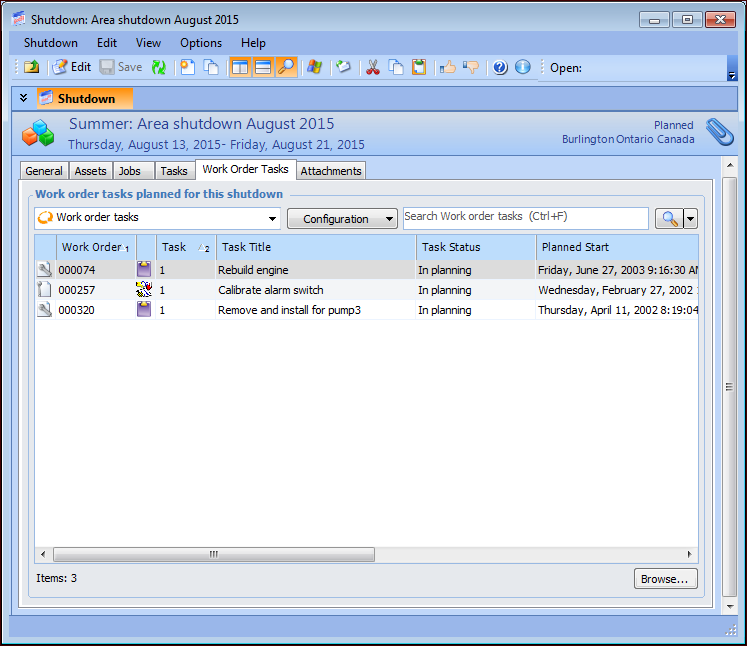
You can quickly view upcoming work at the site and asset level. You can also review current work standards for the site as well as for individual assets. At the site level, APM provides summaries of assets’ strategy development, reliability programs, and work management. You can also view the assets, standard jobs, standard tasks, and work order tasks assigned to a specific shutdown period.
When you review assets, standard tasks, jobs, job tasks, and indicators, you can request actions like creating, modifying, or deleting an item. In the Request dialog, you can specify the type of change, describe the required action, and add a work planning document. You can then view requests at the site or object level. Process an existing request by attaching a work document to monitor the requested action. You can also cancel requests or mark them “Completed”.
Tip: Reliability program review requests are useful, for example, when you are using CMMS integration because they allow you to track changes that need to be carried out in the CMMS system, outside of APM.
When APM is configured to interact with an external system, the site’s interoperability profile specifies the reliability program in use. The options are CMMS system, APM, or AssetWise Interoperability. When the CMMS system is included, you can take advantage of the following:
You can also create reliability program requests on strategy development analyses. For more information, see Reviewing MTA2 Assets’ Reliability Programs.
This topic explains how:

To View Upcoming Work for the Site

1.
On the Site window, select the Work Management view.
2.
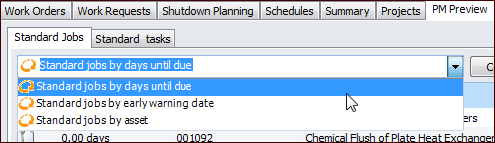
Select the PM Preview tab and the Standard Jobs tab to view jobs arranged by days until due. In the configuration list, you can select “by early warning date” or “by asset”.
Tip: You can select one or more jobs, click the Selected list, and then Create Work Order.
3.
Select the Standard Tasks tab to view tasks by asset or by days until due.

To View Upcoming Work for a Shutdown

1.
On the Site window, select the Reliability Program or Work Management view.
2.
Select the Shutdowns tab. On this tab, you can view lists of shutdowns for this site only, this site and above, or this site and below.
3.
4.
When you have finished reviewing the Assets, Jobs, Tasks, Work Order Tasks, and Attachments tabs, close the shutdown dialog.

To View Upcoming Work for an Asset

1.
2.
Select the Reliability Program view and then the Tasks tab. This tab lists the standard tasks for the asset.
3.
4.
Select the Work Management view, PM Preview tab. On the Standard Jobs tab, standard jobs are listed according to the number of days until they are due.
5.
6.
On the PM Preview tab, select the Standard Tasks tab. This tab lists the standard tasks to be triggered for the asset. Standard tasks that have a flashing icon beside them are in an early warning condition. This means that the trigger counters for these tasks have passed the early warning threshold set up in the triggering rule for the standard jobs on which they are listed.

To View Asset Summaries for the Site

1.
On the Site window, select the Assets view and the Summaries tab.
2.
Select the Strategy Development Summary tab. This tab lists the assets, counts of their failure modes, and counts of their MTA2, RCM2, RBI, and CPR analyses. It also lists CMMS identification numbers associated with the assets.
3.
Select the Reliability Program Summary tab. This tab lists the assets, counts of their standard tasks, standard jobs, job tasks, indicators, and standard documents. It also lists CMMS identification numbers.
4.
Select the Work Management Summary tab. As well as assets, this tab lists counts of all work order tasks that have not been canceled or rejected and have been requested in the past five years. It lists counts of tasks according to their purposes, for example, inspection tasks and corrective maintenance. CMMS identification numbers are listed for the assets.
5.

To Review an Asset’s Reliability Program

1.
Select the Hierarchies view and the Physical Hierarchy Summaries tab. The Strategy Development, Reliability Program, and Work Management tabs provide summaries for the asset and its descendants.
For example, on the Reliability Program tab, select an asset in the left pane to view a table on the right that shows counts of standard tasks, standard jobs, job tasks, indicators, standard documents, and more.
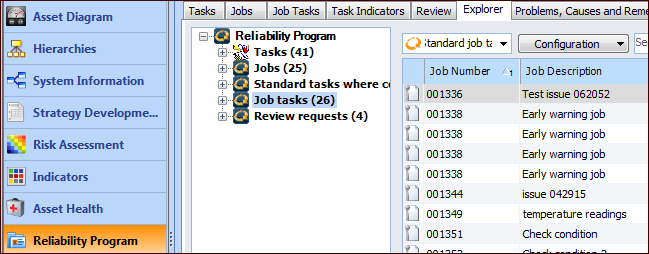
Select the Reliability Program view and the Explorer tab. This tab displays a tree with nodes for jobs, standard tasks and the static indicators collected on them, job tasks, and review requests. Click a node to see its contents in the table to the right. For example:
On the Reliability Program view, select the Jobs tab. This tab shows a list of the standard jobs for the asset. Select a standard job in the top table to populate the bottom table with the standard tasks included on the job.
When interoperability for SAP Plant Maintenance is active and the SAP reliability program is included in the site profile, the Reliability Program view, SAP Functional Location tab displays tables of task lists, maintenance item, object lists, and maintenance plans.
Select the Work Management view and the Summary tab. This tab lists counts of all work order tasks that have not been canceled or rejected and have been requested in the past five years. It provides counts of tasks according to their purposes, for example, inspection tasks and preventative maintenance tasks. Finally, it provides counts of work requests, checksheets, and inspection reports.

To Request a Reliability Program Review

1.
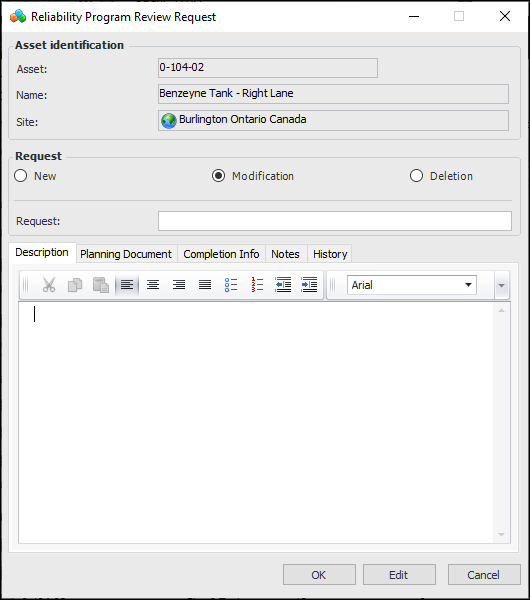
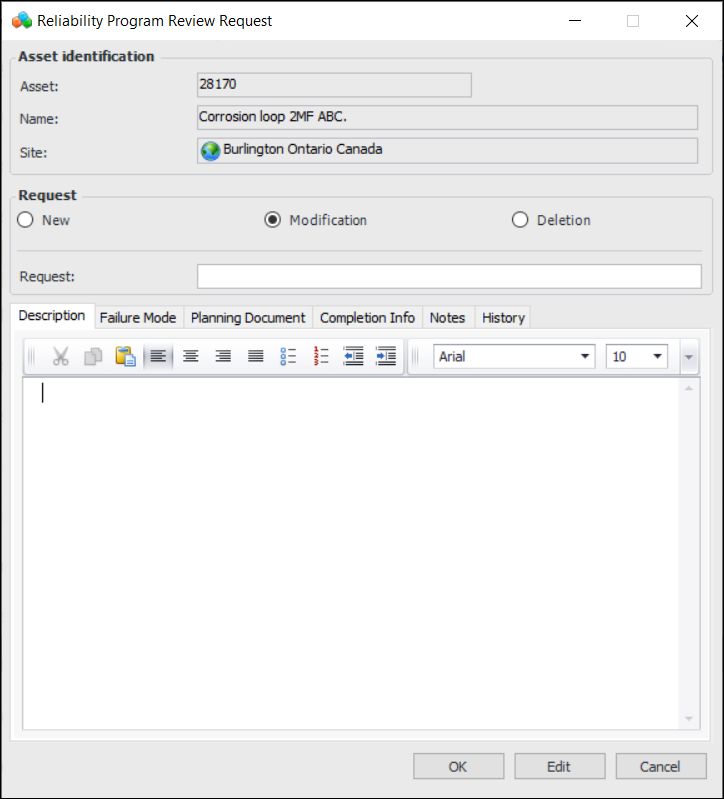
Right-click the asset, standard task, task template, standard job, job task, or indicator in a table, click Reliability Program Review, and then New Request. The Reliability Program Review Request dialog appears. For example:
The identification area at the top of the dialog shows the ID number and name of the item you selected, as well as the site. If the request is for a task, job, job task, or indicator, its asset is also identified.
2.
Select the type of action requested: New, Modification, or Deletion.
3.
In the Request box, provide a brief description of the request for identification purposes.
4.
On the Description tab, enter detailed instructions for the request.

To Add an APM Planning Document to the Review Request

1.
2.
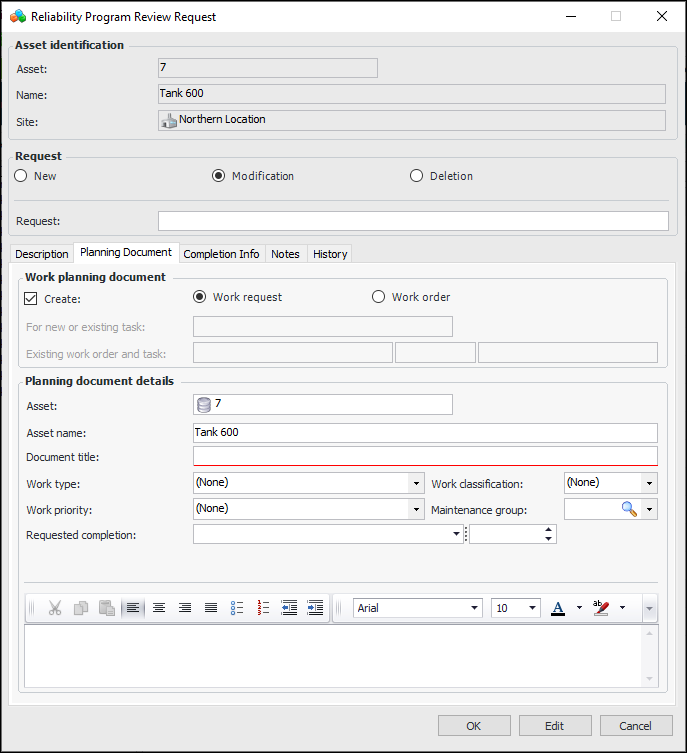
Click Create and the type of document. For example:
3.
Select the appropriate options to add a work request or work order. If you select Work order, you can create a work order and task, or you can link the request to an existing work order and task.
4.
5.
6.
Select the Notes tab to record additional details.
7.
Click OK to create the review request and close the dialog.

To Add an AWEIS Request for Work to the Request

1.
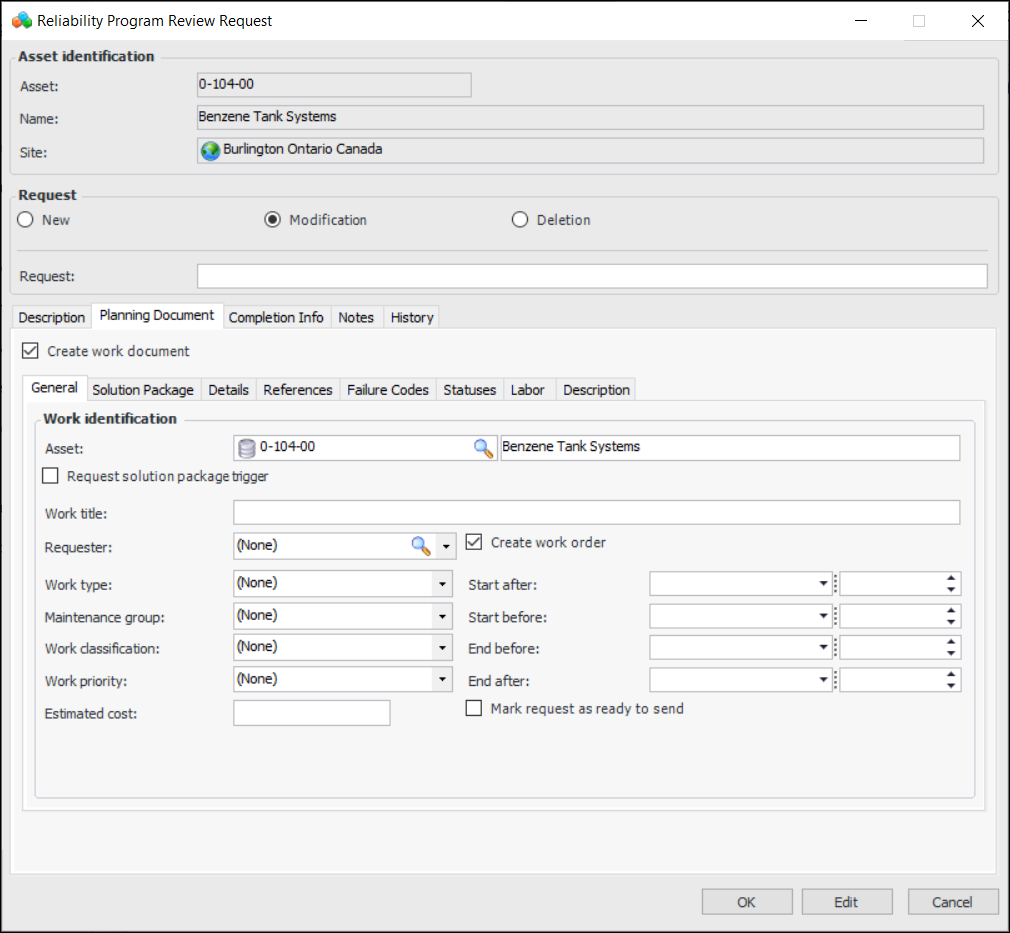
You can add a planning document at this time. Select the Planning Document tab and click Create work document. For example:
For detailed information about creating request for work, see Creating a Request for Work from Scratch.

To Add an SAP Notification to the Request

1.
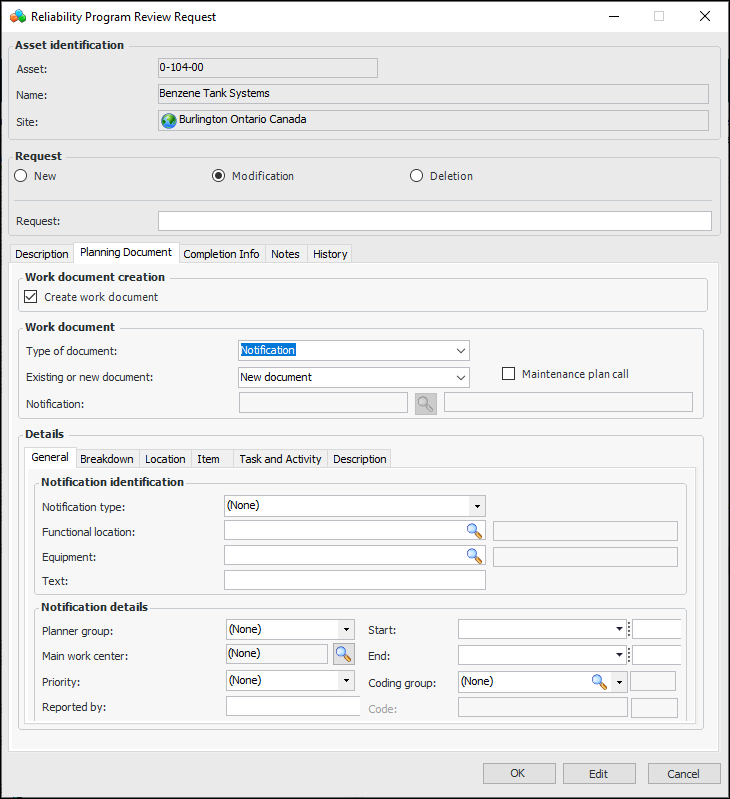
You can add a planning document at this time. The notification is updated or created in SAP when you click OK. Select the Planning Document tab and click Create work document. For example:
2.
In the Type of document list, select “Notification”. The Planning Document tab changes as follows:
3.
To use an existing notification, select the New or existing document list and click “Existing document”.
Select the notification and click OK. The notification number and description are displayed in the dialog.
4.
To add a new notification, select the New or existing document list and click “New document”.
The following information from the functional location or equipment is displayed:
Planning and maintenance plants
Planner group
Main work center
Location, room, plant section
ABC indicator
The site’s interoperability profile determines which default values you can change for the new notification.
In each of the Breakdown, Location, Item, Task and Activity, and Description tabs, review and change the values, as needed.
5.
Select the Notes tab to record additional details.
6.
Click OK to create the request and close the dialog.

To Add an SAP Maintenance Order to the Request

1.
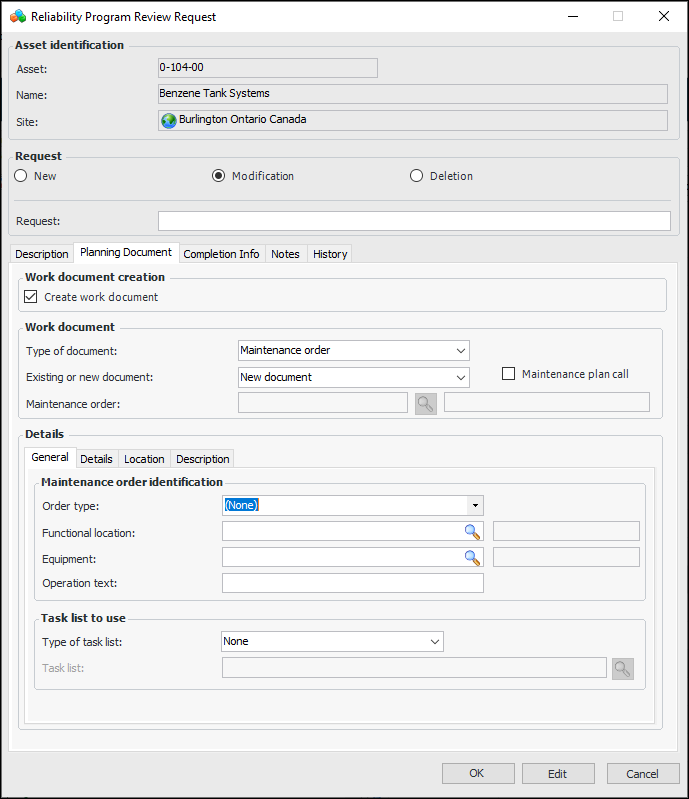
You can add a planning document at this time. The maintenance order is updated or created in SAP when you click OK. Select the Planning Document tab and click Create work document. For example:
2.
To use an existing maintenance order, select the New or existing document list and click “Existing document”.
Select the maintenance order and click OK. The maintenance order number and description are displayed in the dialog.
3.
Select the maintenance plan and click OK. The maintenance plan’s identifier and description are displayed in the dialog.
4.
To use a new maintenance order, select the Existing or new document list and click “New document”.
The following information from the functional location or equipment is displayed:
Planning and maintenance plants
Planner group
Main work center
Location, room, plant section
ABC indicator
The site’s interoperability profile determines which default values you can change for the new maintenance order.
In each of the Details, Location, and Description tabs, review and change the values, as needed.
5.
Select the Notes tab to record additional details.
6.
Click OK to create the request and close the dialog.

To Work with Reliability Program Review Requests
1.
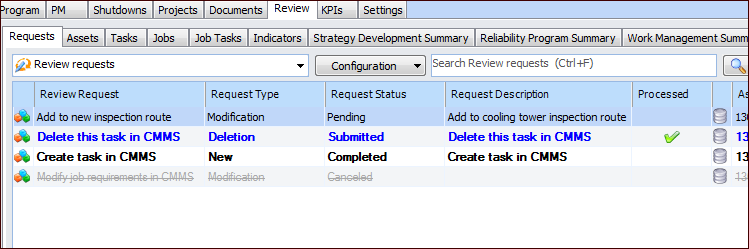
In the Site or Asset window, select the Reliability Program view, Review tab, and Requests tab. This tab lists requests made for assets, standard tasks, standard jobs, job tasks, and indicators. Here is an example from the Site window:
Note: If APM has been configured to interact with SAP Plant Maintenance, the site’s interoperability profile can specify that only the CMMS system’s reliability program is used. In that case, the Jobs, Job Tasks, and Work Management Summary tabs are not displayed. Similarly, if AWEIS is active, the Jobs and Job Tasks tabs are not displayed.
Tip: To view requests according to type of object, select the Assets, Tasks, Jobs, Job Tasks, and Indicators tabs.
Tip: To view requests in a Standard Task, Standard Job, or Indicator window, select the History view and then the Review Requests tab.
Reliability program requests can have the following statuses:
2.
To process a request, select it in the table, click the Selected list, and then Process Request. The Reliability Program Review Request dialog appears. For example:
3.
4.
Click OK to create the document (if appropriate), update the request, and close the dialog. On the Requests tab, the review request’s status changes to “Submitted”. If you created a work document, you can open the Request dialog to view its number on the Planning Document tab.
5.
To close a request, select it in the table, click the Selected list and then Mark as Completed. The request’s status changes to “Completed”.
6.
To cancel a request, select it in the table, click the Selected list and then Cancel Request. The request’s status changes to “Canceled”.