|
Reversing an Invoice
To Reverse a Posted Invoice
1. From the Site window, select the Invoicing view, Invoices tab, then the Invoices tab. By default, this tab lists all invoices by supplier.
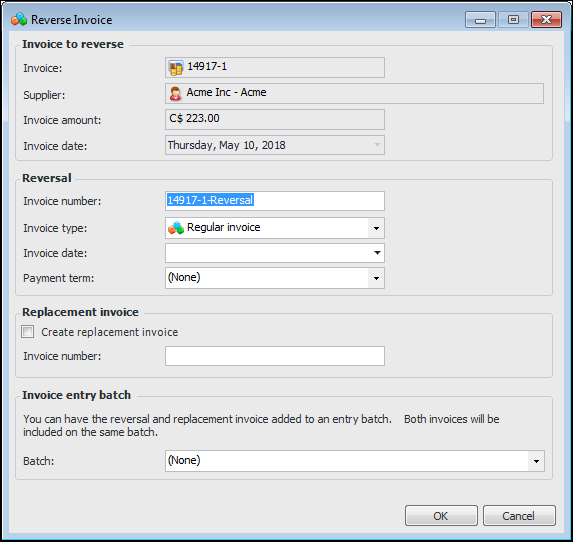
2. Select the posted invoice and click Reverse Invoice. The Reverse Invoice dialog appears.
3. In the Reversal area, the original invoice’s invoice type is selected by default. You can change the type, but do not replace a regular invoice type with a credit type, or vice versa.
6. To create a copy of the original invoice, select Create replacement invoice and enter an invoice number.
7. If a payment discount was taken on the original invoice, it might be appropriate to take it on the reversal as well. Select the term from the Payment term list. Payment terms are also copied to replacement invoices.
9. Click OK. One of the following occurs:To View Reversal Information
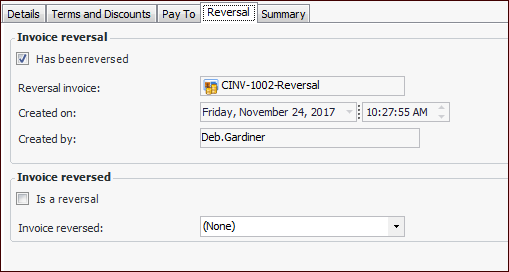
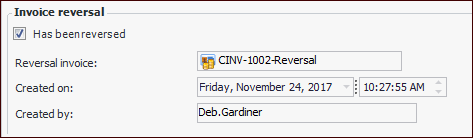
2. In the Invoice window, select the Properties view, General tab, Reversal tab to view the reversal invoice. For example:
3.
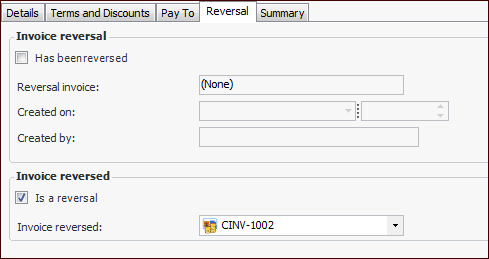
5. In the Invoice window, select the Properties view, General tab, Reversal tab to view the original invoice. For example:The table configurations on the site’s Invoicing view, Invoices tab display “Has Been Reversed” and “Is a Reversal” columns, showing check marks for individual invoices, as appropriate.