Returning Consigned Inventory

Returning consigned inventory is similar to returning regular inventory. In both cases, you must select the consignment warehouse inventory group. This identifies both the warehouse and the supplier’s inventory group that the resource should be returned to.
The system uses the following rules when processing a return to consignment inventory:
The consignment return to inventory transaction has the following unique characteristics:
The return of a consigned issue to regular inventory has the following characteristics:

To Return Consigned Resources

1.
In the Site window, select the Resource Management view and then the Inventory tab.
2.
In the Warehouses tab, double-click the warehouse that you want to return materials or tools to. The Warehouse window appears.
3.
Select the Transactions view, Inventory Returns tab. This tab shows a list of all inventory return transactions for this warehouse.
4.
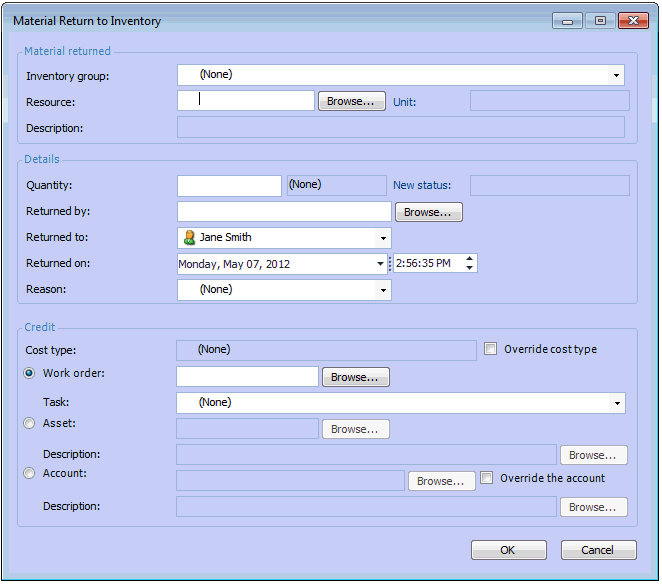
Click New. The Material Return to Inventory dialog appears.
5.
Select the appropriate warehouse inventory group in the Inventory group list. To return an item to regular inventory, select the appropriate regular warehouse inventory group. To return an item to consignment inventory, select the supplier’s warehouse inventory group.
6.

Material returned

Resource: The part number for the material being returned. If you know the number, you can enter it here. To see the material available in the selected warehouse, click Browse. The Resource Selector dialog is displayed. Select the material you want to return and click OK.

Details

Quantity: The quantity of the item being returned. This amount is added to the on-hand quantity for the warehouse inventory group.
Returned by: The person returning the material.
Returned to: The person receiving the material.
Returned on: The date and time the material or tools were returned.
Reason: Select the reason that the material was returned from the list. Typically, material is returned because it is not needed to complete the job.

Credit

You can issue a credit for the returned material to a work order, an asset, or directly to an account. If you select a work order, you can credit an individual task on the work order.
Work Order: Click Browse. Select the work order in the selector dialog and click OK. You can select a task on the work order using the Task list.
Asset: Click Browse. Select the asset in the selector dialog and click OK.
Account: Click Browse. Select the account in the selector dialog and click OK.
7.
You might be able to change the GL account to credit with the transaction. To change the account, select Override the account and click Browse. Make your selection and click OK.
8.
When you are finished entering information, click OK. APM posts the new transaction and makes the appropriate inventory adjustments in the warehouse.
9.
When you are finished, Save and Close the Warehouse window.