
Reviewing RFQ Requirement Rules on a Resource

Before you begin using “for demand” RFQs, you must determine the business rules for automatic RFQ requests for each of the four purchase types at your site. For repair orders, rentals and/or service orders, you must select whether or not an RFQ is required when a purchase demand is created. If you select that RFQs are required, work orders or requisitions containing demands for that purchase type cannot be approved and planned without completing the RFQ process.
For each of the purchase types, you can further define when an RFQ is required:
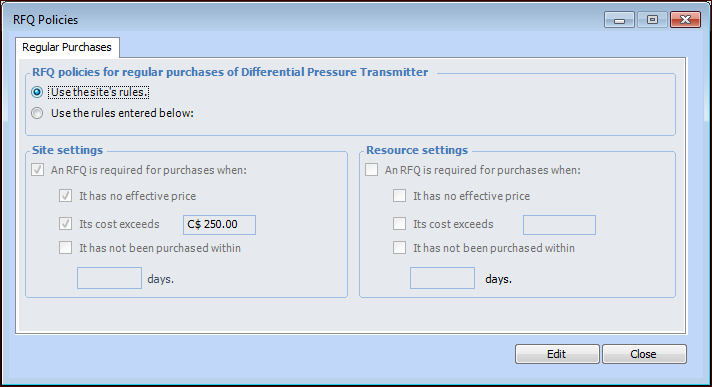
No effective price: If there is no supplier-resource price or if the price has expired, an RFQ is required.
Cost exceeds: If the estimated cost of the purchase demand is less than or equal to the entered threshold, an RFQ is not required. If the cost of the requirement exceeds the threshold, an RFQ is required.
Note: If a resource is used at a site that uses a different currency, the resource’s RFQ threshold value is converted to the demand’s site currency.
Last ordered: If the resource has not been ordered recently, an RFQ is required. You can set the period of time that is considered “recently ordered”. For example, if the resource has not been ordered for 180 days, an RFQ is required.
Note: If a requested supplier resource references a contract and has a currently valid price, an RFQ will not be requested for the requirement.
RFQ requirement rules are defined at the site, but can be overridden on an individual resource. You can review the RFQ requirement rules that are being used on any resource.

To Review RFQ Requirement Rules for a Resource
1.
Select the site’s Resource Management view.
2.
3.
On the Properties view, select the Procurement tab.
4.
In the Regular Orders RFQ policies area, click Details. The RFQ Policies dialog appears.
5.