Adding a New Trade

This section explains how to add a new trade to a site.
A trade is a labor resource that is usually comprised of skilled employees who work for the enterprise, such as mechanics or electricians. Trades can also be used for on-site or job contractors. Trade resources can only use time-based units of measurement (for example, hours or days).
When creating trades for use with contractors, you will need to select a resource category that can be used with trades, and that includes appropriate default cost types for both expensed and capital costs for job and on-site contractors.
When you add trades to the system, you will be able to planand schedule trade requirements for work orders, standard tasks, and standard jobs.
For each trade you can enter the applicable labor rates. If the trade will be used for contractors, you can enter the procurement settings.

To Add a New Trade

1.
Select the site’s Personnel view. This view shows all of the employees, trades, and maintenance groups available on the site.
2.
Select the Trades tab. By default, this tab lists all trades for the site and below.
3.
Click New. The Resource window appears.
4.
Enter the following on the Properties view, General tab:
5.
On the General tab, Details tab, set the following:
Maintenance only: only used for internal labor or on-site contractor requirements. Users will not be able to create purchase requirements or supplier resources for the trade, or include the trade on RFQs.
Purchasing only: only used for job contractor (purchase) requirements.
Both maintenance and purchasing: used for all labor requirements (internal labor, on-site contractors, or job contractors). Users will be able to create both purchased and non-purchased requirements for the trade.
6.
7.
8.
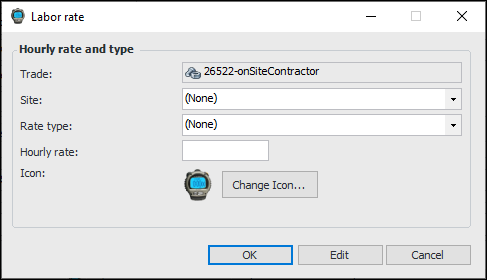
To add an hourly labor rate for the trade, select the Rates tab, and click New. The Labor Rate dialog appears.
9.
10.
Click OK. The new rate is added to the list.
11.
12.
13.
Select the Alternates tab. If there are other trades that can be substituted for this trade, enter them here. Click Browse, select the Trades tab, highlight the alternate trade, and then click OK.
14.
Select the Documents tab. If there are standard documents that apply to this trade, enter them on this tab. Click Browse to select a procedure or document, and then click OK.
15.
Select the Description tab. On this tab you can enter a longer description of the resource.
16.
17.
Select the Buyer who is usually responsible for purchasing this trade.
18.
19.