Requests for Quotation Overview

Requests for quotation (RFQs) are documents that allow you to manage the bid process for supplier resources. You can create RFQs for purchase demands on work orders or requisitions (“for demands” RFQ) or to renew supplier resource prices for resources in your resource catalog (“catalog prices” RFQ).
This topic discusses concepts related to the RFQ process in the APM system.

Types of RFQs

You can create either “for demand” or “catalog price” RFQs. The life-cycle and processes are basically the same for both types of RFQs. The main differences are in the creation process and the updates that occur when the RFQ life-cycle is completed.

Direct-Purchase (“For Demand”) RFQs

The “for demand” RFQ life-cycle starts when a resource is added to a requisition or to a work order task. In either case, within APM, this is called a purchase demand. Before the purchase demand is added to a purchase order, one or more suppliers are asked to bid on the purchase. This ensures that the requestor receives the best possible price and conditions. The work planner can manually request an RFQ for selected resources, or the system can be set up to automatically request an RFQ.
A buyer can also create an RFQ for demands for which an RFQ was not requested. A buyer can create an RFQ for a purchase demand at any stage before the purchase order line is created, including after the demand has been sent for approval or approved.
Once quotations are requested for purchase demands, the buyer can review the requests through the My Desk view and then create an RFQ document. For each resource, the RFQ identifies the quantity required, delivery requirements, and any special terms or conditions required. The RFQ also defines the bidding process, the deadline by when the bids are required, and contact information.

Bid-Sheet (Catalog-Price) RFQs

Catalog price RFQs are used to solicit prices for future purchases. This type of RFQ is not related to a specific purchase request. For example, an RFQ might be sent to obtain supplier prices for all electrical wires used for maintenance activities. The result of this type of RFQ is a collection of supplier-resource prices.
Catalog price RFQs are similar to “for demand” RFQs, with the following exceptions:
TOP

RFQs and Work Orders

For demand RFQs, ensure that a work order’s planned costs and schedules are as accurate as possible. When they have accurate cost estimates, approvers can approve or reject the work order based on the best available information. Accurate lead times ensure that work is scheduled when the material is available.
There are two ways in which the RFQ process can be added to the work order cycle: manually or automatically when the work order is sent for approval.

Manually Initiating the RFQ Process

The work order planner can manually request an RFQ. When manually requesting an RFQ, the planner can select the purchase requirements to be included. When the RFQ process is completed, the requirements are updated with the winning supplier and pricing information, and the work order’s planned costs are updated. After reviewing the prices, the planner can send the work order for approval or revise the work order definition.
While the RFQ process is open, the planner can:

RFQ Process on Send for Approval

The second way the RFQ process can be added to the work order cycle is for the RFQ to be automatically requested when the work order is sent for approval. This occurs when the planner sends the work order for approval and one or more of its requirements require an RFQ. In this case, the system initiates the RFQ process prior to the work order being sent to the first approver. Once the RFQ process has been completed, the system sends the work order to the first approver.
Redrafting the work order while the RFQ is still open does not affect the RFQ. If the work order is later re-sent for approval while the RFQ is still open, the approval process is delayed until the RFQ has been completed.

If Work Order Approvals Are Not Being Used

When work order approvals are not being used, the RFQ process can be manually initiated, as described earlier. The work order can still be marked as planned, whether or not any of its requirements require an RFQ. The RFQ process does not need to be completed before the work order is marked as planned. If automatic RFQs are being used, the system initiates the RFQ process when the work order is marked as planned.
TOP

RFQs and Requisitions

RFQs can be added to the requisition process in much the same way as work orders:
TOP

RFQ Site Settings

Before you begin using “for demand” RFQs, you must determine the business rules for automatic RFQ requests for each of the four purchase types at your site. For repair orders, rentals and/or service orders, you must select whether or not an RFQ is required when a purchase demand is created. If you select that RFQs are required, work orders or requisitions containing demands for that purchase type cannot be approved and planned without completing the RFQ process.
For each of the purchase types, you can further define when an RFQ is required:
No effective price: If there is no supplier-resource price or if the price has expired, an RFQ is required.
Cost exceeds: If the estimated cost of the purchase demand is less than or equal to the entered threshold, an RFQ is not required. If the cost of the requirement exceeds the threshold, an RFQ is required.
Note: If a resource is used at a site that uses a different currency, the resource’s RFQ threshold value is converted to the demand’s site currency.
Last ordered: If the resource has not been ordered recently, an RFQ is required. You can set the period of time that is considered “recently ordered”. For example, if the resource has not been ordered for 180 days, an RFQ is required.
Note: If a requested supplier resource references a contract and has a currently valid price, an RFQ will not be requested for the requirement.

RFQ Resource Settings

You can override the direct-purchase site policies on any individual resource or trade. This allows you to tailor the rules for each of your resources.
TOP

Direct-Purchase RFQ Life Cycle

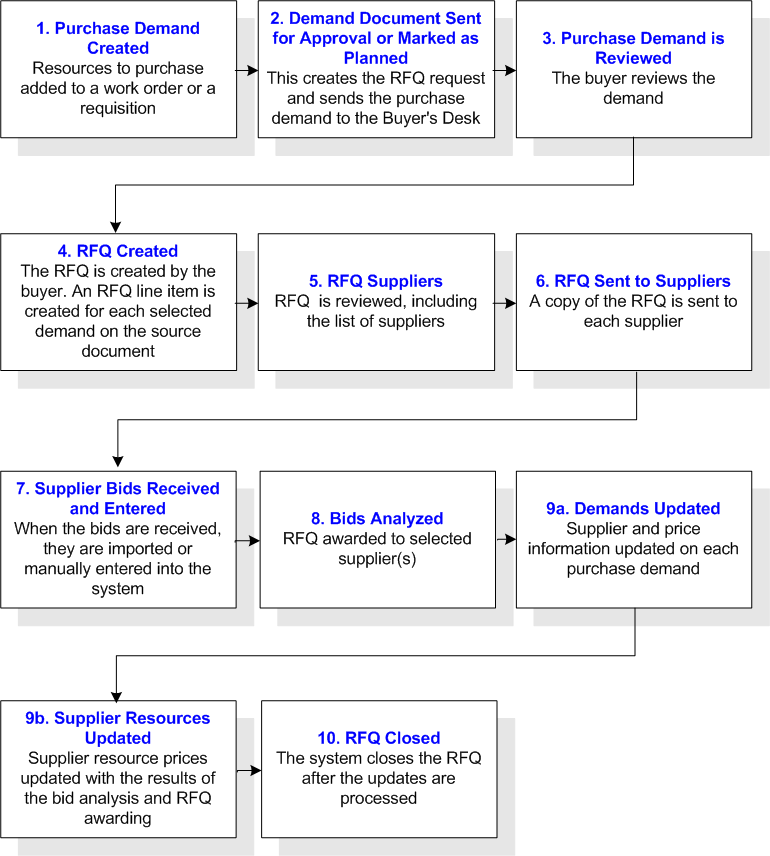
The life cycle of a “for demand” RFQ is shown in the following diagram.
The steps in the life cycle are:
TOP

Bid-Sheet RFQ Life Cycle

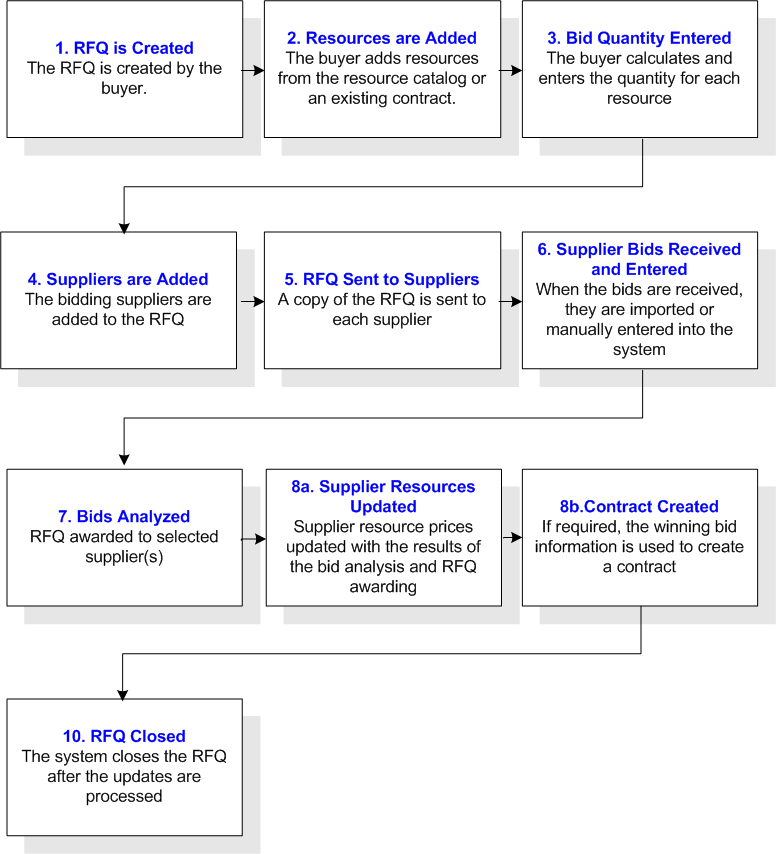
The life cycle of a catalog price RFQ for is shown in the following diagram.
The steps in the life cycle are:

Adding Resources to a Catalog Price RFQ and Calculating the Bid Sheet Quantity

Two of the unique characteristics of the catalog price RFQ are the large number of resources that can be included and the fact that the RFQ quantity represents the expected usage of the resource over an extended period of time (the next 12 months for example).
The system calculates the quantity to be bid on for a resource based on the quantity that has been received in a selected period of time. For example, when generating a bid sheet to supply parts for the next 6 months, each resource’s bid quantity is calculated based on the last 6 months of purchase receipts.
Receipts are used as the basis for the bid sheet quantity instead of issues for the following reasons:
TOP

RFQ Exchange Rates

An RFQ can occasionally have suppliers from one or more foreign countries. Some of these suppliers provide bid information in their domestic currencies, which might be different than the currency used by your site.
To facilitate bid analysis, all prices must be converted to your site’s currency. For this reason, exchange rates are required for each foreign currency included in the RFQ. The system automatically adds or removes currencies on an RFQ whenever a supplier with a different currency is added or removed. The system extracts the current exchange rates for the RFQ from the currency exchange rates defined for the enterprise.
Although RFQ exchange rates are not directly added to the RFQ by users, from time to time, the rate may need to be changed. For convenience, you can do this from the Tools menu on any RFQ. The exchange rates that you enter here are exclusive to this RFQ and do not affect the enterprise’s exchange rate settings.
TOP

Sending RFQs to Suppliers

These methods are available for communicating an RFQ to a supplier:
Mail: A copy of the document is printed to your default printer. You can then send the printout to the supplier by mail.
Fax: A copy of the document is faxed to the supplier. If the selected contact already has a fax number, the system enters it here. Otherwise, you must enter the fax number for this contact.
Note: Before you can send a document by fax, your APM administrator must have set up the Microsoft fax service.
Email: APM creates a report using the file format specified in Purchasing Management settings. The report is then attached to an email message and emailed to the supplier. If the selected contact already has an email address, the system enters it here. Otherwise, you must enter the email address for this contact.
You can export an RFQ bid sheet in Microsoft Excel format to one or more suppliers. On the RFQ, the supplier must be set to have the RFQ sent to them by email, and on the Email Info tab, the Spreadsheet option must be selected as the attachment type.
If you are sending an Excel spreadsheet to suppliers, they can enter their bid information in the document and email it back to you. You can then import the bid information into the RFQ.
Note: To send a purchasing document by email you must be using a MAPI-compliant messaging application such as Microsoft Outlook or Outlook Express.
Note: If you will be sending the document as an Excel spreadsheet, you must have MS Excel 2010 or later installed on your computer.
Phone: The document is communicated to the supplier in some other manner (for example, over the telephone). If the selected contact already has a telephone number, the system enters it here. Otherwise, you must enter the telephone number for this contact.
Courier: A copy of the document is printed to your default printer. You can then send the printout to the supplier using the selected courier.
For mail transmission, a cover letter is included with the RFQ containing the following text:
Heading: The heading shows the requesting site’s address, logo, telephone number, and fax number. The requesting site is the site that owns the RFQ. Also included is the current date.
Contact: The buyer’s name, title, and contact information (for example, phone, fax, email)
Issued To: The address of the supplier is identified on the RFQ
Bid Instructions: The bid instructions, as entered on the General tab of the RFQ
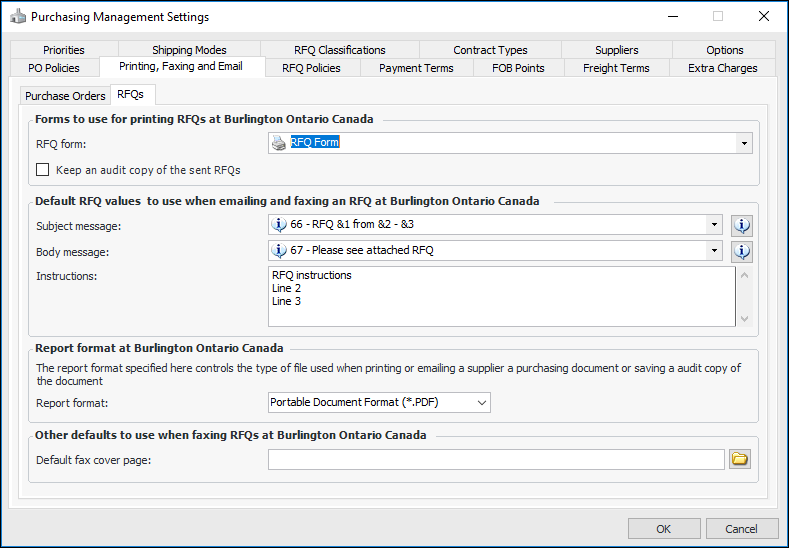
For email and fax transmission, you can specify the messages that will be used for the subject line and body. These are defined for the site in the Purchasing Management Settings, Printing, Faxing and Email tab, RFQs tab.

Using Email and Excel

Sending a supplier a copy of the RFQ in an email as an Excel spreadsheet has a number of advantages over sending a printed copy or even faxing a copy:

The RFQ Worksheets

The Excel spreadsheet contains two worksheets: a summary worksheet and a detail worksheet. The summary worksheet contains information about the RFQ as a whole and the bidding process in general. This includes:
The detail worksheet identifies the RFQ resources. A row is added to the spreadsheet for each resource on the RFQ. The following information is included for each resource and is not changed by the supplier:
Columns are included for the supplier to enter for the following:
Warning: Do not add or remove columns on the details worksheet or change the column headings. The information cannot be imported into the RFQ.
You can add information to the summary worksheet by editing the “RFQ bid information for export to Excel” table configuration, which is available in the Enterprise window, Customization Center view, User Interface tab, Configurations tab.
Note: You must log on to APM with the administrator privilege in order to add properties to the workbook header. See Logging on as an Administrator.
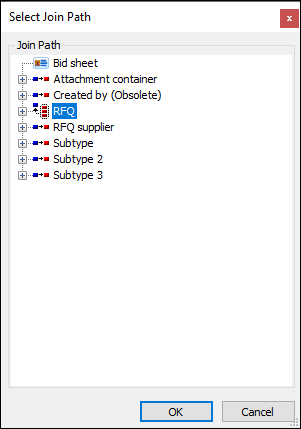
In the Configuration dialog, select the Export to Excel and Workbook Header tabs. Click Browse to open the Browse Model for Excel Header dialog. You can select attributes and relationships for the available classes or add a join path to a related class. For example, the RFQ number was added to the header by setting the join path from Bid sheet to RFQ.
Once the join path is set, the attribute RFQ number is then available for selection in the Browse Model for Excel Header dialog.
Note: Only properties that can be accessed by cardinality-1 relationships can be selected.

Importing the Supplier’s Bid

After suppliers receive the RFQ in an Excel spreadsheet, they can enter their bid information and email the spreadsheet back to the buyer. The buyer can then import the bid information into the RFQ.
Before the RFQ is updated with the supplier’s reply, the system scans the spreadsheet for errors. If any errors are found, the system attempts to correct the error and creates an error message. Some possible errors are:
After the import is complete, you can review the error messages and make any necessary corrections.

Manually Entering a Supplier’s Bid

If you have not sent the supplier an Excel spreadsheet (for example, you used a mail, fax, or verbal contact method), you can manually enter the supplier’s bid into the RFQ. When entering the bid, you can record:
TOP

Analyzing RFQs

When all the RFQ suppliers’ bids are either entered or declined, the RFQ has the status of “All bids received” and the bids are ready to be analyzed. The bid analysis function provides a quick and easy means to compare and rank the suppliers’ bids. The purpose of this analysis is to determine the winning supplier (if the RFQ is awarded to one supplier) or the winning suppliers (if each resource is awarded individually).
Several bid ranking options are provided:
For each RFQ, you can use any one of these ranking methods or a combination of ranking methods to determine how the RFQ will be awarded.

Best Total Cost

With the total cost analysis, the total cost of each supplier’s bid is calculated by multiplying the required quantity by the supplier’s price to determine the total resource cost. Discounts, loaded taxes, and loaded extra charges are all included when calculating the total resource cost. The cost of the all of the resources is summed to give the supplier’s total bid cost. The suppliers are ranked from first (lowest bid) to last (highest bid) based on the total cost of their bid. For example:
If a supplier has declined to bid on one or more individual resources, a total cost analysis will not be relevant for that supplier.

Most Number 1 Rankings

With the most “number 1” rankings method, the system analyzes each resource and determines the highest ranked supplier for the resource. This can be the supplier with the lowest cost or with the shortest lead time (depending on the ranking method selected for each resource). Then, suppliers are ranked based on the number of resources for which they are the leading supplier, as shown in the following table.
As you can see, supplier C is ranked second, despite having the lowest total bid cost.

Excluding Suppliers From Analysis

If appropriate, you can exclude one or more of the supplier bids from the analysis. Because one of the goals of purchasing is to limit the number of suppliers dealt with, excluding a supplier’s bid from the analysis can help with this goal.
For example, after running the total cost and number 1 rankings analyses, you can see that suppliers A and D are both at the bottom of the list. To get a more accurate comparison of the other suppliers, at this point you can decide to remove the A and D bids from further analysis.
After excluding these suppliers, the number 1 rankings analysis is now:
At this point, you can see that supplier C is ranked number 1 for both total cost and number 1 resources. You might now decide to award the entire RFQ to supplier C or to do a more detailed analysis of each resource.

Ranking Bids For Each Resource

You can analyze the bids for each resource on an RFQ independently. You can rank supplier resource bids either by cost or by lead time. Each resource on an RFQ can be ranked using a different method.
When you rank resource bids by cost, the supplier with the lowest cost for the resource is ranked first. Discounts, loaded taxes, and loaded extra charges are all included when calculating the total resource cost. Suppliers that have not submitted a bid for the resource or that have declined to bid on the resource are excluded from the ranking. Suppliers that have been manually excluded from analysis are also not ranked.
When you rank resource bids by lead time, the supplier with the shortest lead time is ranked first. The supplier with the longest lead time duration is ranked last. For example, if supplier A’s bid for a resource has a lead time of five days and supplier B’s bid for the same resource has a lead time of six days, supplier A is ranked 1st and supplier B is ranked 2nd.

Breaking Ties

In the case of a tie in any ranking method, the following rules are used to break the tie:
1.
2.
If the bids were ranked by total cost, the system ranks a supplier with more number 1 rankings ahead of a supplier with fewer number 1 rankings.
3.
If the bids were ranked by lead time, the system selects the supplier with the lowest cost.
4.
5.
6.
7.

Ranking Bids Manually

You can manually rank suppliers on an RFQ. This method is used when you want to set the number 1 supplier, regardless of any previously used ranking methods. You can manually set the number 1 supplier for the entire RFQ or for an individual resource.

Locking Rankings

Once you are happy with the supplier bid rankings for a resource, you can lock the ranking so that it cannot be changed by further analyses. If you later want to change a locked ranking, you can unlock it.
TOP

Awarding RFQs

The last step in the RFQ life-cycle is to award the resources to one or more suppliers. An RFQ resource is awarded to either:
The award process varies, based on the type of RFQ. For demand RFQs, awarding the RFQ performs the following:
For catalog price RFQs, the following steps are performed:
TOP

Multi-Site Considerations

The following rules apply to an RFQ in a multi-site environment:
In a multi-site environment in which sites use different currencies, note that the RFQ’s base currency cost, supplier bid cost, and bid information are recorded in the RFQ’s site currency. However, when the RFQ is awarded and the resource demand is updated, the RFQ values are converted to the resource demand’s site currency.
TOP