Modifying Standard Reports

APM comes with a number of standard (or “canned”) reports. Rather than creating a report from scratch, it might sometimes be easier to create a custom version of a standard report.
Note that when you customize a standard report, the customized version replaces the standard version. For this reason, any changes made to a standard report should be documented so that the changes can be “reversed” if necessary.
Note: Only one user at a time can work on creating custom reports. This is because all custom reports are stored in the database. If one person uploads custom reports to APM, and then a second person also uploads custom reports, the first person’s reports is overwritten. The second person’s file replaces the first uploaded file.
This topic explains how to modify an existing report. To create a new report, see Creating a Custom Report.

To Modify an Standard Report

1.
2.
To customize a site report, from the Site window select the Print menu and then Create Custom Report.
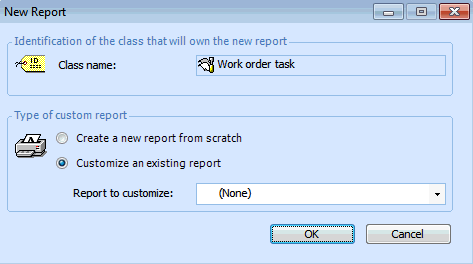
The New Report dialog appears.
3.
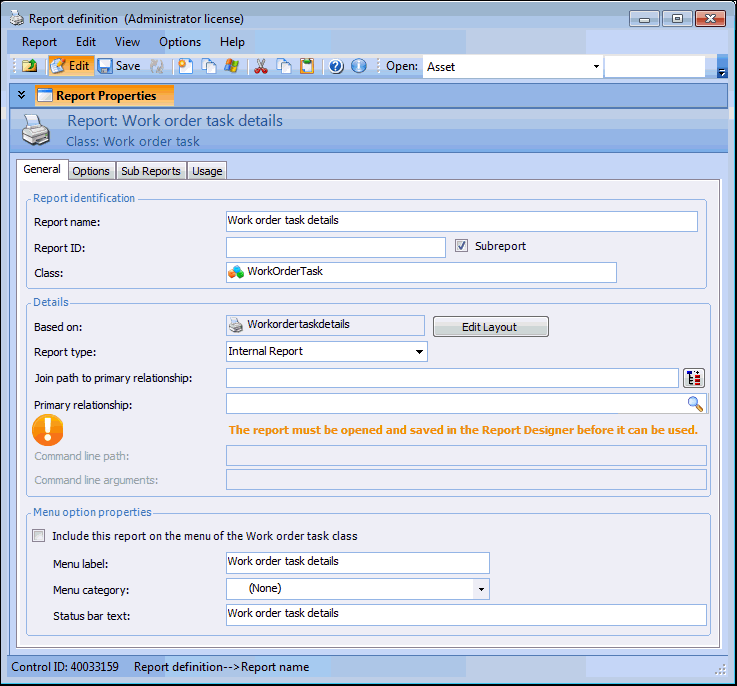
Select Customize an existing report. In the Report to customize box, select the report that you want to modify. Click OK. The APM Report window opens. For example:
4.
Make any required changes on the General and Options tabs. Save the report.
5.
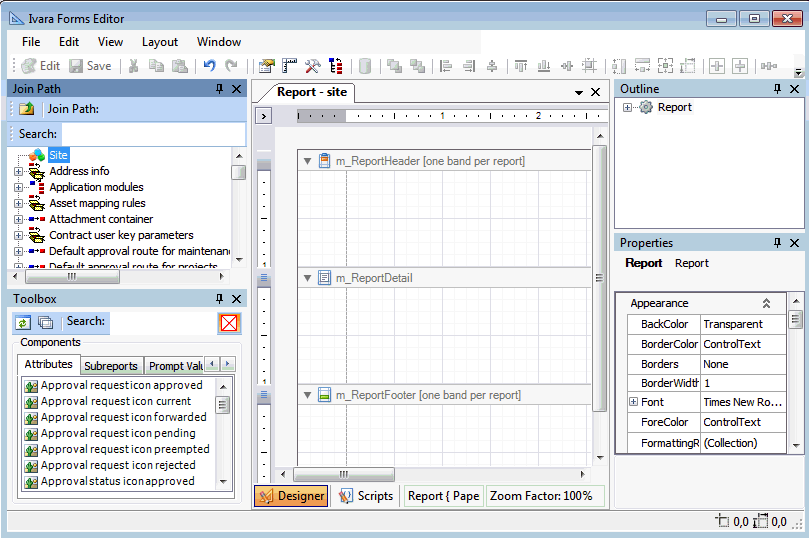
Click Edit Layout. The APM Forms Editor opens. Here you can add or remove fields, apply filters, sorts, and calculations to the fields, or add new data groups.
6.
Select a join path. The Join Path panel includes all of the possible lists on the class for which you are creating the report. For example, a Site report will include Work Orders as a possible data group, and a report on Work Order will include Tasks as a possible data group.
If you want, you can select an attribute from a related class using the Join Path box. Expand the Join Path hierarchy. Select the class in the hierarchy that owns the list that you want to add to the report. The attributes for the selected class now appear in the Attribute list.
Drag the attribute from the Toolbox panel, Attributes tab onto the layout panel. Position the attribute on the appropriate report band. You can right-click the attribute to set its properties.
For detailed instructions on adding fields, see Adding Fields to a Report.
7.