Creating a Summary Field

You can create a summary field for data included on APM reports. Only labels that are numeric or that have a date-time format can be calculated as a summary.
Some data fields might be included on the report design, but might be hidden when the report is previewed or printed. These are included as a way to provide a calculated field on the report.
The process of creating a summary field on a report in APM involves two basic steps:
The following steps explain how to perform these steps.

To Create a Summary Field

1.
2.
3.
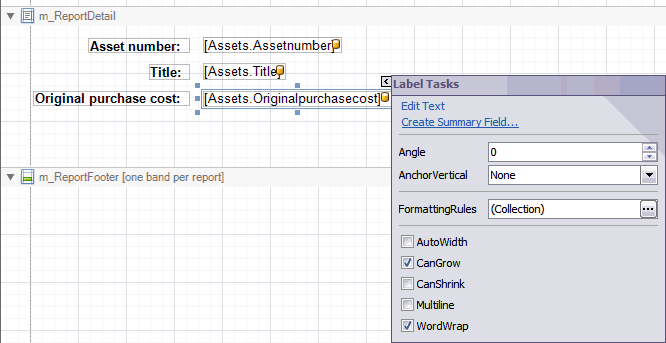
In the Forms Editor Toolbox panel, click the Attributes tab. Locate the attribute that you want to add to the report and drag it onto the layout panel. For example, add the asset’s original purchase cost to the report.
4.
5.
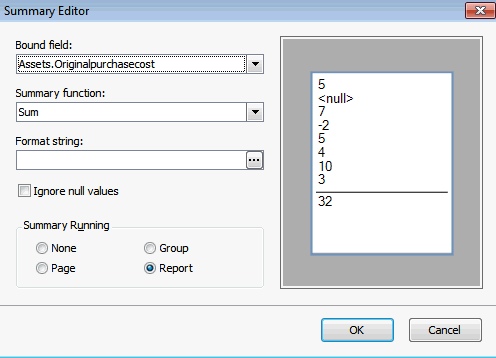
Click Create Summary Field. A Summary Editor dialog opens. The attribute field selected appears in Bound field.
6.
Select the Summary function type to apply. For a numeric field, choose from the following functions:
Avg: Calculates the average of all of the values
Count: Counts the number of values
Sum: Calculates the total of all values
Running Sum: Summarizes all the values printed before the current data row with the current data row’s value.
Percentage: Calculates the percent ratio of the current data row’s value to the total of all values.
Min: Calculates the minimum of all values
Max: Calculates the maximum of all values
Each of the functions apply to all of the values in the specified summary region (page, group or report).
7.
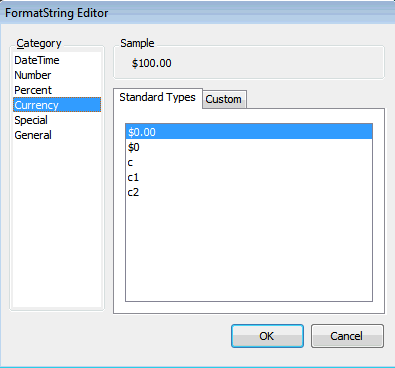
Click the ellipses in the Format string field to open a FormatString Editor dialog. In the category list, select the category to use and then on the Standard Types tab choose select the appropriate format. For example, if summarizing costs you may choose the category Currency and the format of dollars and cents, as shown below:
8.
Click OK. The dialog closes and you are returned to the Summary Editor.
9.
Click in the box beside Ignore null values if you want the values to be ignored when a summary is calculated. If they are included they will be treated as zeros. This will impact the calculation if averaging is used.
10.
If you want a Running Summary for the calculated field, select one of the radio buttons to indicate the summary level. For example, to have a running summary on each page, select the Page option. To have a running summary to the end of the report, select the Report option. Click None if you do not want a running summary.
Note: If you select a running summary option other than “None”, a summary field is automatically inserted to the appropriate place on the report.
11.
Click OK to close the Summary Editor dialog. You are returned to the APM Forms Editor window.
12.