Creating a Report Category

Report categories can be created and accessed from the print menu of an object.
This topic explains how to create a report category.

To Create a Report Category

1.
2.
At the Enterprise level, select the Customization Center view, Reports tab, and then the Categories tab. A list of available report categories is shown.
3.
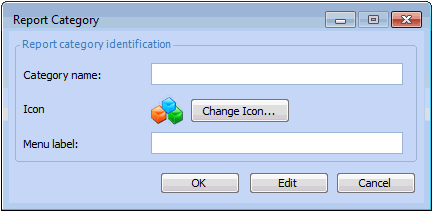
Click New to create a new report category. The Report Category dialog appears.
Tip: Report categories can also be created from the Report Definition Properties view, General tab, by right-clicking the Menu Category box and click New. The Report Category dialog appears.
4.
The text that you want to appear as the sub-menu in either the site’s Reports menu, or in the object’s [object name], Print menu (for example the Work Order, Print menu).
5.
When you are finished, click OK to close the Report Category dialog.