Creating a Custom Report

You can create and edit custom reports to provide APM users with the information that they need. You must launch APM with the administrator privilege to add or modify reports. All users can print standard and custom reports.
For information about the administrator privilege, see Logging on as an Administrator.
There are four main steps to creating a custom report:

Access the class that will own the report

One way to create new reports is from the object that will own the report. For example, to create a report for assets, open an asset view. This automatically sets the owning class to Asset, and will allow you to create a report using data contained in a single asset. However, this will not allow you to create a report for all assets on a site. To do this, you would need to create a site-level report from a site view.

Define the report

Enter the basic report settings, and edit the layout.

Define Subreports

You can add lists of items to your report as subreports, such as work order task requirements. For example, if you create a report that is owned by the Site class, you could add a subreport to list the site’s work order tasks. Then, to add the list of requirements for each work order task, you would create a subreport on the Work Order Task report. You can include multiple reports at each level, up to four levels deep in the hierarchy. The subreports will appear as subsections within the root report when it is generated.

Generate the report

APM provides standard reports, which can be modified if necessary. You can also create custom reports. Reports are edited or created using the report designer tool.
Typically, a report is created with a primary relationship such as Asset or Work Order. The join paths for the selected class are available to include in the report. The report’s attributes are limited to attributes and relationships defined in the primary relationship class.
If a primary relationship is not specified, the report is a site report and will only contain site-specific information. Any details other than site details, must be included using subreports in the report details section.
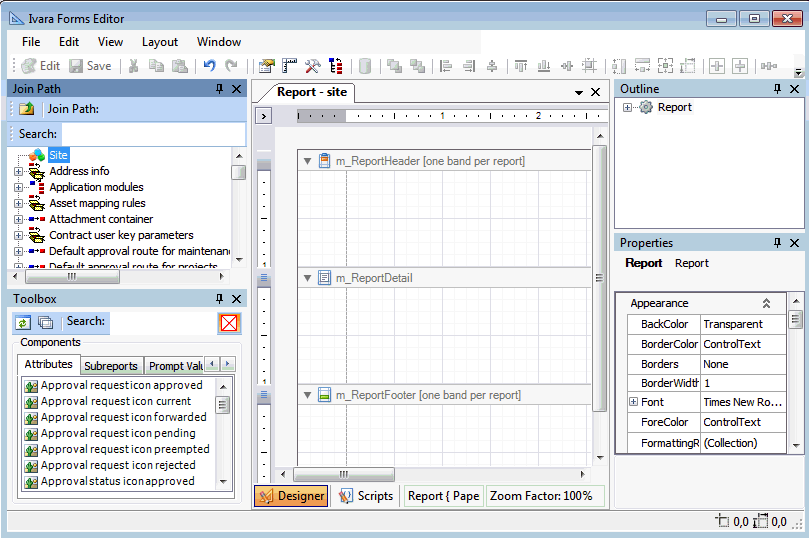
Once the report relationship is determined, the report structure is “built”. The report designer utility that is used is similar to the APM Forms Editor. It consists of five panels: Join path, Toolbox, Outline, Properties, and a layout panel. The layout panel includes several report bands that contain the report attributes, controls, and accessories.
Classes are selected from the Join path panel; the related attributes appear in the Toolbox panel. The report is created when the attributes are dragged from the Toolbox onto the layout panel report bands. Accessories such as panels, images, lines, and page numbers can be added to the report bands as well. You can add filters and sorts so that the report is generated in the most suitable format. Finally, properties are defined for each of the report fields and controls.
Once you have created a report definition in APM, the report must be saved. It then becomes available to all users, depending on their level of access. When the report is saved and generated, APM creates an SQL statement that is used as the basis of a new view on the database. The system then links the database view to the database file and creates a report layout in APM.
When a custom report is generated, pre-existing views for that report are dropped and then re-created. For ad-hoc reports, the view is only created if it does not already exist. When a report is run, the view is created if it does not exist and the view is re-linked to the database.
Note: Only one user at a time can work on creating custom reports. This is because all custom reports are stored in the database. If one person uploads custom reports to APM, and then a second person also uploads custom reports, the first person’s reports is overwritten. The second person’s file replaces the first uploaded file.
This topic explains how to create a new custom report from scratch. To modify an existing report, see Modifying Standard Reports.

To Create a Custom Report

1.
From the Enterprise, select the Customization Center view, Reports tab, and then the Custom tab.
2.
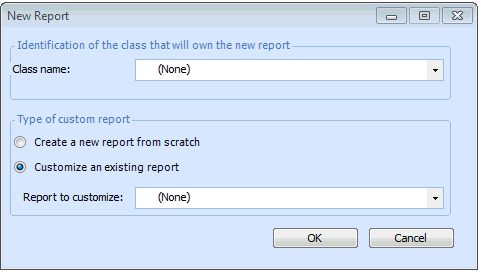
Click New Custom Report. The New Report dialog appears.
Tip: You can also create a report by opening the view of the object for which you want to create a report. For example, to create a report for work order tasks, open a work order task. From the object’s menu (for example, the Task menu), select Print, then select Create Custom Report.
3.
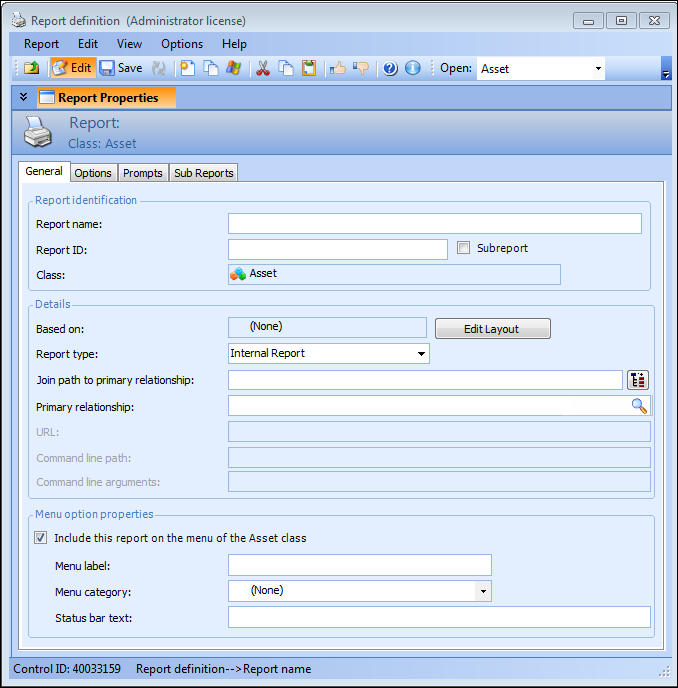
Select Create a new report from scratch, and then click OK. The Reports Definition window appears, open to the General tab.
4.
5.
Select a Report Type from the list. Your options are: External Method, External URL, and Internal Report.
6.
In the Primary relationship field, click Browse to select a relationship from the Relationship Selector dialog. When you are finished, click OK to close the dialog.
Select this option to have the report listed as an option on the Print menu for the class that owns the report (for example, the Asset, Print menu).
The text that you want to appear as the sub-menu in either the site’s Reports menu, or in the object’s [object name], Print menu (for example the Work Order, Print menu).
Tip: You can create categories for reports from the Enterprise, Customization Center view, Reports tab, Categories tab. For more information, see Creating a Report Category.
7.
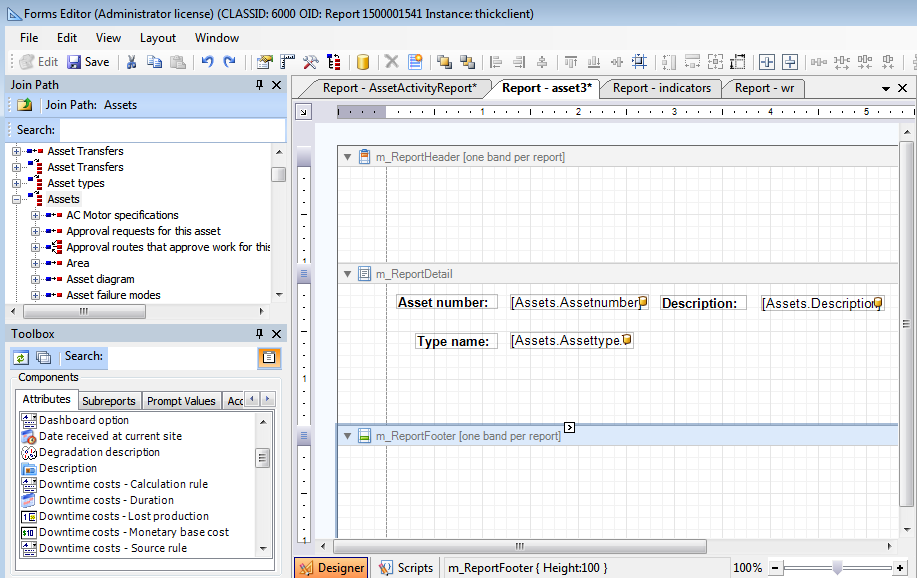
Save the report and then click Edit Layout. The APM Forms Editor opens.
8.
In the Join Path panel, expand the category selected in step 6 and then from the Toolbox panel, Attributes tab, drag each of the attributes for this report into the Report Detail band of the layout panel. For example:
 
9.
When you are finished designing the layout of the report, from the File menu select Save all and then Exit, to close the APM Forms Editor and return to the Report Definition window.
10.
On the Options tab, select the following:
11.
Select the Prompts tab to add prompts to this report. For more information, see Adding Prompts to Reports.
12.
13.
14.