|
Adding a Replacement Serialized Unit to a Work Order
To Add a Replacement Unit to the Work Order
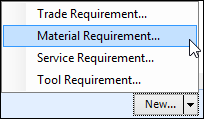
2.
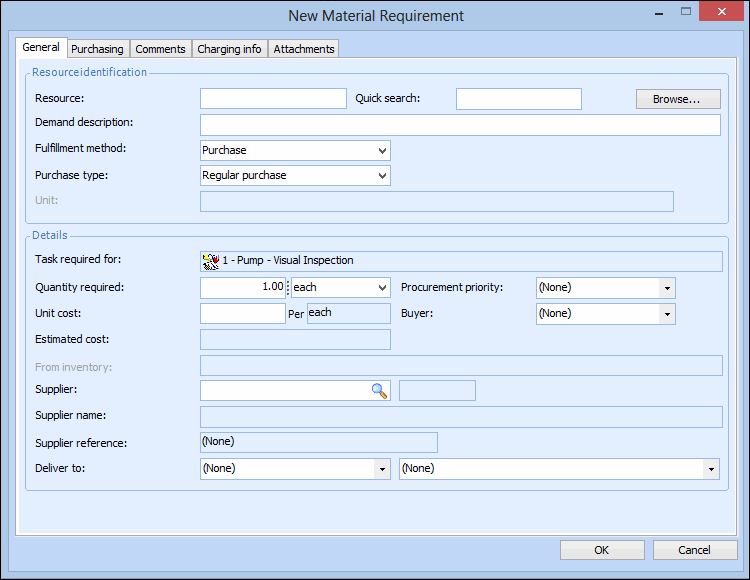
3. In the Resource Identification area, enter the number of the serialized resource, or click Browse to select the serialized resource from the Browse Catalog dialog list and click OK.
4. For units linked to assets, additional Install and Remove tabs appear on the dialog. The Install tab will remain blank until the unit is issued from the warehouse. The Remove tab will contain the removal information for the failed component (the asset to work on).Check that this information is correct, and select the New status for the component after it is removed (e.g. ‘Awaiting repair action’ or ‘Repair on site’).
5. Click OK to save and close the requirement.Note: For units linked to assets, planning the material requirement for a serialized resource also creates a planned removal on the Component Activity tab of the work order. The information on the planned removal will be updated when the replacement component has been issued.