
Reporting an Asset Status Change on a Repair Work Order Task

As you complete a repair task, you can use the work order task’s report activity function to update the asset’s status and asset life information. This will update only the asset status, not the inventory unit status. For units not linked to assets, you can report activity, but the inventory status will not be updated through the work order. You will need to create transactions to track the status of the unit when it is repaired.
For more information on reporting work activity for a work order task, see Reporting Work Activity for a Work Order Task.

To Report Activity for a Repair Work Order Task
1.
From the site’s Work Orders view, right-click on the work order task, and then select Report Activity. The Report Activity dialog appears.
2.
3.
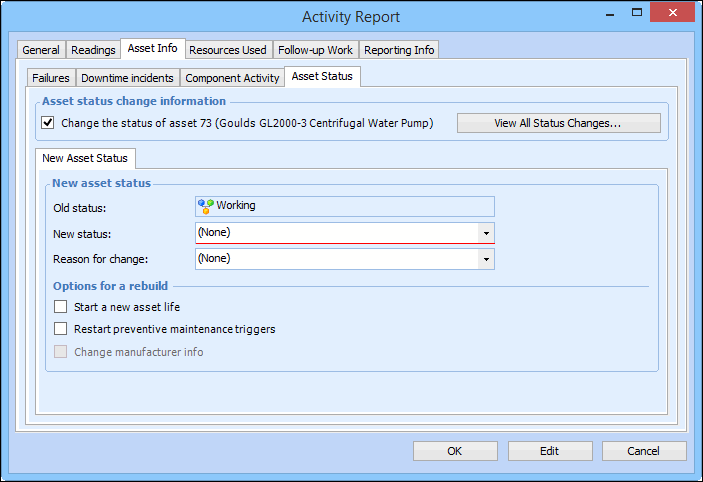
Select the Asset Info tab, and then the Asset Status tab. For example:
4.
Select the An asset status change is planned for when this task is closed check box. This will update only the asset status, not the inventory unit status.
5.
Select the new status from the New status list. For example, you can change the status to ‘Awaiting Restock’, or ‘Spare’.
Note: If you change the asset’s status to ‘Spare’, the inventory status will not be updated. You must still create a Return to Inventory transaction to re-stock the asset in the warehouse. The asset cannot be re-issued unless it’s inventory status is also ‘Spare’.
6.
7.
8.
Click OK to save your changes. The system will update the asset’s status and life information when you close the work order task.