
Creating Purchase Orders for New Units of a Serialized Resource

If your organization does not use requisitions, you can simply create a new purchase order to purchase new units of a serialized resource. If your organization does use requisitions, you can turn approved requisitions into purchase orders. For more information on turning a requisition into a purchase order, please see Turning a Requisition into a Purchase Order.
Note: You cannot use manual requisitions to purchase new units. Resource units requisitioned on a manual requisition cannot be received into inventory.
This topic explains how to create a new purchase order to purchase new serialized resource units.

To Purchase New Serialized Resource Units on a New Purchase Order
1.
2.
Select a Supplier and enter the purchase order Title.
3.
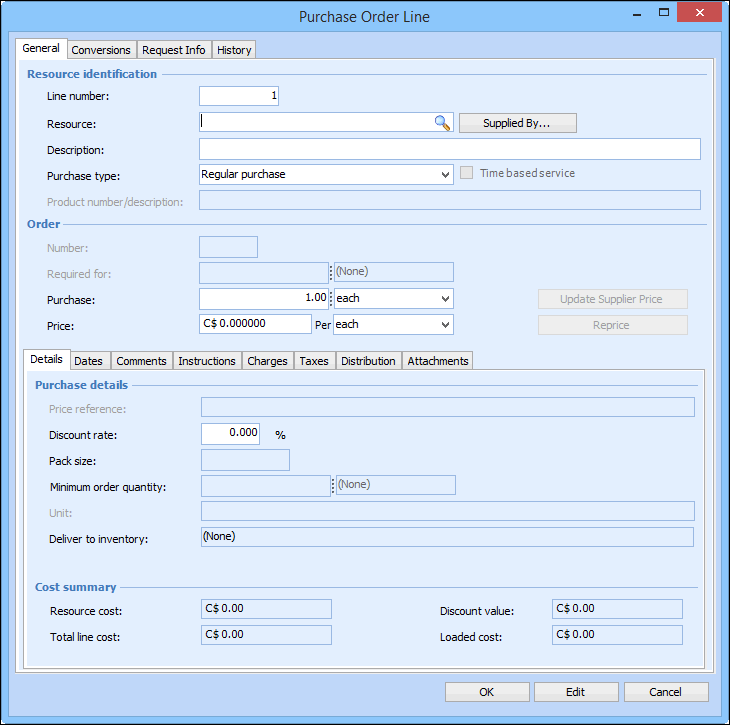
On th General tab, select the Lines tab, and then click New. The Purchase Order Line dialog appears. For more information, see Adding Lines to a Purchase Order.
4.
5.
In Purchase Type, select Regular Purchase.
6.
7.
Select the Distribution tab. Ensure that the purchase is being charged to the warehouse which will be stocking the units.
Note: If the purchase is not charged to a warehouse, you will not be able to create new units when you receive the purchase order.
8.
9.
Click OK to save and close the Purchase Order Line dialog. The line is added to the purchase order.
10.
Repeat steps 3 to 9 to add more lines.
11.
Click OK to save and close the Purchase Order dialog. The purchase order appears in the list of Open Purchase Orders.